


When reconnecting an Instagram profile in Minter.io, you may run into an issue where you click "Reconnect" and grant permissions on Instagram, but the report still shows as disconnected.
Why this happens
When you click Reconnect, Instagram opens its permission screen using the profile that is currently logged in on your browser. If you are logged into a different profile than the one you meant to reconnect, you end up granting permissions for that profile instead, and the disconnected report stays disconnected.
How to reconnect the right profile
Click Reconnect on the report you want to restore.
On the Instagram permission screen, check the username shown at the top.
If it is not the account you want to reconnect, click "Log into another account" and sign in with the correct profile.
Grant permissions and you will be returned to Minter.io.
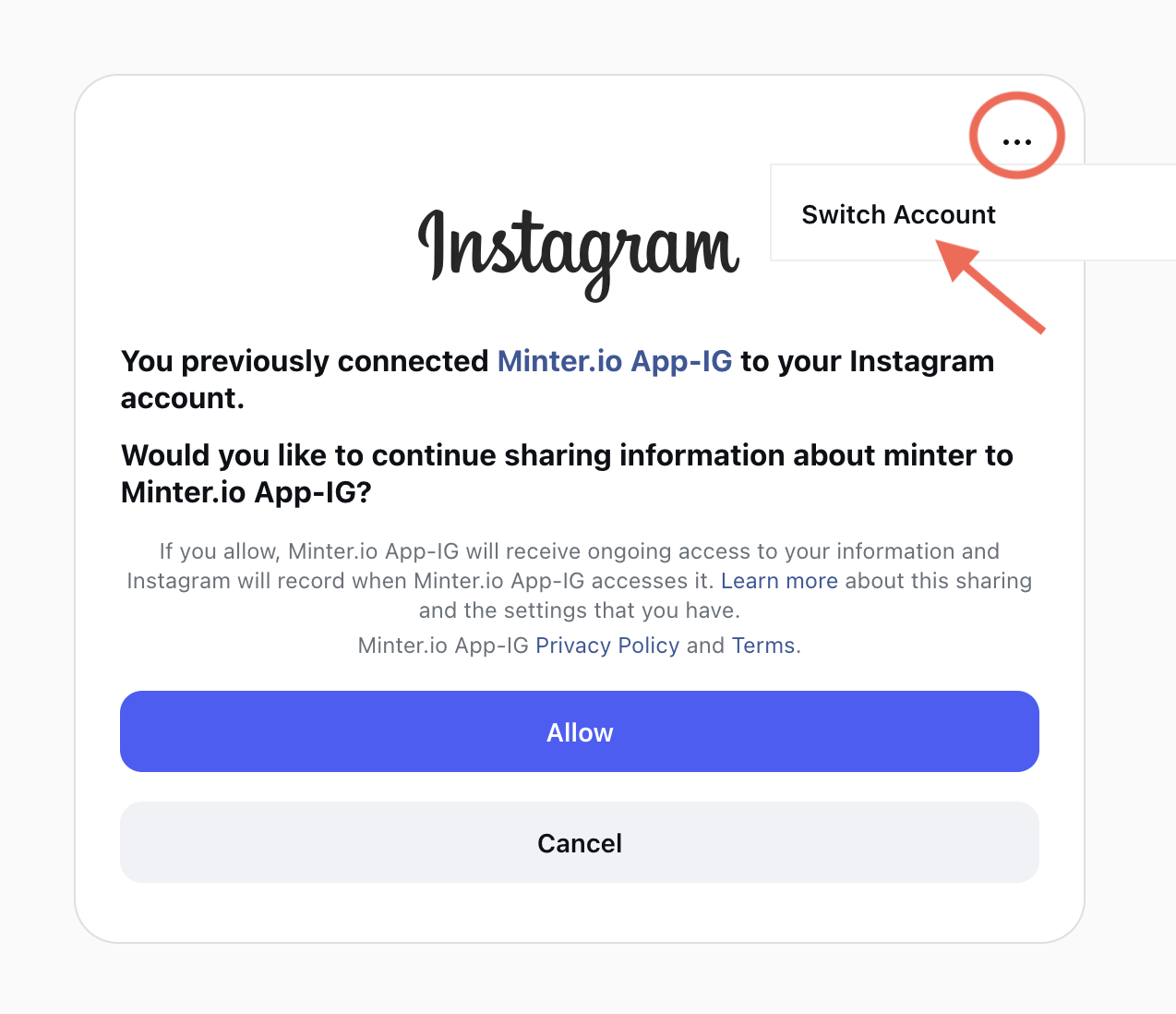
Alternatively, log out of Instagram first. If the permission screen does not offer a way to switch profiles, log out of Instagram before reconnecting:
Open instagram.com in the same browser and log out of the current account.
Log in with the account you want to reconnect.
Go back to Minter.io and click Reconnect on the report.
Grant permissions and you will be returned to Minter.io.
If you have any questions or need help connecting your social accounts, contact us at support@minter.io.