How to use the NEW Shared Collection feature on TikTok
If you save a post to your TikTok Favourites and a little voice pings in your mind saying, “Share this one with your bestie,” this new TikTok feature is itching to be your new friend. TikTok Shared Collections is the tech that teams up two friends so they can tickle each other’s eyeballs and earholes with the latest laughs, timeless favourites and trends to try, all from a space shared across both profiles. What’s more, this feature isn’t just built for the people you choose to have in your life; it’s also incredibly handy for the colleagues, social media managers and team delegators among you.
You may be familiar with Collections. If you’re not, we introduced the ins and outs of this long-loved TikTok feature in our article How to create, edit and delete TikTok collections, which you can read here. If you are a Collections aficionado however, this latest addition could be the key to unlocking even more possibility with your Favourite posts on TikTok.
Collections vs Shared Collections
TikTok Collections is a place to organise the chaotic heap of every TikTok post you’ve ever saved to your Favourites. Finding, watching and sharing the content you love is so much easier when you essentially pop it into an album that makes sense. What’s more, you can make a Collection public, so people who wander onto your profile can also be invited into an extra dimension of your world if you want to open that door.
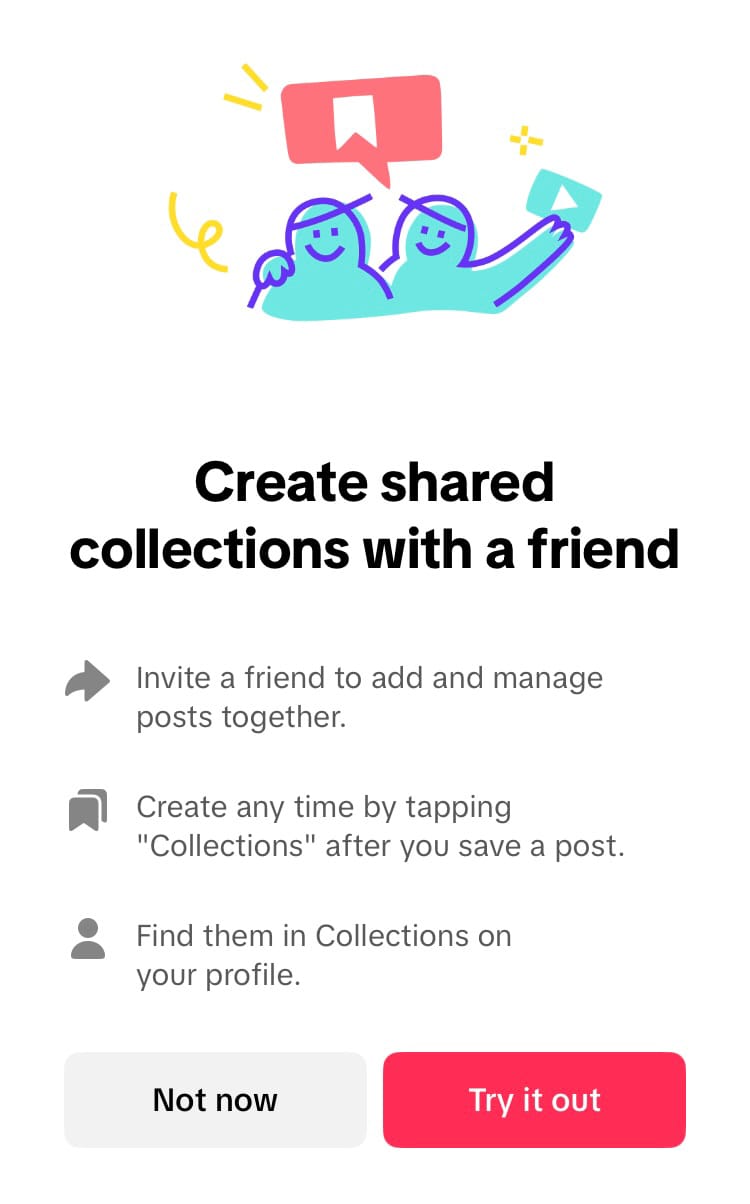
Shared Collections is similar to regular Collections. The key difference is that two friends (accounts that follow each other) can both pour their favourite content into the same Collection. Both friends can view, add to, edit and delete the Collection. Whether you choose to share your favourite memes, a specific interest, or gather ideas with someone else, Shared Collections is a dedicated space to do this. The Shared Collections feature is available globally to anyone over 16. Currently, a Shared Collection cannot be made public.
Sound good? Let’s get one set up…
How to create a Shared Collection on TikTok
There are a few ways to create a Shared Collection. Here are some examples.
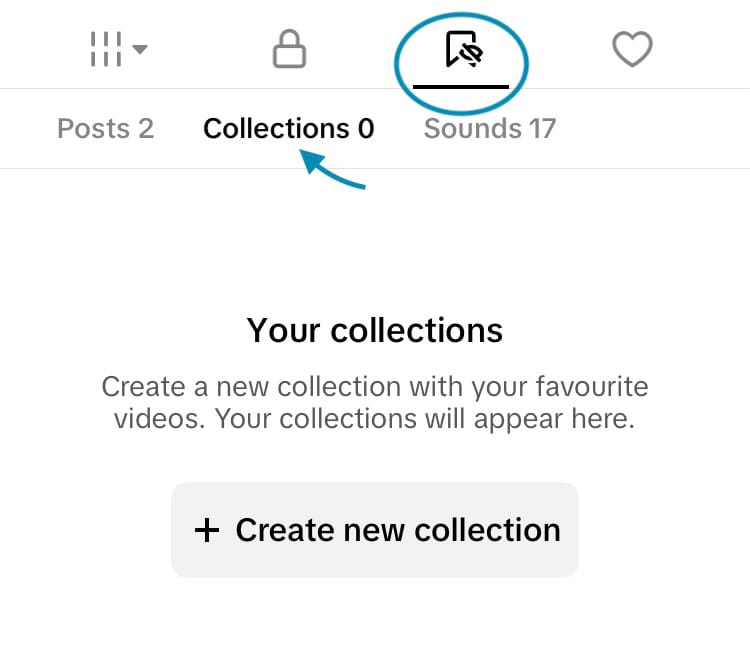
From your profile:
- Head to your TikTok profile.
- Go to your Favourites tab.
- Tap ‘Collections’.
- Choose ‘Create new collection’.
- Add a name.
- Select ‘Share with a friend’.
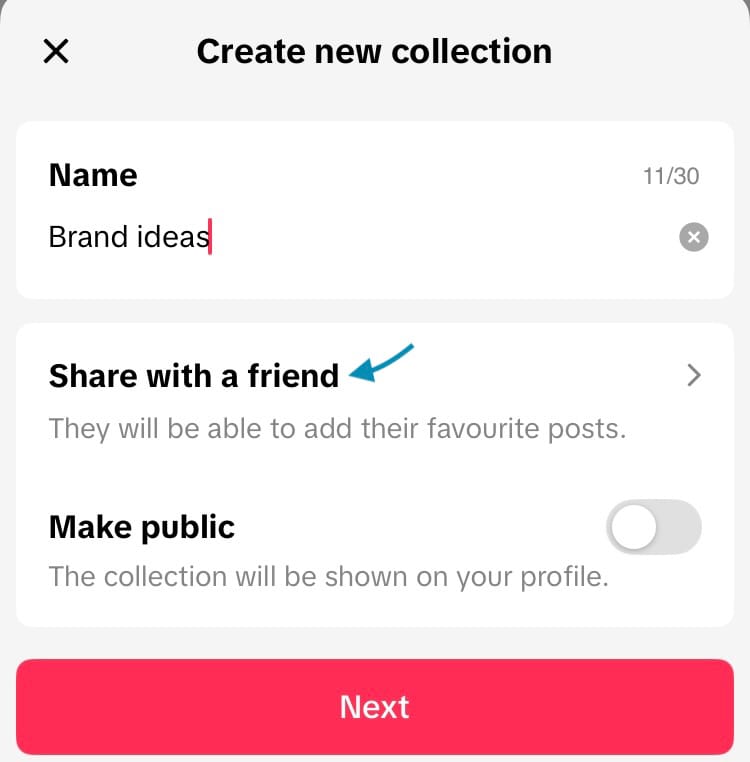
How to create a Shared Collection on TikTok (Steps 1-6)
- Choose the friend you wish to share the collection with. It must be an account that follows you back.
- Tap ‘Confirm’ at the bottom of the screen.
- Select the ‘Next’ button.
- Choose posts to add to the collection by hitting the circle icons in the top right-hand corner of each piece of content. You can only add content that you have already saved to your Favourites.
- Tap the ‘Add posts’ button at the bottom of the screen.
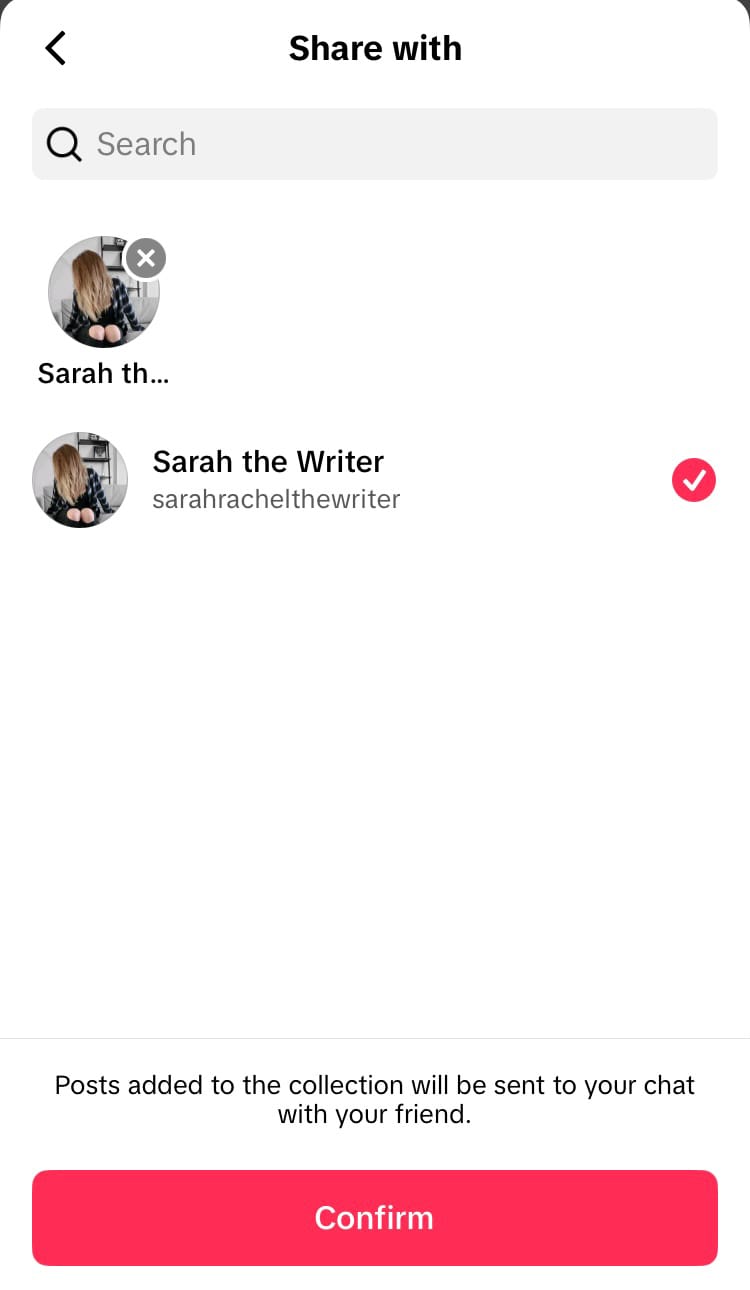
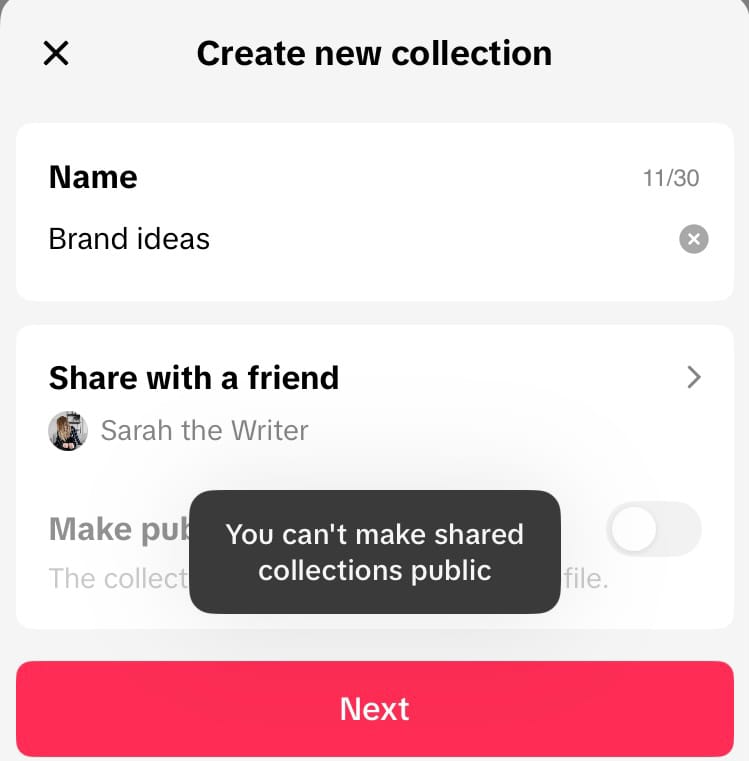
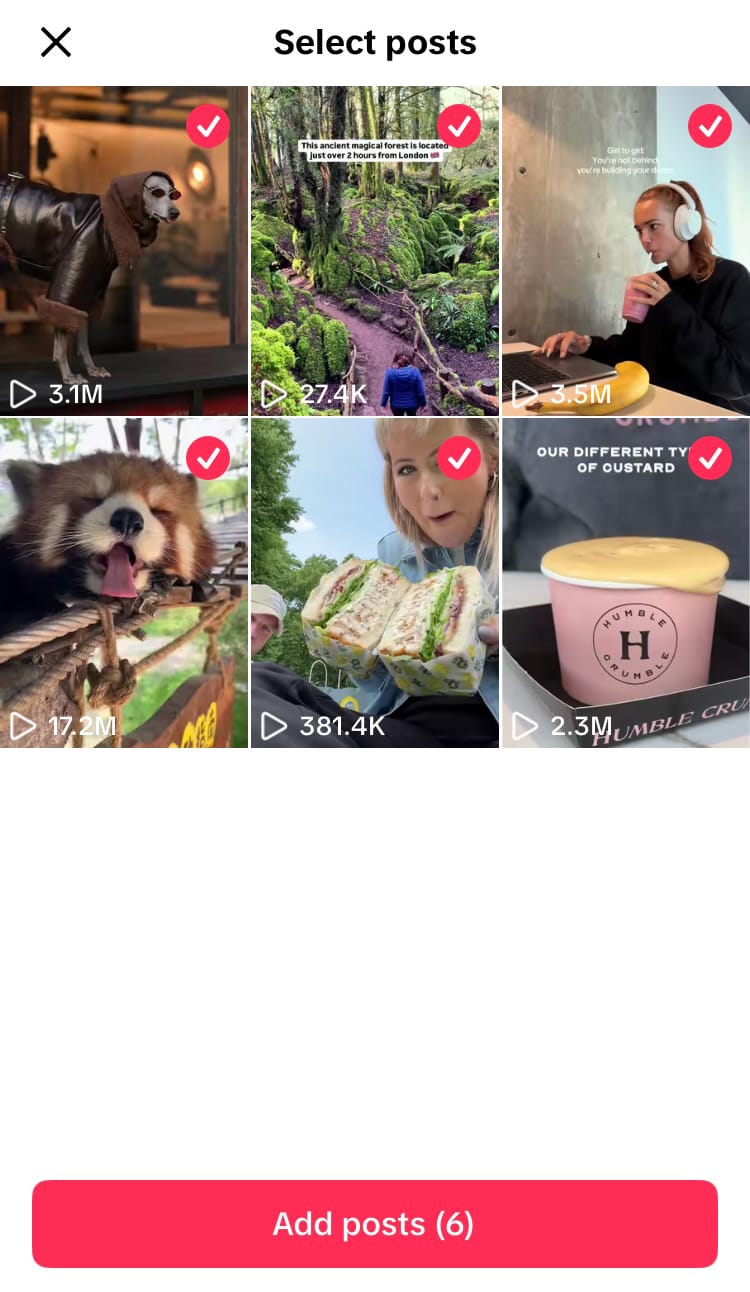
How to create a Shared Collection on TikTok (Steps 7-11)
When you save a post to your Favourites:
- When viewing a piece of content, hit the bookmark icon to save it to your Favourites.
- Tap ‘Collections’ from the pop-up bar at the bottom of the screen.
- Choose ‘Create new collection’.
- Add a name.
- Select ‘Share with a friend’.
- Choose the friend you wish to share the collection with. It must be an account that follows you back.
- Tap ‘Confirm’ at the bottom of the screen.
- Select the ‘Save’ button.
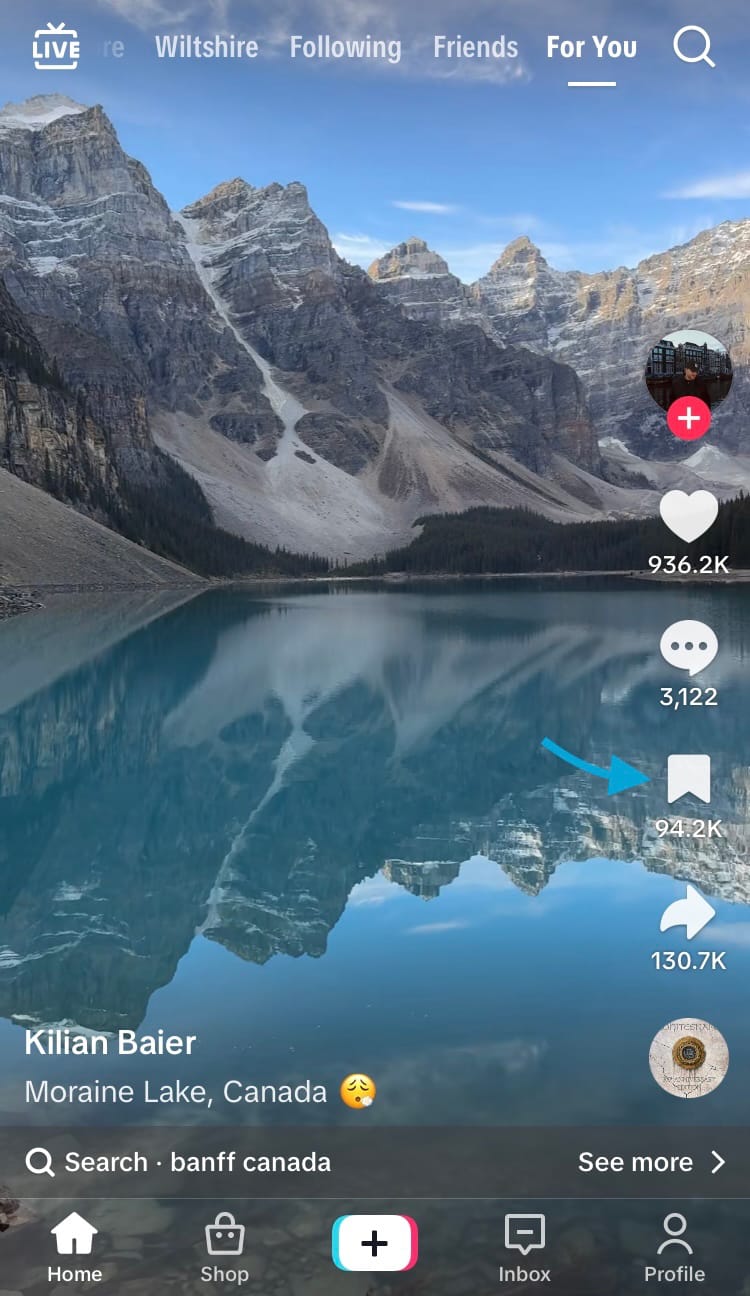
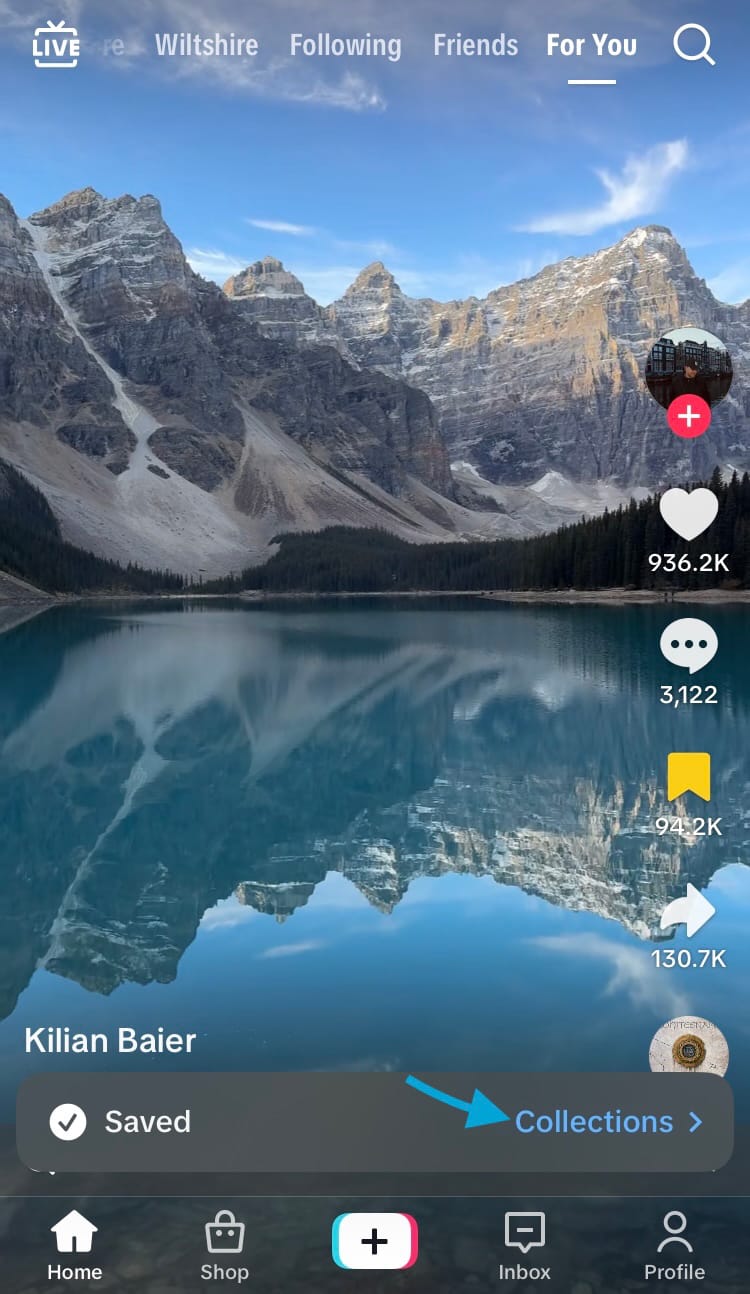
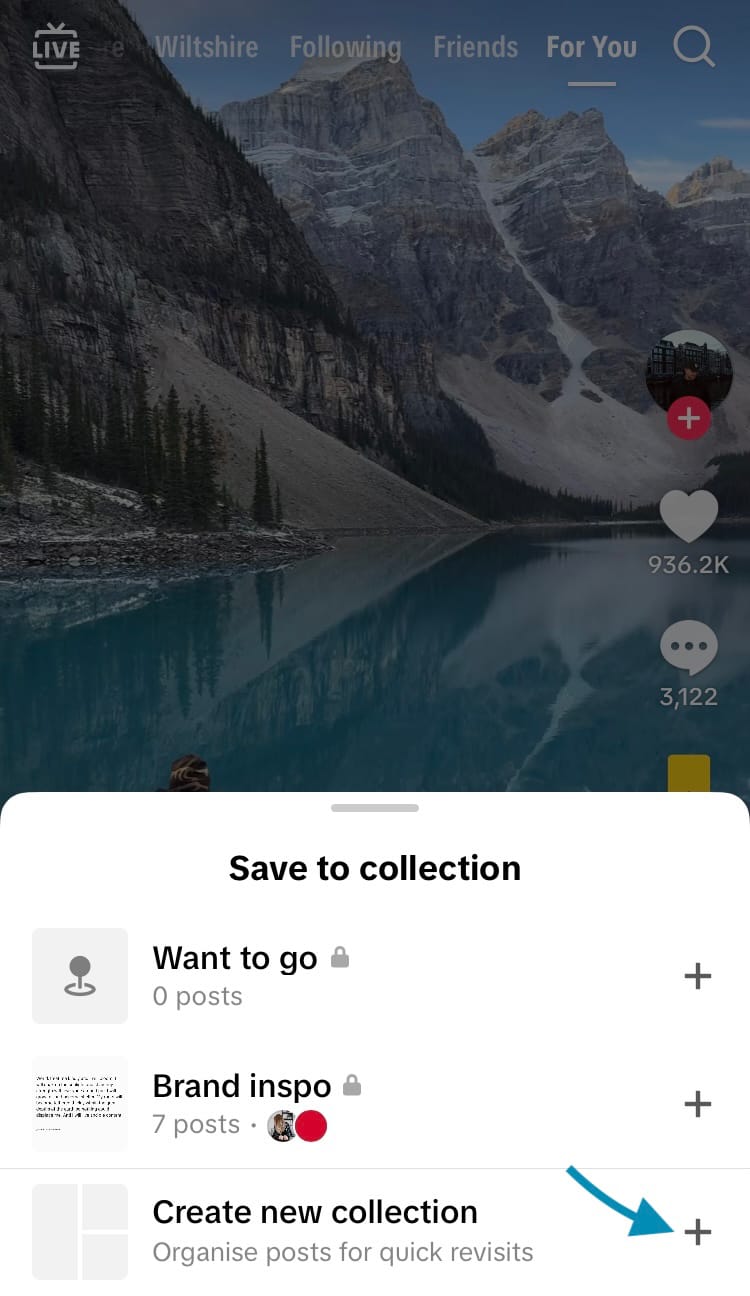
How to create a Shared Collection on TikTok (Steps 1-3)
N.B. You cannot add the same post to multiple collections.
How to access a Shared Collection
There are multiple places you can access a Shared Collection from. Here are some examples.
From your profile:
- Head to your TikTok profile.
- Select the Favourites tab.
- Choose ‘Collections’.
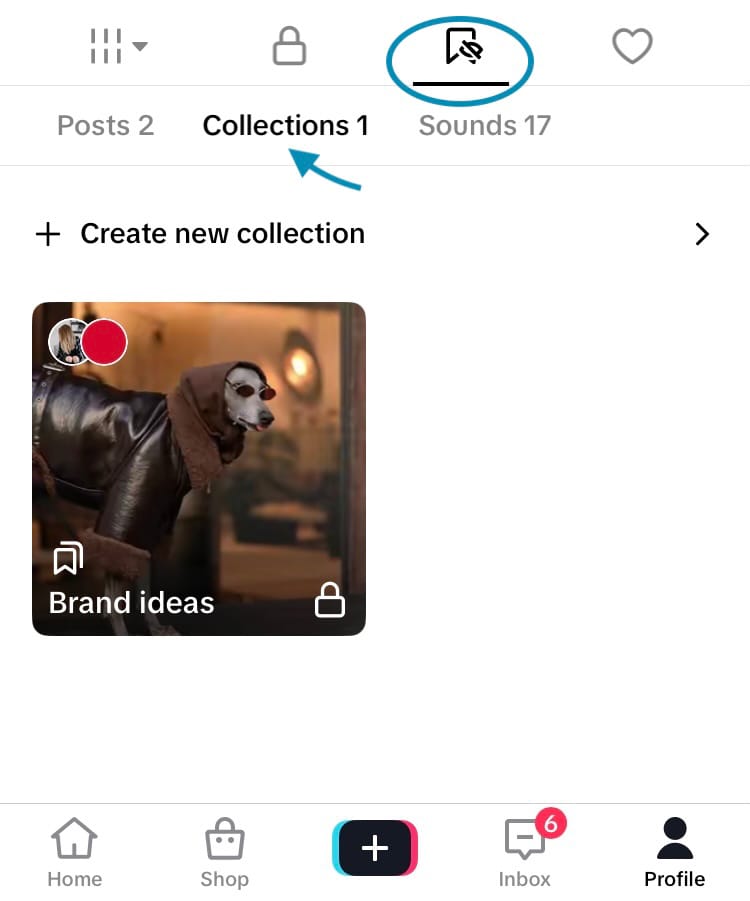
The icons of the collaborative profiles are in the top left-hand corner of the Shared Collection.
From direct messages:
- Go to the DMs of an account you have a Shared Collection with.
- Hit the 3-dot menu in the top right-hand corner of the screen.
- Choose ‘Shared collections’.
- Tap on a Shared Collection you have with that account.

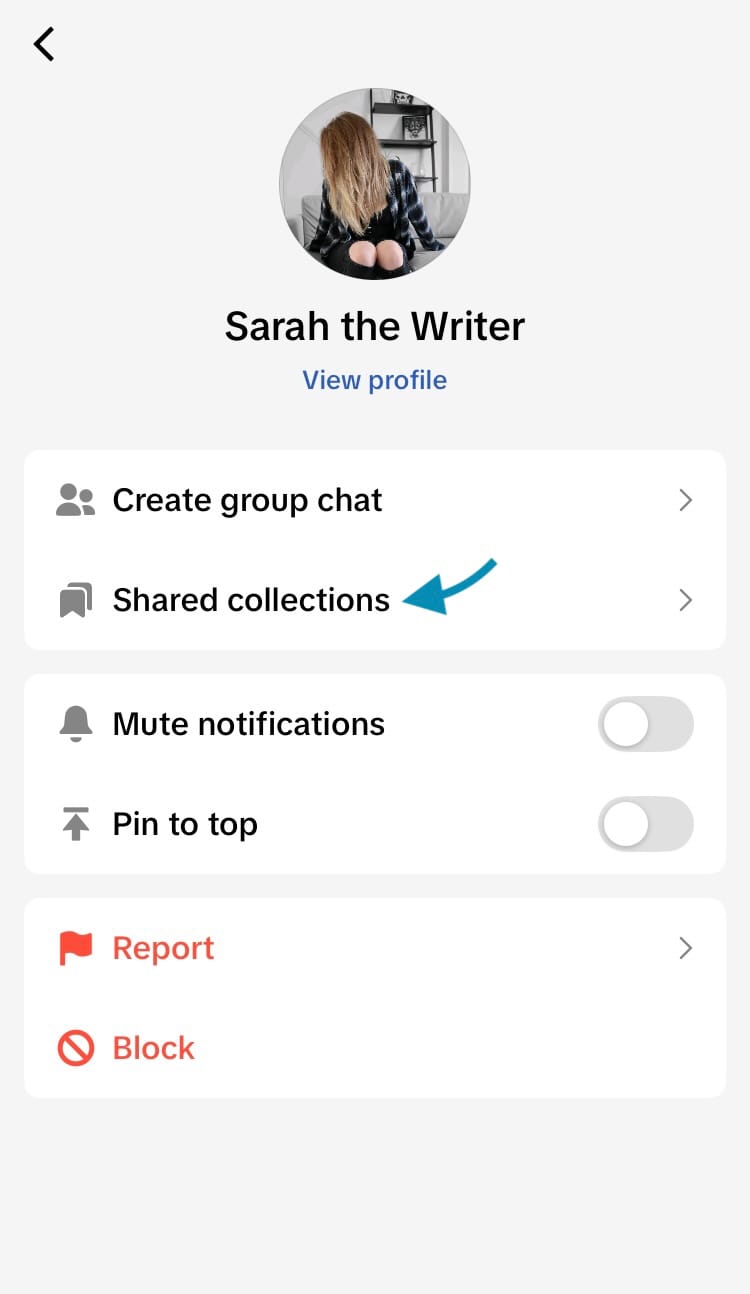
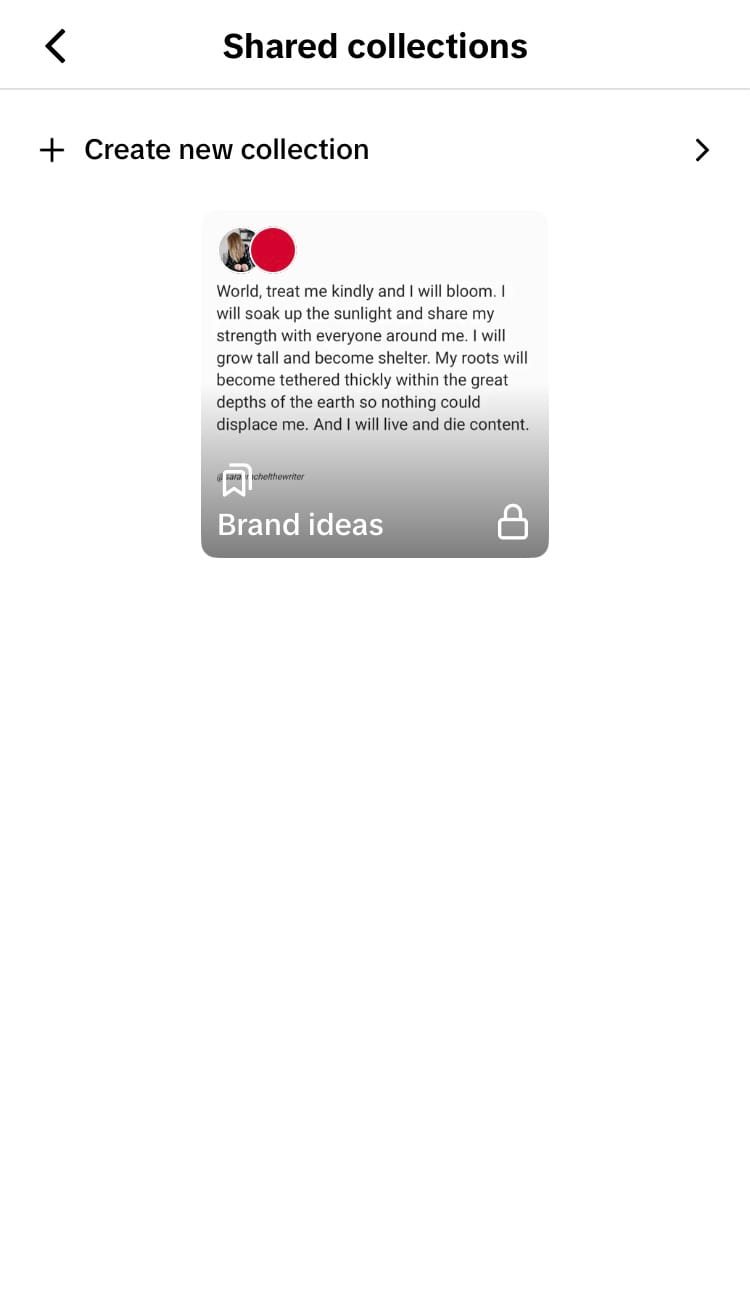
How to access a Shared Collection (Steps 1-4)
Every time someone adds a post to a Shared Collection, the other party will be sent a DM card. This provides another quick way to access a Shared Collection.
Through a direct message card:
- Open your direct messages and select the conversation with the other account adding posts to your Shared Collection.
- Tap on the name of the Shared Collection, underneath the DM card.
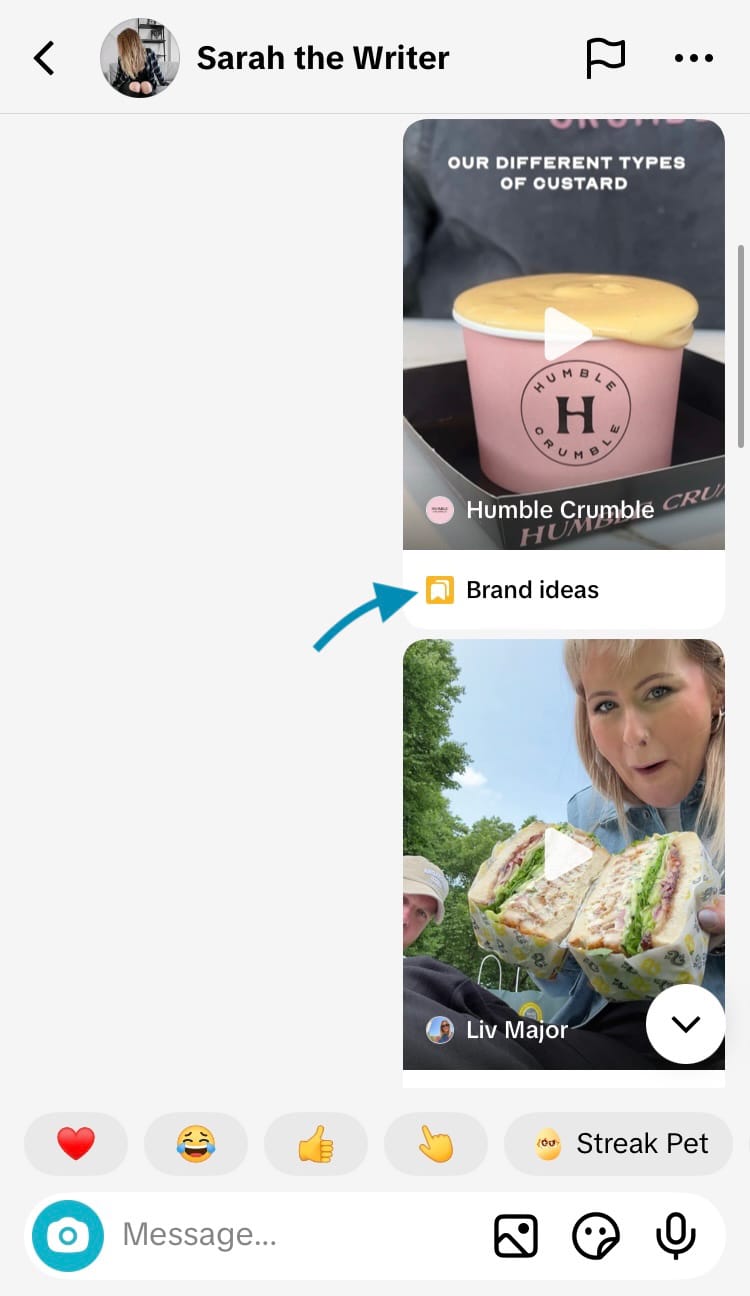
How to add posts to a Shared Collection
There are a couple of ways you can add posts to your Shared Collection.
When viewing the Shared Collection:
- Access your Shared Collection using one of the methods above.
- Tap on the ‘Manage’ button in the top right-hand corner of the screen.
- Select ‘Add posts’ from the menu.
- Tap on the circle icon in the top right-hand corner of each post you want to add to the Shared Collection.
- Hit the ‘Add posts’ button at the bottom of the screen.
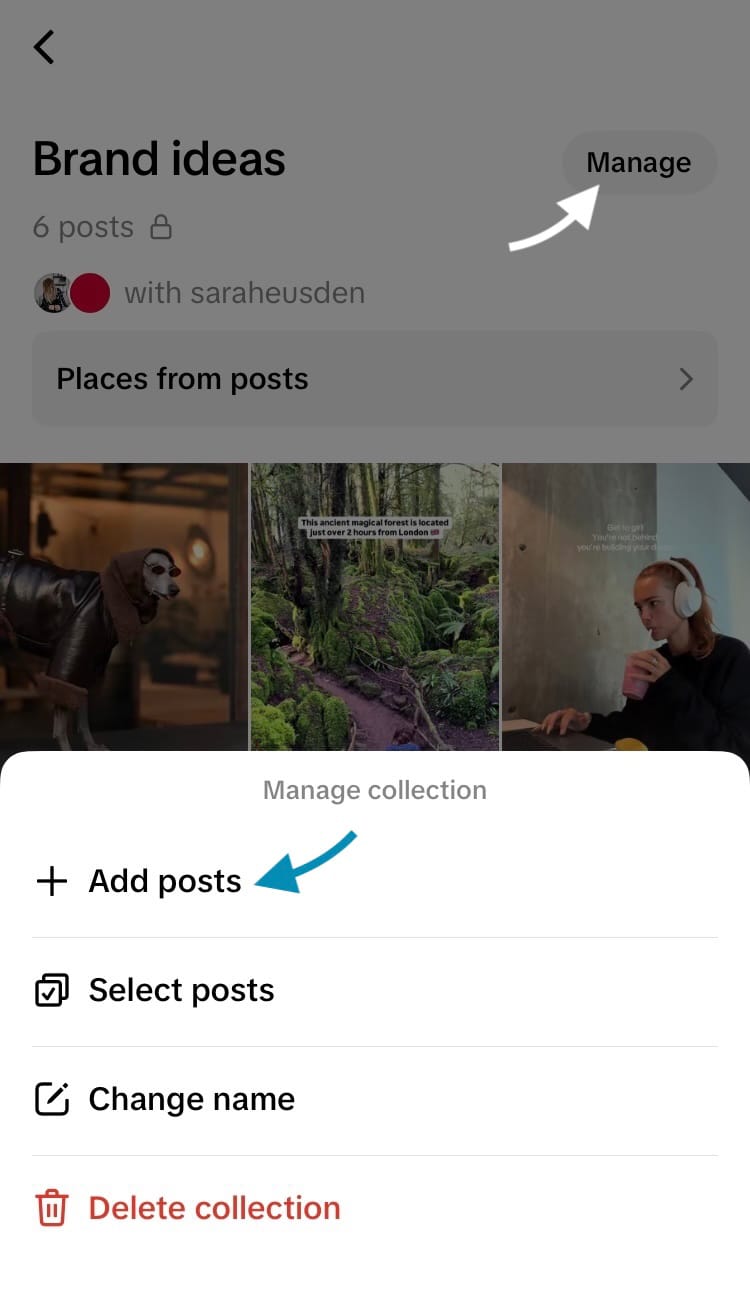
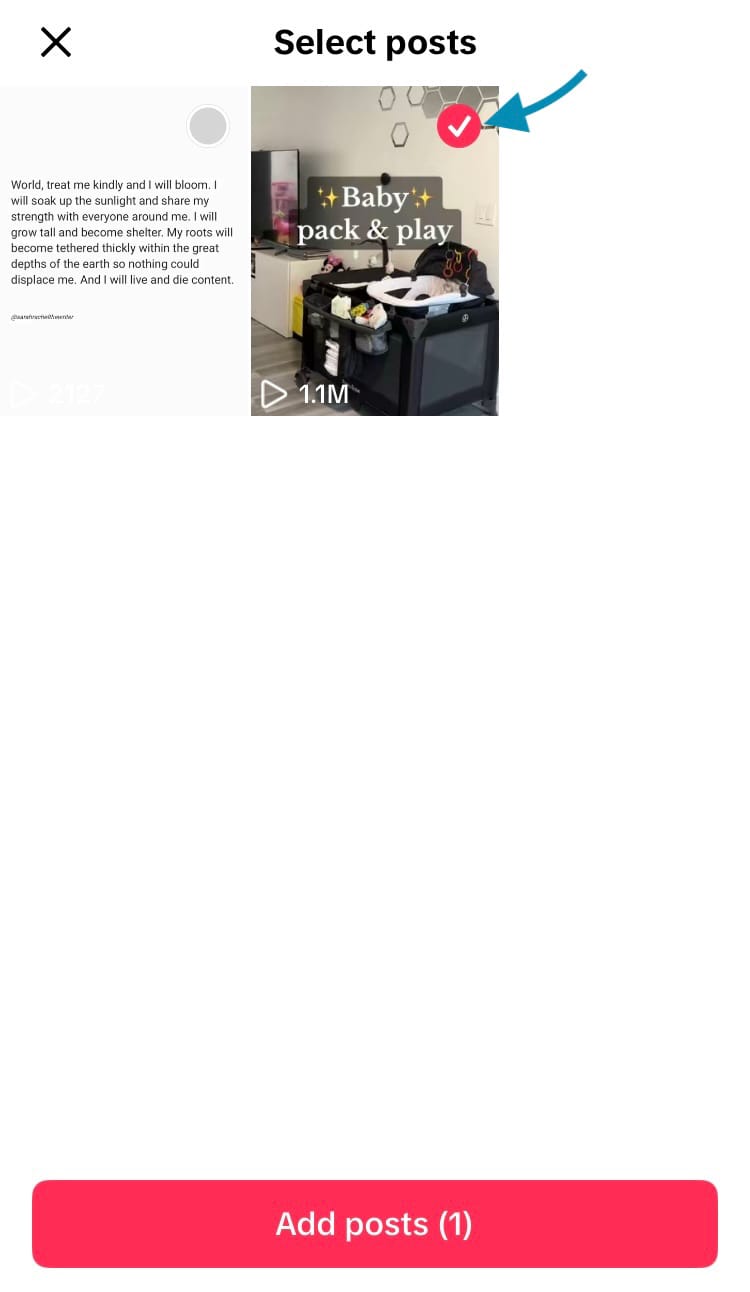
How to add posts to a Shared Collection (Steps 1-5)
You can also choose to add a post to a Shared Collection every time you favourite a TikTok post.
When you save a post to your Favourites:
- When viewing a piece of content, hit the bookmark icon to save it to your Favourites.
- Tap ‘Collections’ from the pop-up bar at the bottom of the screen.
- Hit the plus (+) icon next to a Shared Collection.
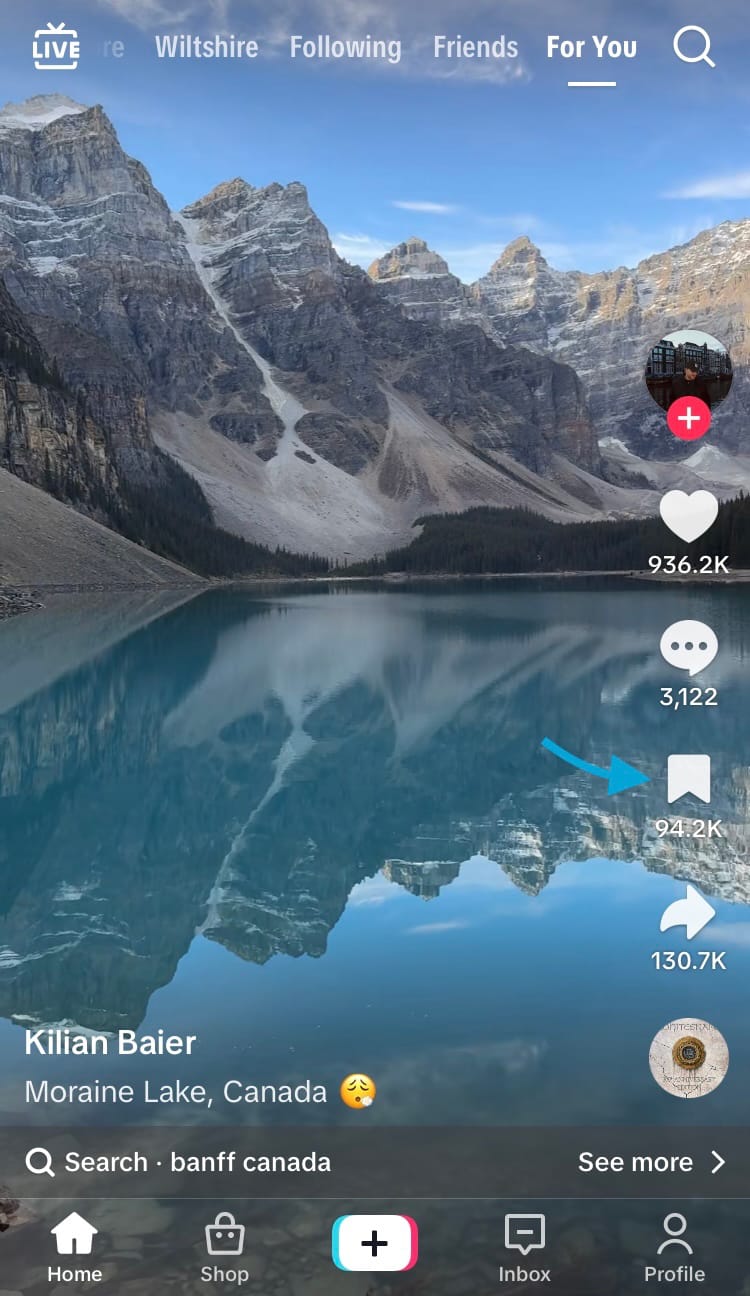
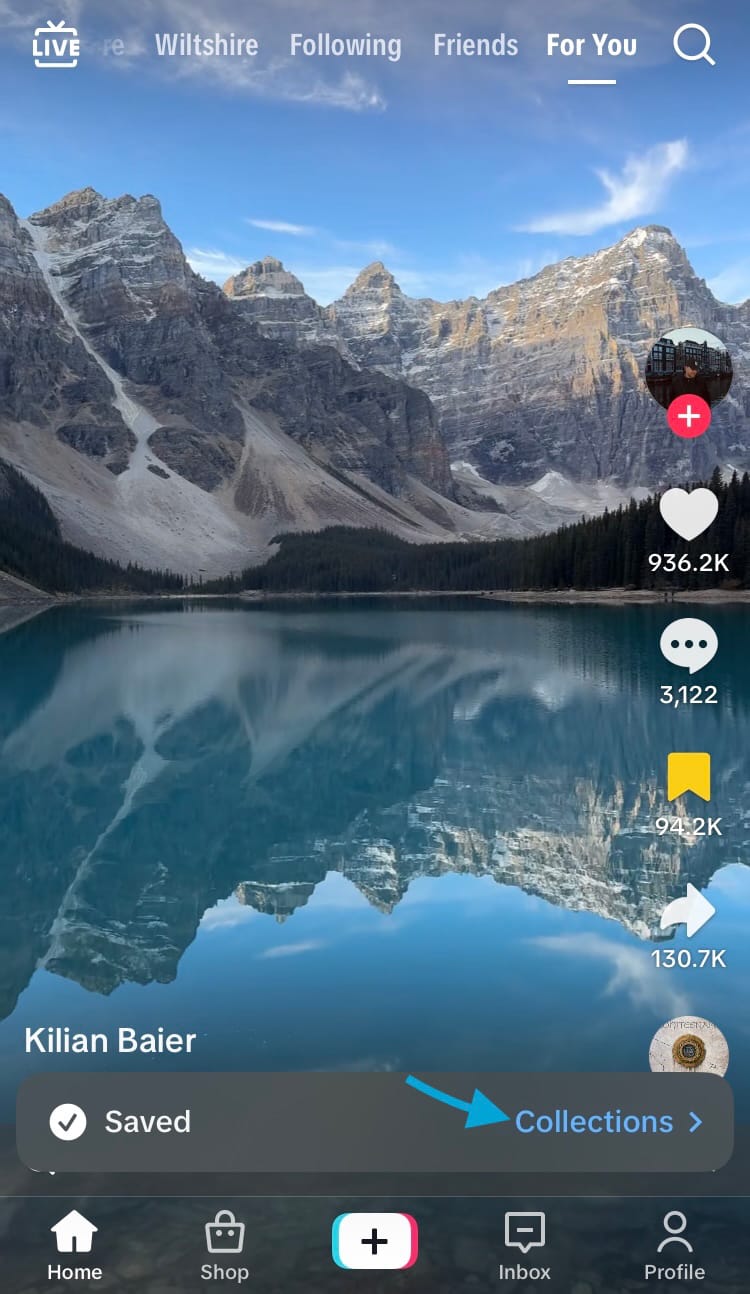
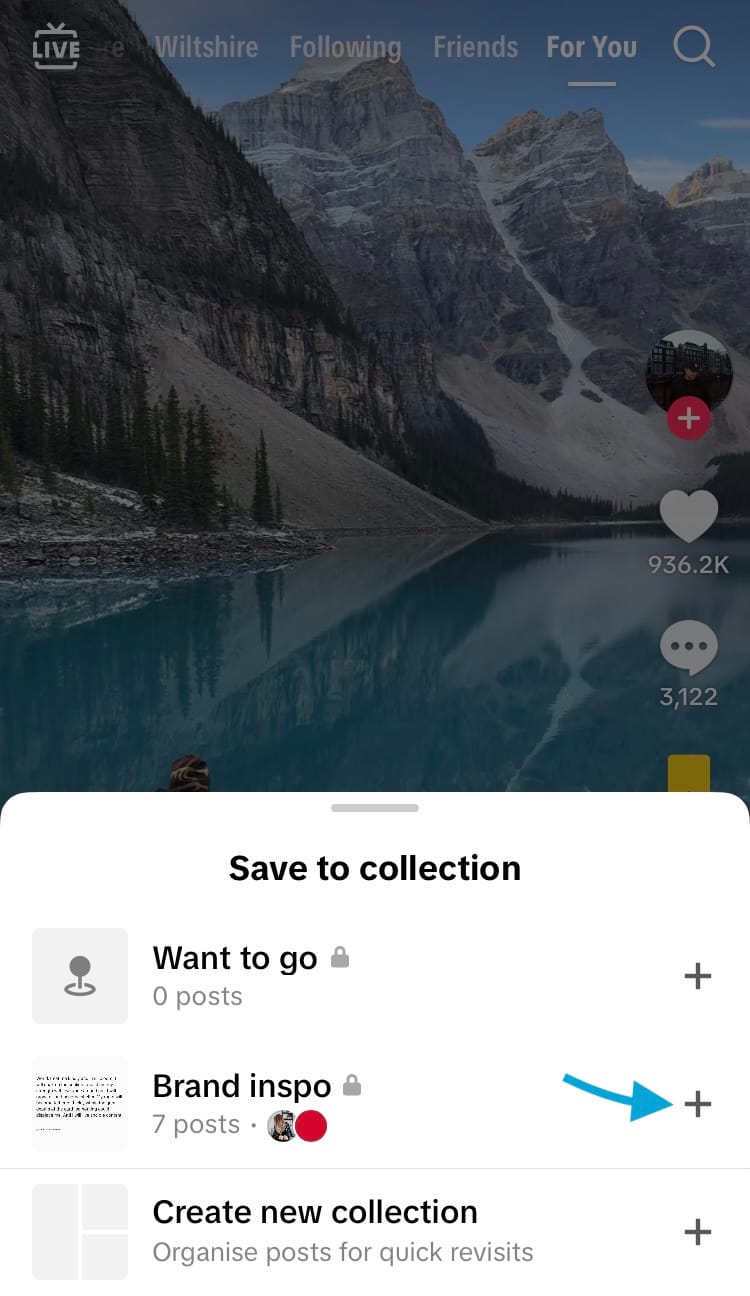
How to add posts to a Shared Collection (Steps 1-3)
How to remove posts from a Shared Collection
Either member of a Shared Collection can remove posts from it.
Here’s how:
- Access your Shared Collection using one of the methods above.
- Tap on the ‘Manage’ button in the top right-hand corner of the screen.
- Choose ‘Select posts’ from the menu.
- Tap on the circle icon in the top right-hand corner of each post you want to remove from the Shared Collection.
- Hit the ‘Remove’ button at the bottom of the screen.
- Confirm your choice by tapping ‘Remove’.
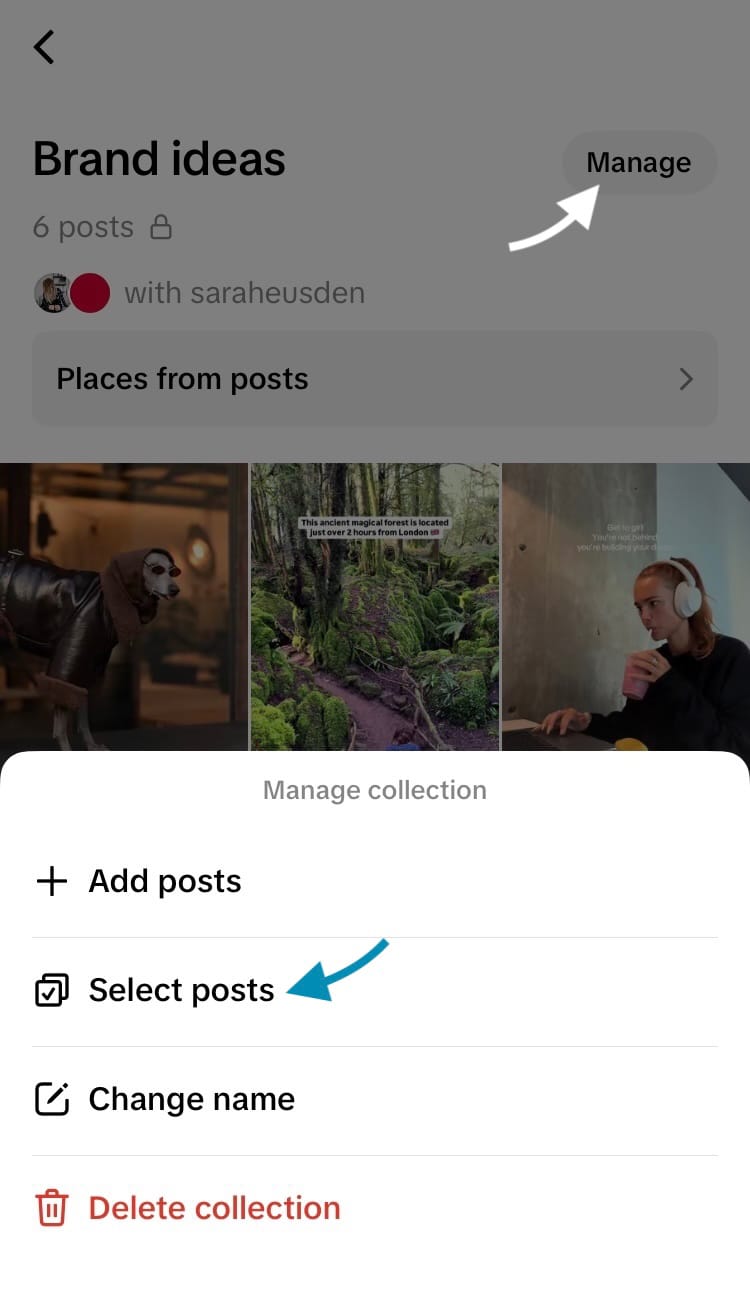
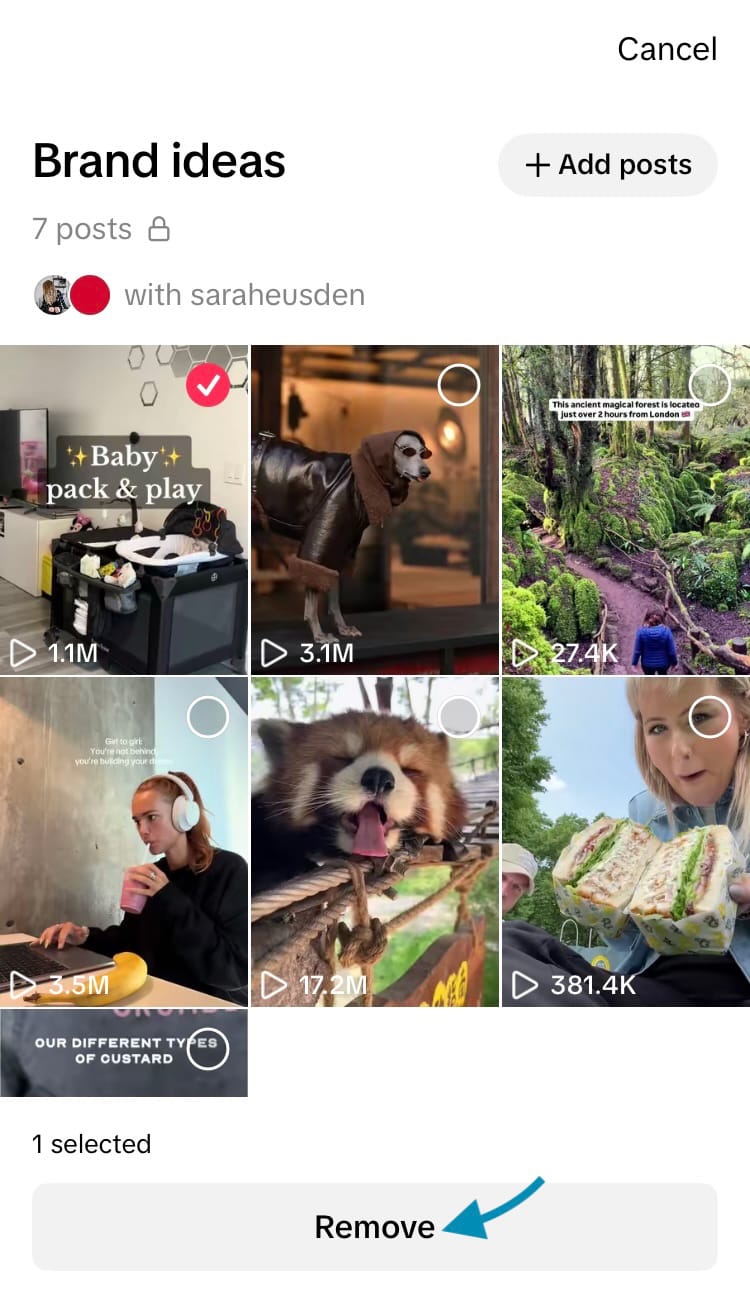
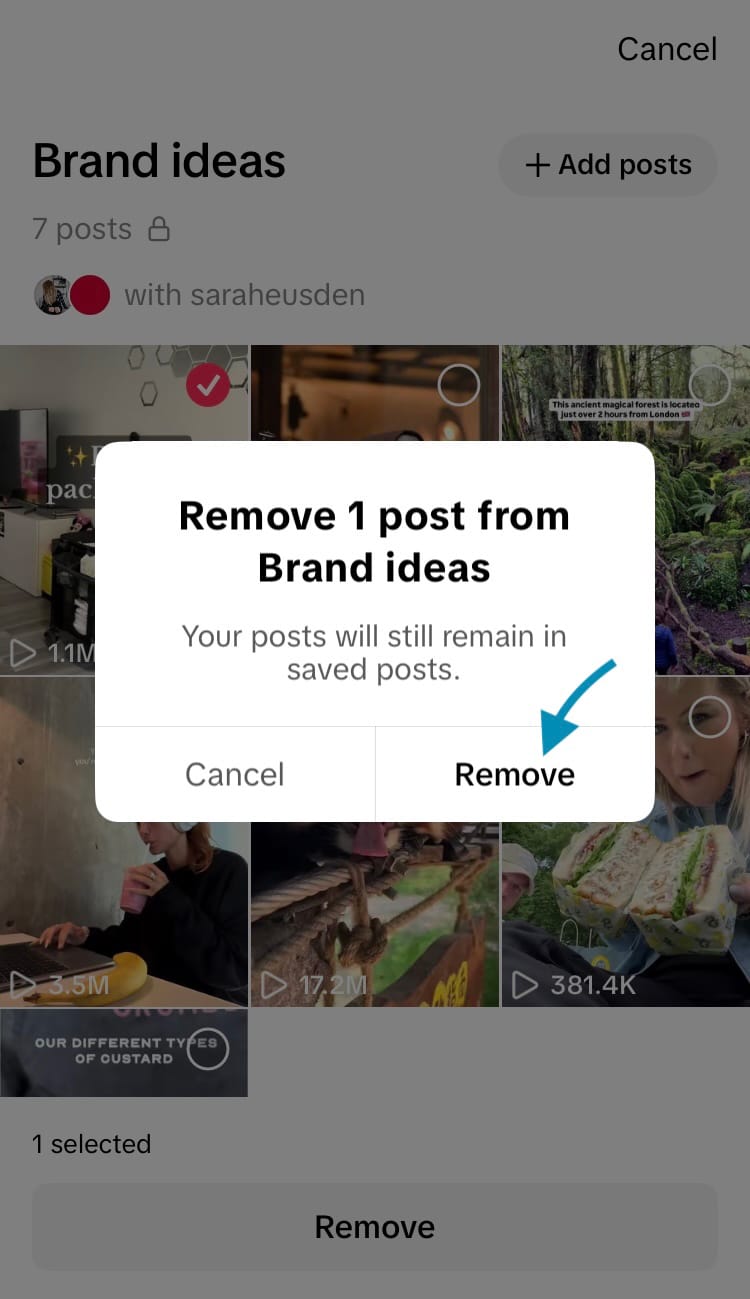
How to remove posts from a Shared Collection (Steps 1-6)
How to change the name of a Shared Collection
Either member of a Shared Collection can rename it.
Here’s how:
- Access your Shared Collection using one of the methods above.
- Tap on the ‘Manage’ button in the top right-hand corner of the screen.
- Choose ‘Change name’ from the menu.
- Type in a new name for your Shared Collection.
- Hit ‘Save’.
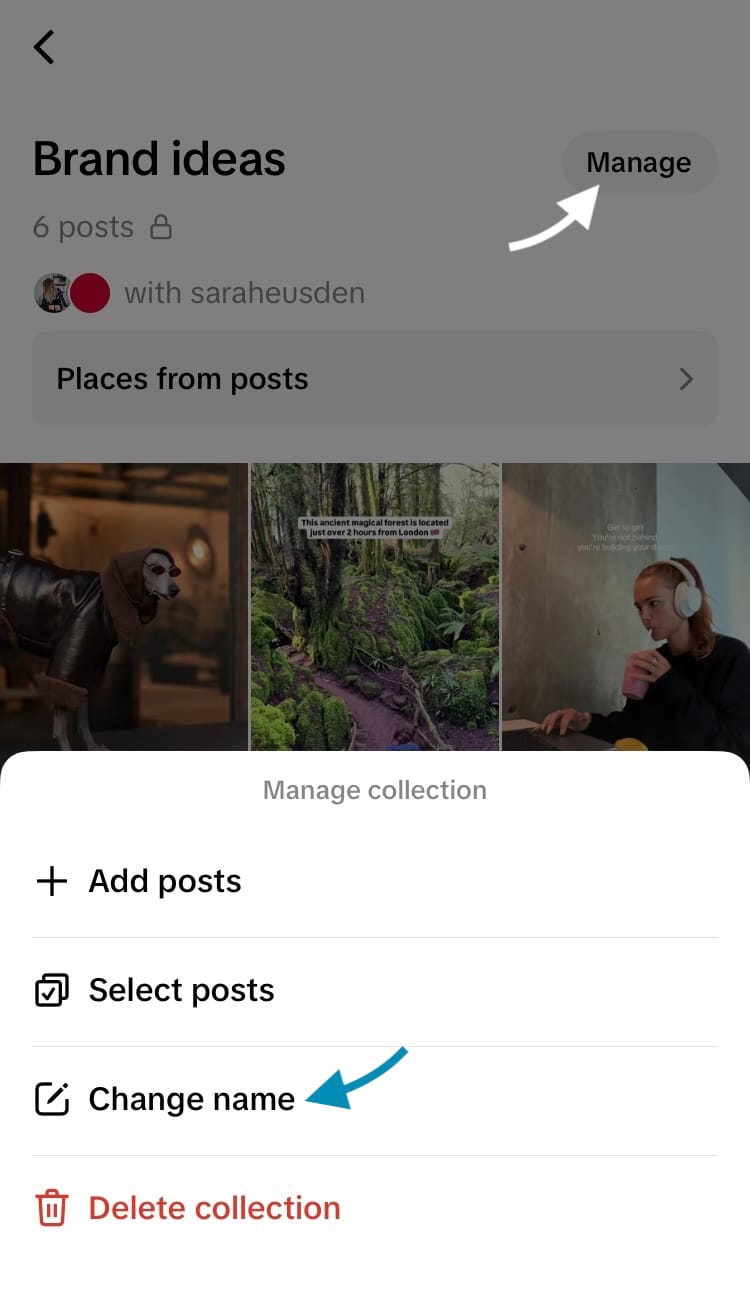
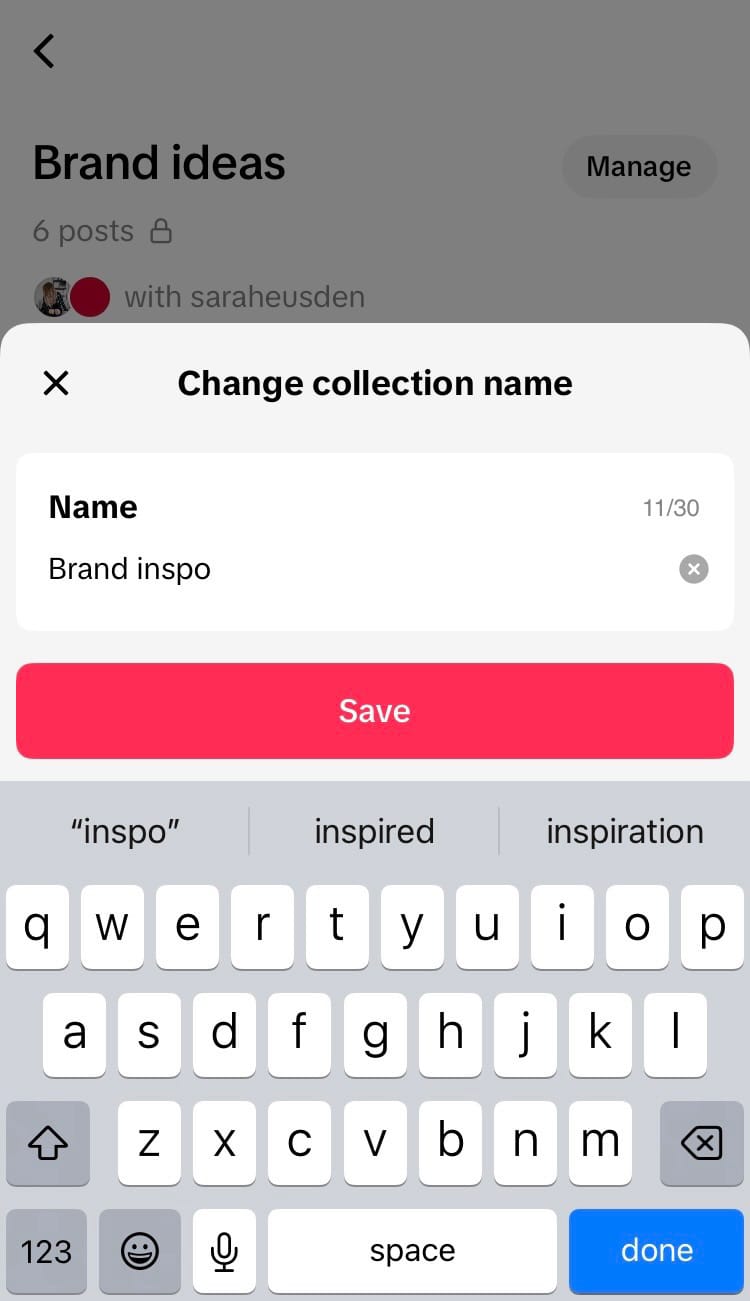
How to change the name of a Shared Collection (Steps 1-5)
How to delete a Shared Collection
Either member of a Shared Collection can delete it.
Here’s how:
- Access your Shared Collection using one of the methods above.
- Tap on the ‘Manage’ button in the top right-hand corner of the screen.
- Choose ‘Delete collection’ from the menu.
- Hit ‘Delete’.
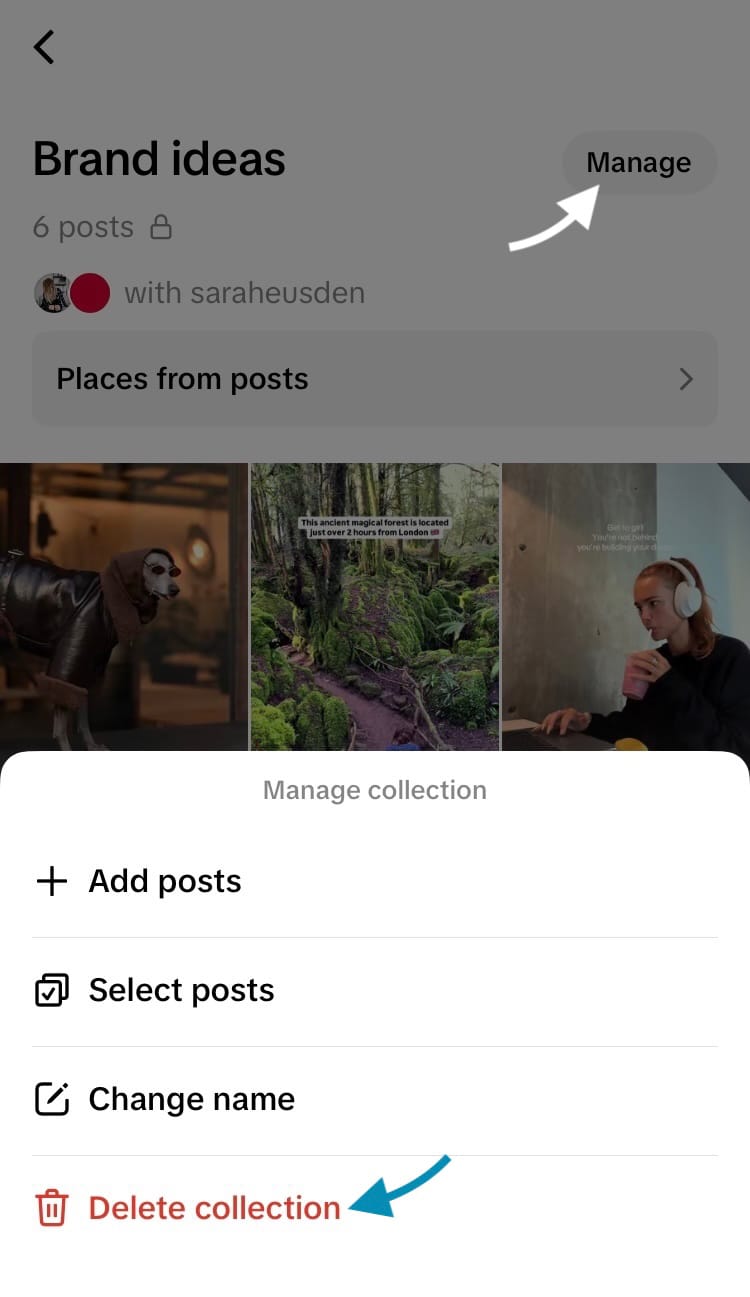
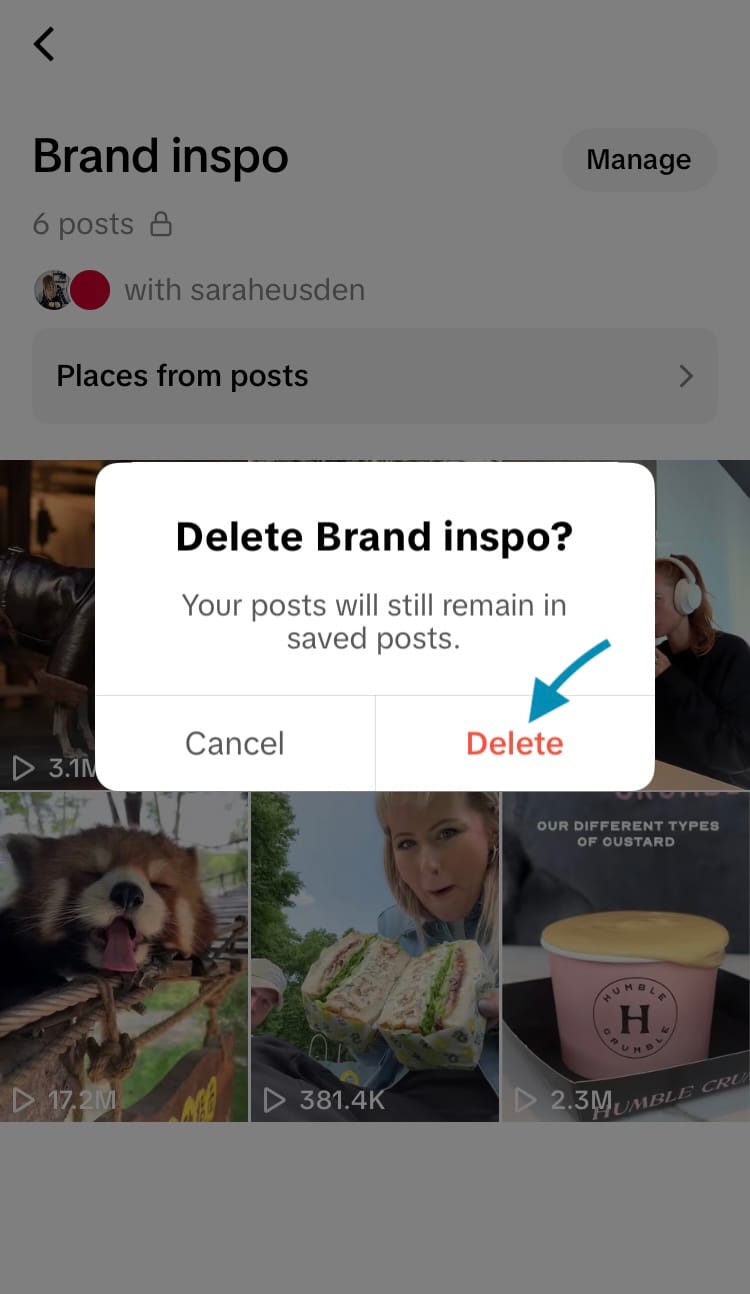
How to delete a Shared Collection (Steps 1-4)
Even though either member of a Shared Collection can edit or delete it, your Favourited posts will remain in your Favourites tab.
How to use Shared Collections as a brand or business
Shared Collections opens up opportunities for two people to get on the same page when gathering ideas, inspiration and information.
Here are some ideal ways to use Shared Collections for your brand or business…
Delegate ideas to specific people in your team
Perfect for the project manager, Shared Collections enables an individual to share ideas with specific people working on their team. Whether sharing trends with the social media manager, editing styles with the editing team or colour grading with the technical whizz, Shared Collections makes bouncing inspiration between specific people a total doddle.
Get inspired by competitors and community members
Inspiration on tap is the elixir of the internet. When you grab hold of something good, don’t lose sight of it. Tuck it away in a Shared Collection and ask a colleague to join you.
Group together user-generated content
User-generated content is the gift that never gets old. When your customers are crazy about creating content about your brand, add it to a Shared Collection so you and another team member can explore every post with ease.
Gather your best-performing content to replicate
Looking to craft new content based around ideas that have rocketed for you? Group together your best-performing content in a Shared Collection with a team member in management, before trickling your findings down to the people who make them happen.
You can also sort your content by several different metrics using Minter.io - the social media analytics tool for businesses and brands. Best-performing content doesn’t always mean the content with the highest views. You might want to measure your performance by the content with the highest engagement rate, most amount of comments, shares, reach or average watch time. Find all this and more with Minter.io today!
Turn your likes into insights.