


Connect Minter.io to Claude and ask about your social media performance in plain language: follower growth, engagement, competitors, best posting times. Claude pulls the numbers straight from your Minter.io reports, explains what they show and suggests what to change.
Minter.io is listed in the Claude connectors directory, so setup takes a couple of clicks. There is no link to paste and no API key to copy.
How to connect your social media insights to Claude:
Step 1: start the connection
From Minter.io
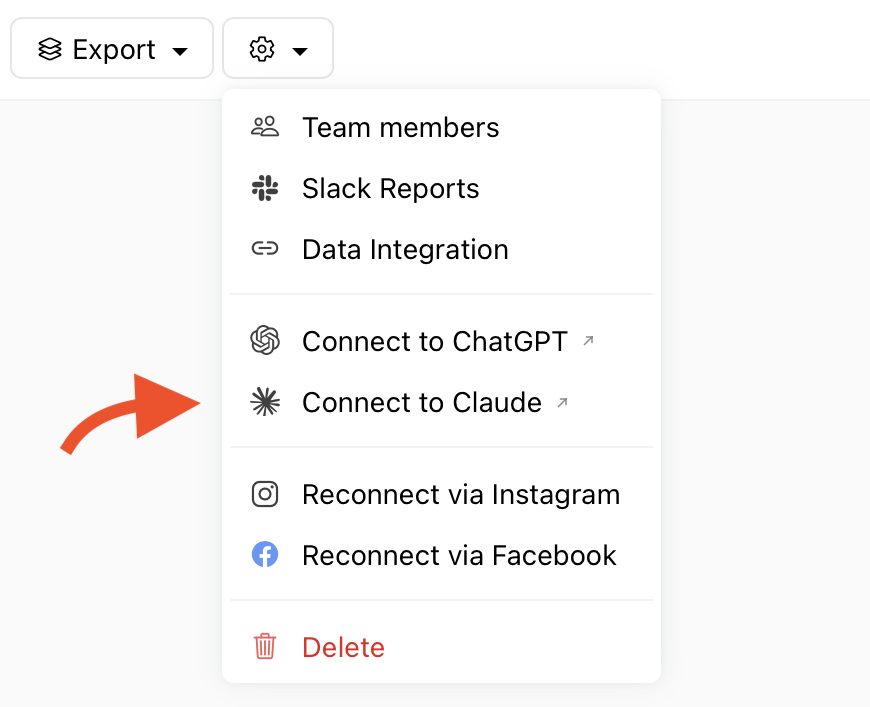
Open any report.
Select the gear settings icon.
Choose Connect to Claude.
From Claude
Open the connectors directory. Go to Settings→ Connectors and select the Add button, then Browse connectors. You can also do it from a chat: select the + button, hover over Connectors and choose Browse connectors.
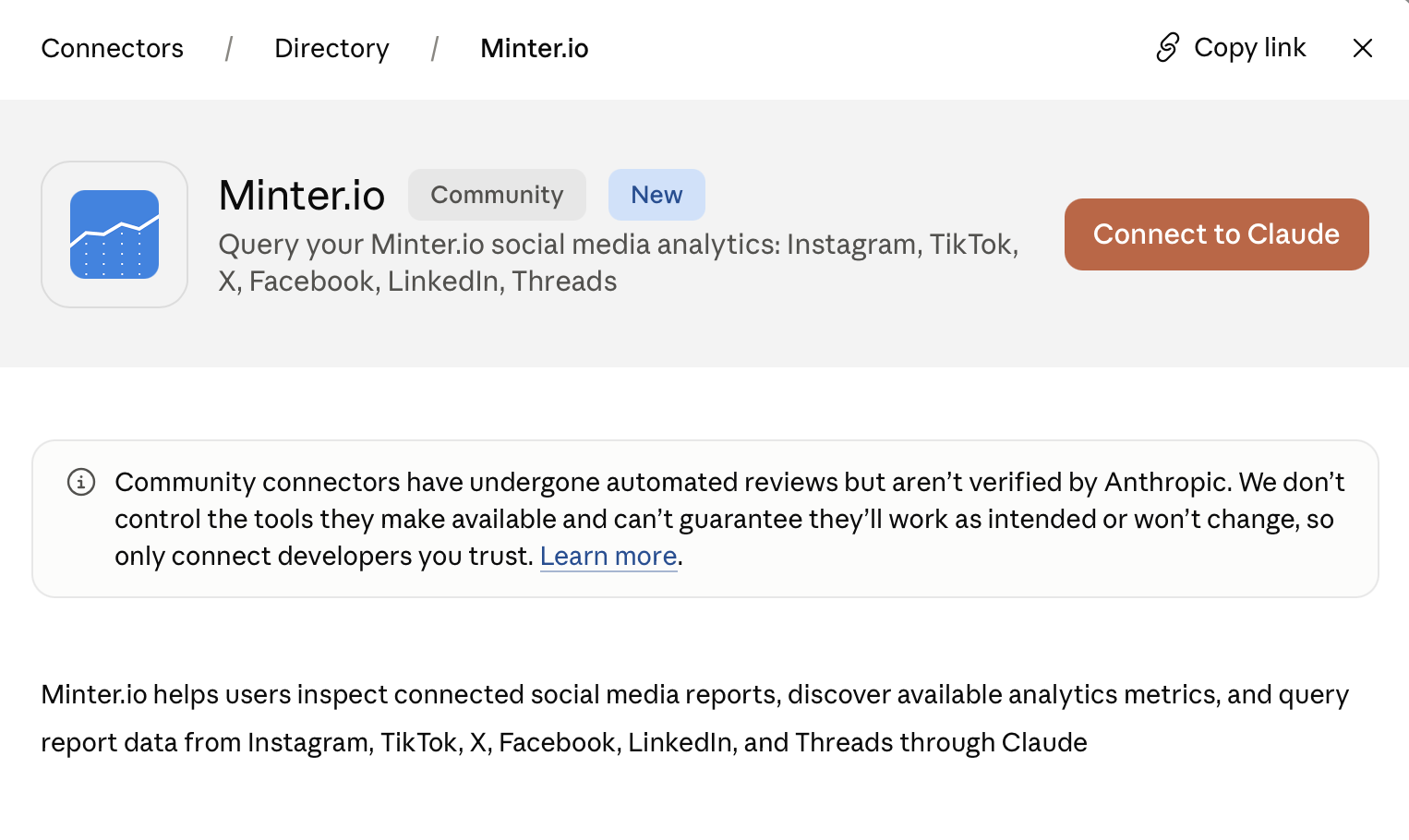
Search for Minter.io and open the listing.
Step 2: connect and sign in
Select Connect to Claude. The listing shows what the connector can access before you confirm.
When prompted, sign in with your Minter.io account and approve access.
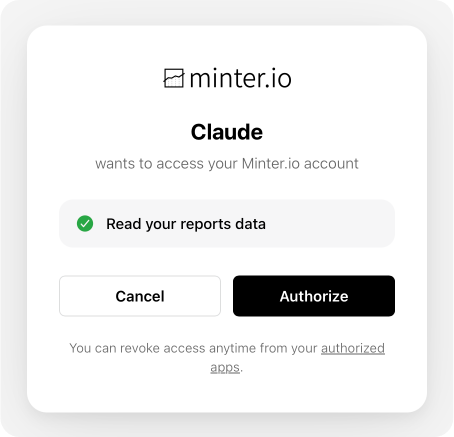
Claude can only access the reports you already track in your own account. Nothing else in Minter.io is shared, and the connector is read only, so it cannot change your data.
How you can use Minter.io with Claude?
Start a new chat.
Select the + button, hover over Connectors and toggle Minter.io on for that conversation.
Ask your question. The first time Claude uses the connector, it shows an approval card describing the request. Review it and select Allow.
You do not have to name Minter.io every time. Claude brings it in when your question calls for it, though mentioning it ensures Claude draws on your Minter.io reports.
What you can ask
How did my follower growth compare to last year?
Which of my reels got the most engagement this month?
What is the best time for me to post on LinkedIn?
How are my competitors growing compared to us?
Which hashtags drove the most engagement?
Give me a summary of my Instagram performance for our monthly report.
Using another assistant
Minter.io is also an approved app in ChatGPT. See How to connect Minter.io to ChatGPT.
For Microsoft Copilot, Google Gemini and other assistants that support MCP, add Minter.io as a custom connector using this address:
https://minter.io/mcpRequirements and troubleshooting
What you need. A Minter.io account with the AI Analyst feature: a Gold, Platinum or Agency plan, or a free trial. Connectors work in Claude on the web, desktop and mobile. On Team and Enterprise plans, an owner needs to enable Minter.io for the organization before anyone can connect, and each person still signs in to Minter.io individually.
For more ideas on how to use Minter.io with ChatGPT or the AI Analyst, see Discover the Minter.io Ask AI feature on our blog.