5 Powerful Instagram DM features most businesses don’t know about

Instagram DMs are a hot spot for making money. Over 150 million people send direct messages to businesses on Instagram every month, and in many sectors it has become a primary driver of customer service and sales. Don’t let potential profit fall through the cracks. By utilising the 5 Instagram direct messaging features in this article, you can make sure your DMs are an efficient and effective part of your business strategy.
1. Labels
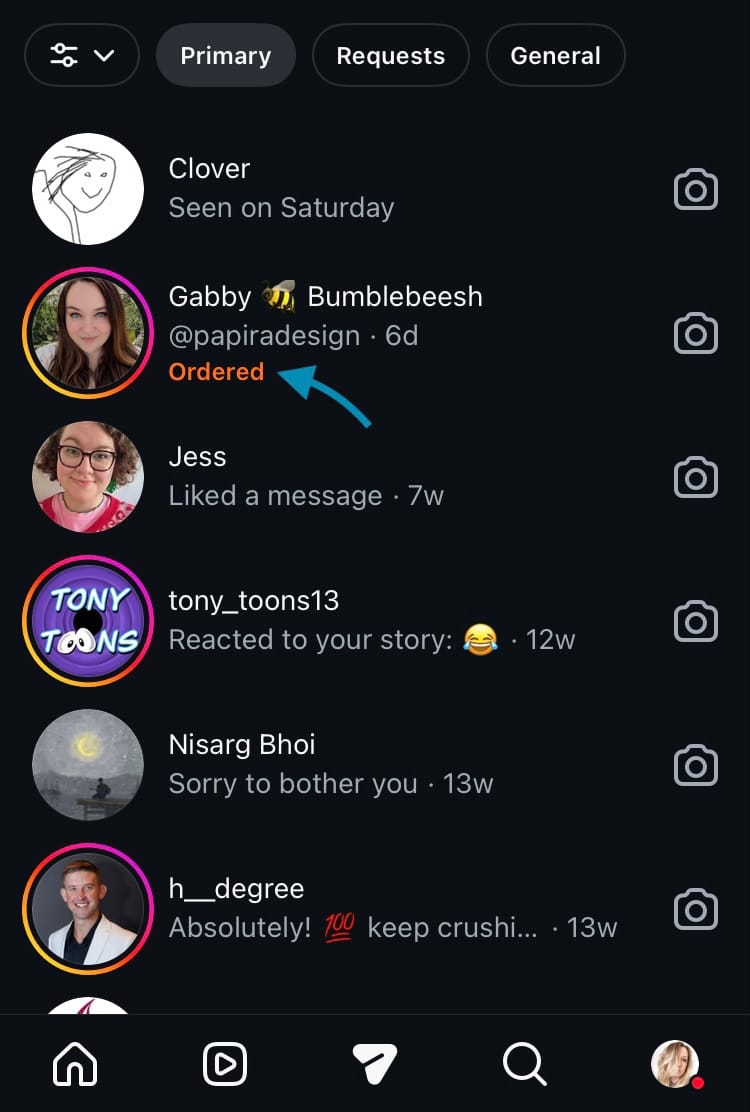
Are your DM conversations a jumbled mix? When customers, leads and time wasters all occupy the same space it can be difficult to keep track. That’s where the Labels feature comes in. Stamp each conversation with a label and you’ll know exactly where people are in your sales funnel and which conversations need following up.
Labels you can apply to DM conversations include:
- Flag
- Booked
- Lead
- Ordered
- Paid
- Dispatched
Get your DMs organised and never miss an opportunity to turn potential into profit. Labels are available for business accounts on Instagram.
To add a label to a conversation:
- Open Instagram and tap on the DMs icon at the centre of the navigation bar at the bottom of the screen.
- Tap on a conversation to open it.
- Select the Labels icon in the top right-hand corner of the screen.
- Choose a relevant label.
- Hit ‘Save’ at the bottom of the screen.
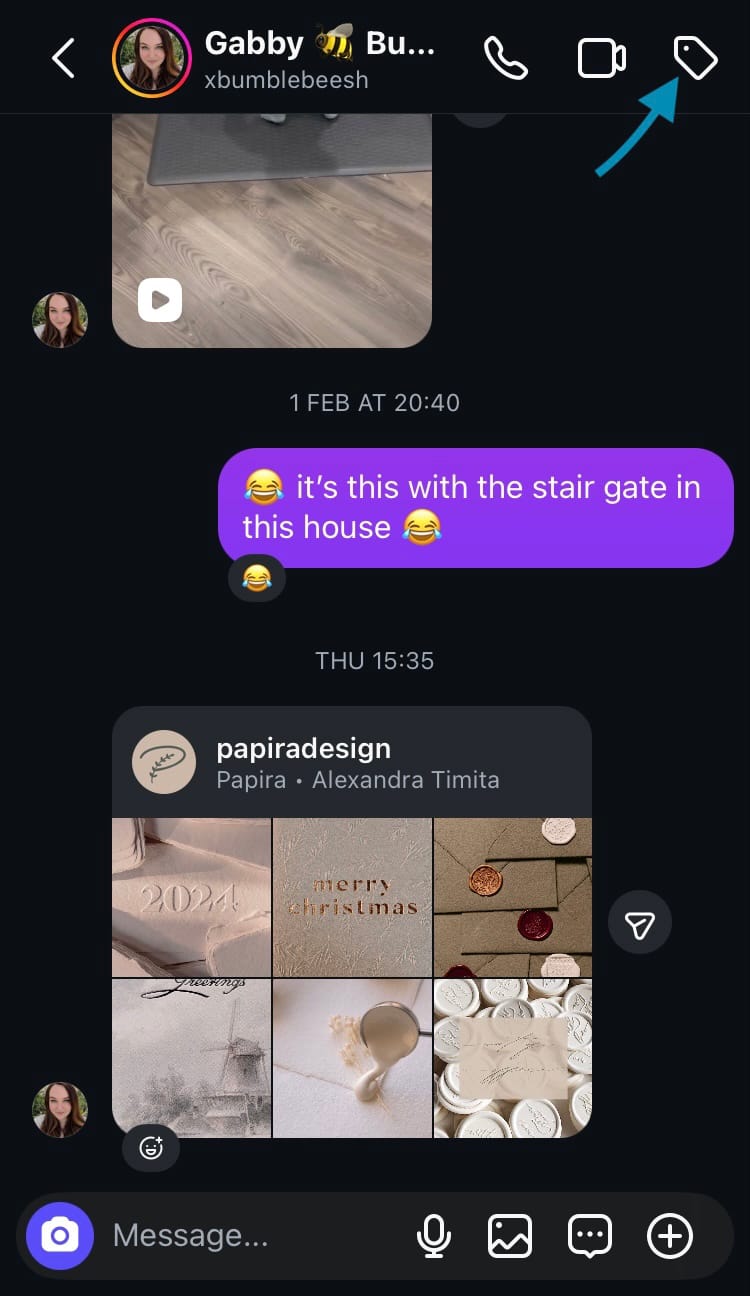
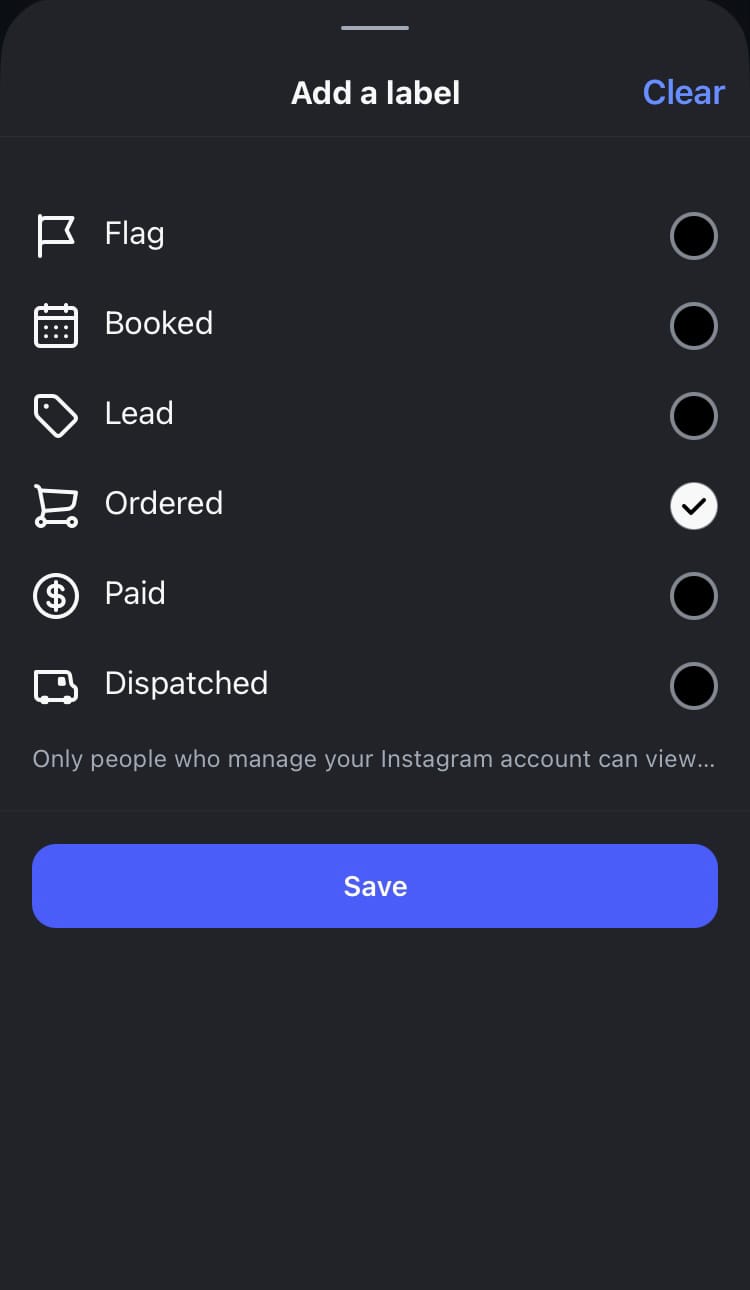
Add a label to a conversation in your Instagram DMs
Now when you go into your DMs you will see a label assigned to that conversation. You can change or clear the label at any time. This flexibility allows you to devise a system that works for your business to help keep everything on track.
To clear a label:
- Open Instagram and tap on the DMs icon at the centre of the navigation bar at the bottom of the screen.
- Tap on a conversation to open it.
- Select the labels icon in the top right-hand corner of the screen.
- Tap ‘Clear’ in the top right-hand corner of the screen.
- Hit ‘Save’ at the bottom of the screen.
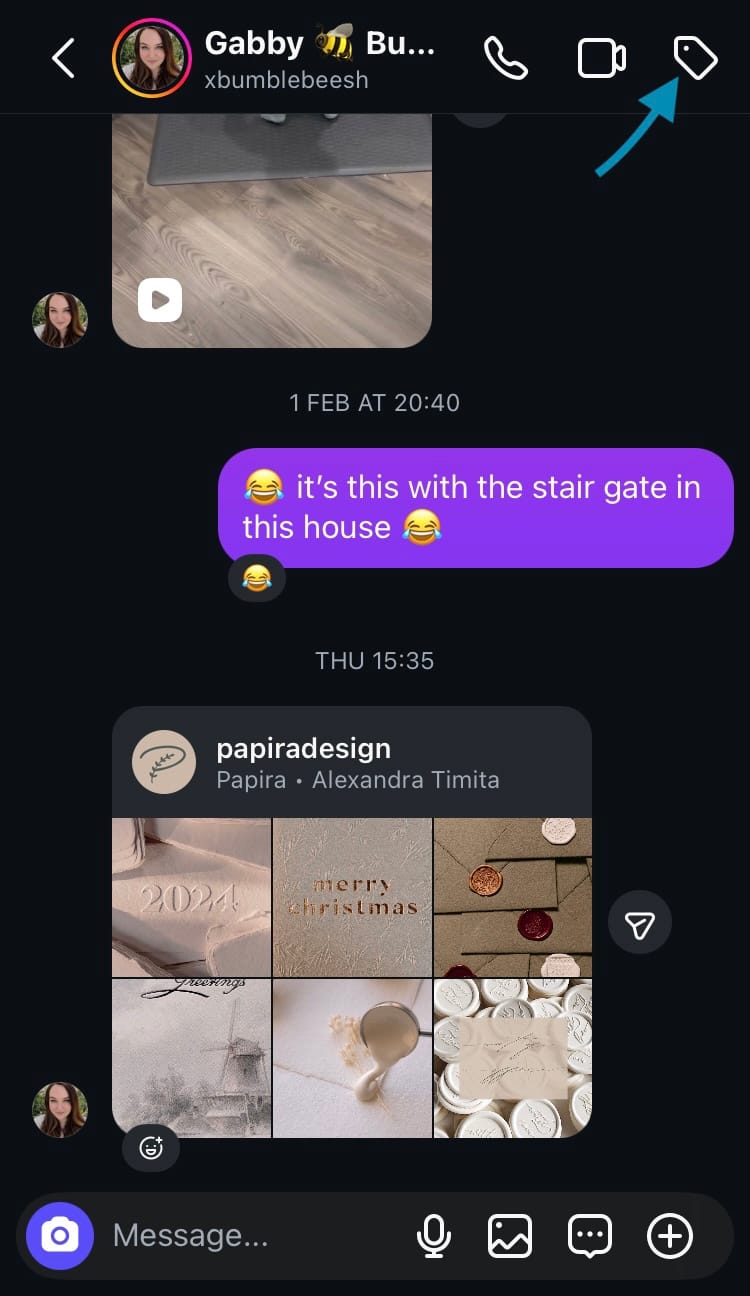
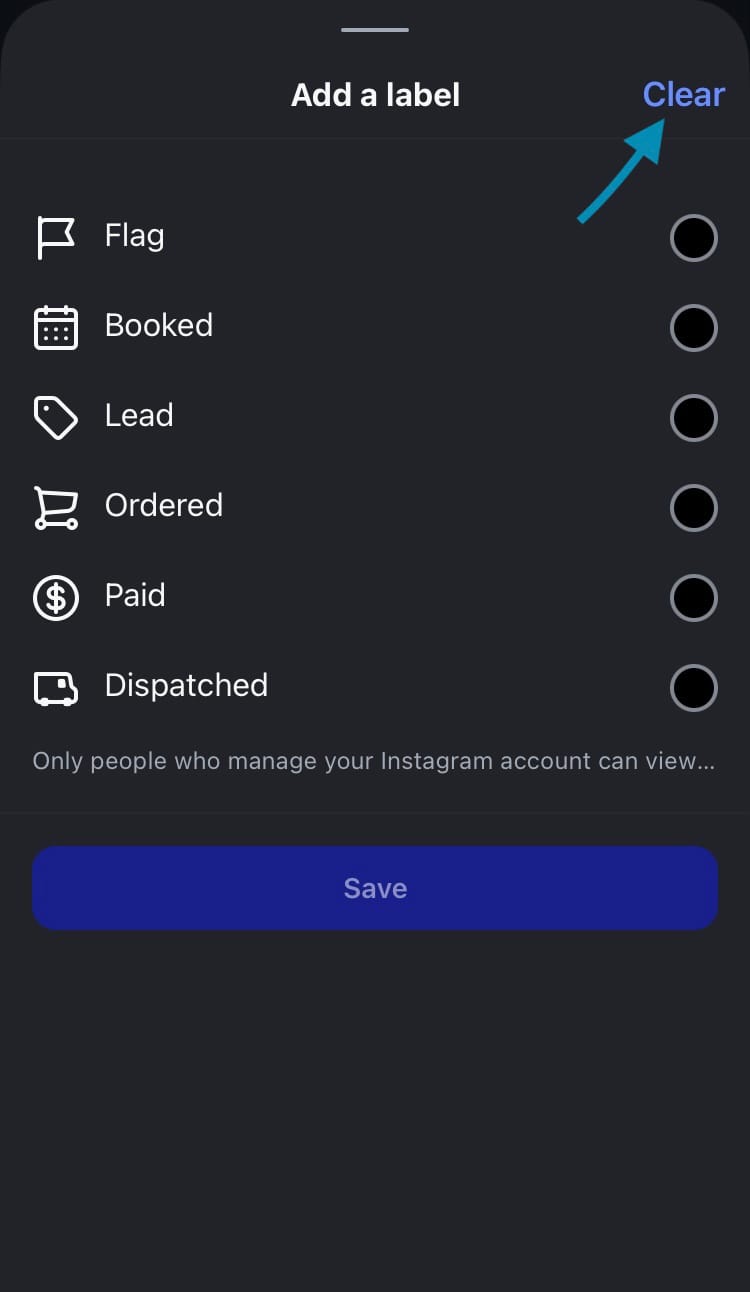
Clear a label on a conversation in your Instagram DMs
2. Saved Replies
Tired of typing out the same response time after time after time? Customer service can sometimes feel like Groundhog Day. Luckily, you can save yourself the effort (and your sanity) by setting up Saved Replies. This feature allows you to draw from a set of pre-written responses, and it’s perfect for responding to questions and queries that come up all the time. With some sources claiming that 79% of consumers expect a brand to respond on social media within 24 hours, this feature can help you achieve just that. Once your Saved Replies are set up you can smash out responses in seconds!
To set up Saved Replies:
- Open Instagram and tap on the DMs icon at the centre of the navigation bar at the bottom of the screen.
- Tap on the 3-dot menu in the top right-hand corner of the screen.
- Choose ‘Tools’.
- Select ‘Saved reply’.
- Tap on the plus icon in the top right-hand corner of the screen.
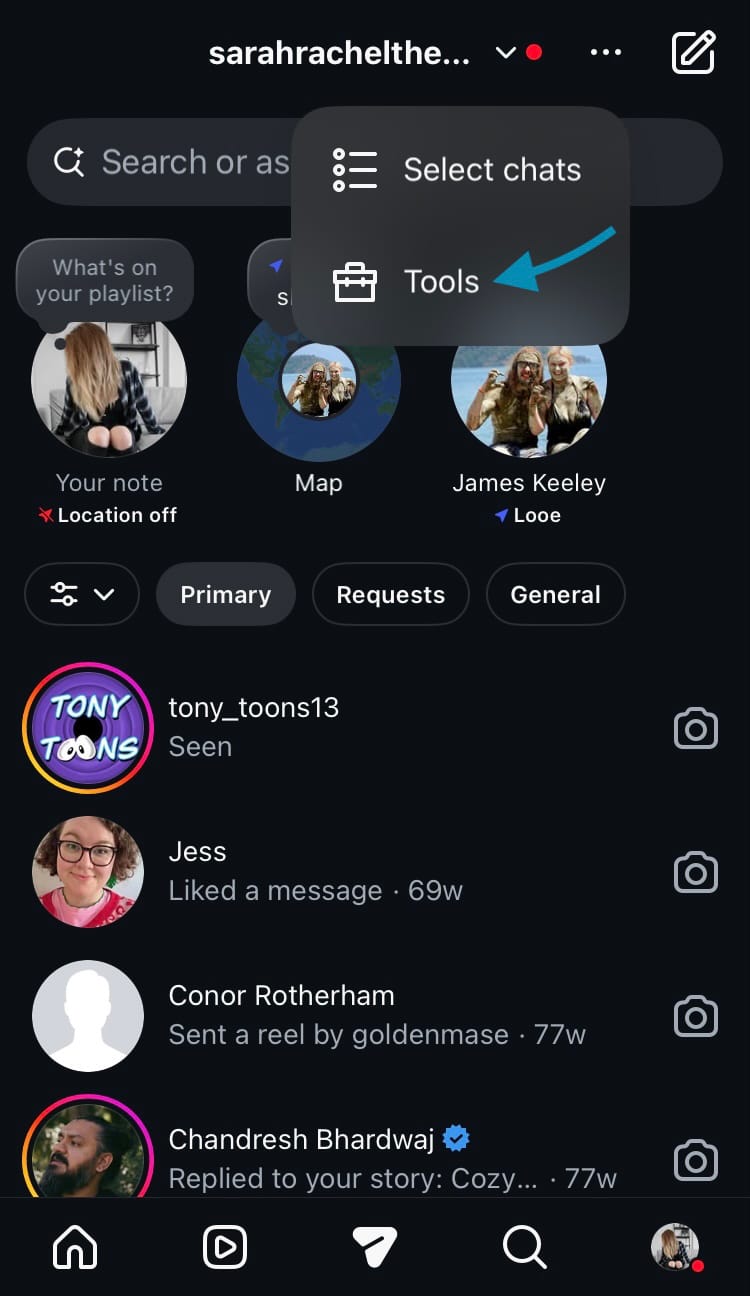
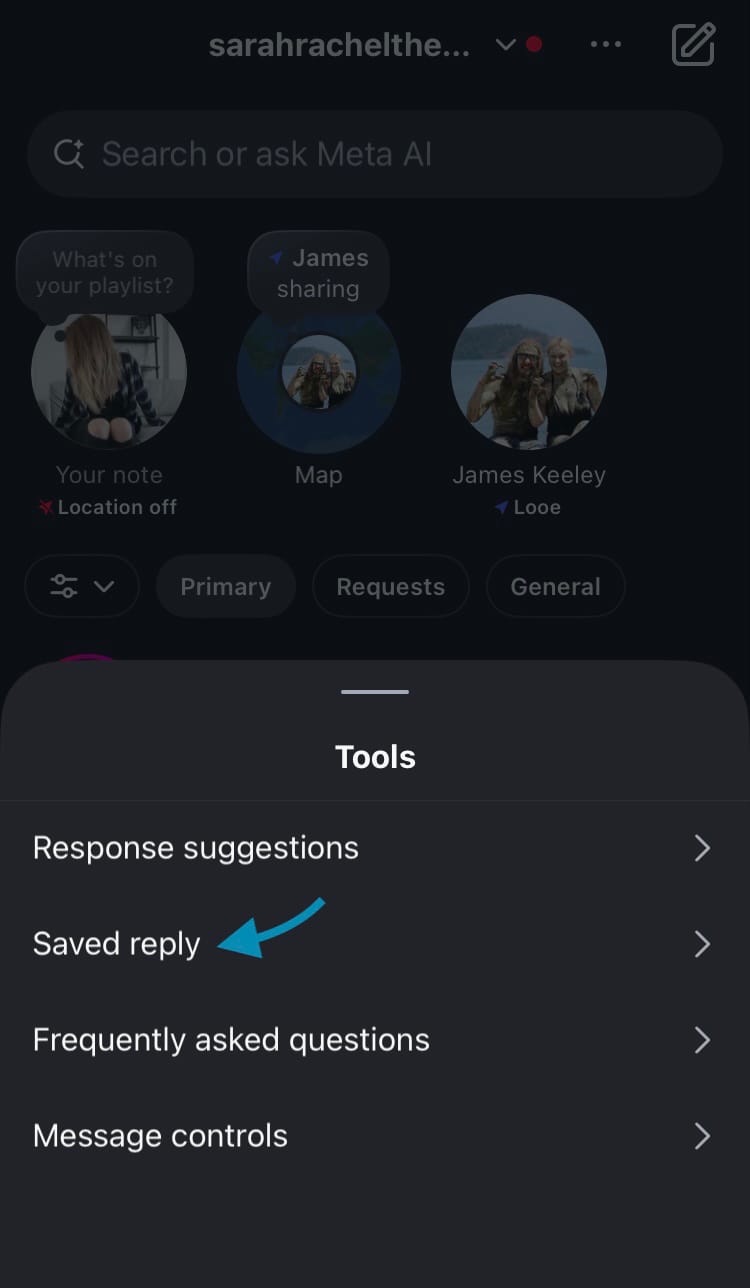
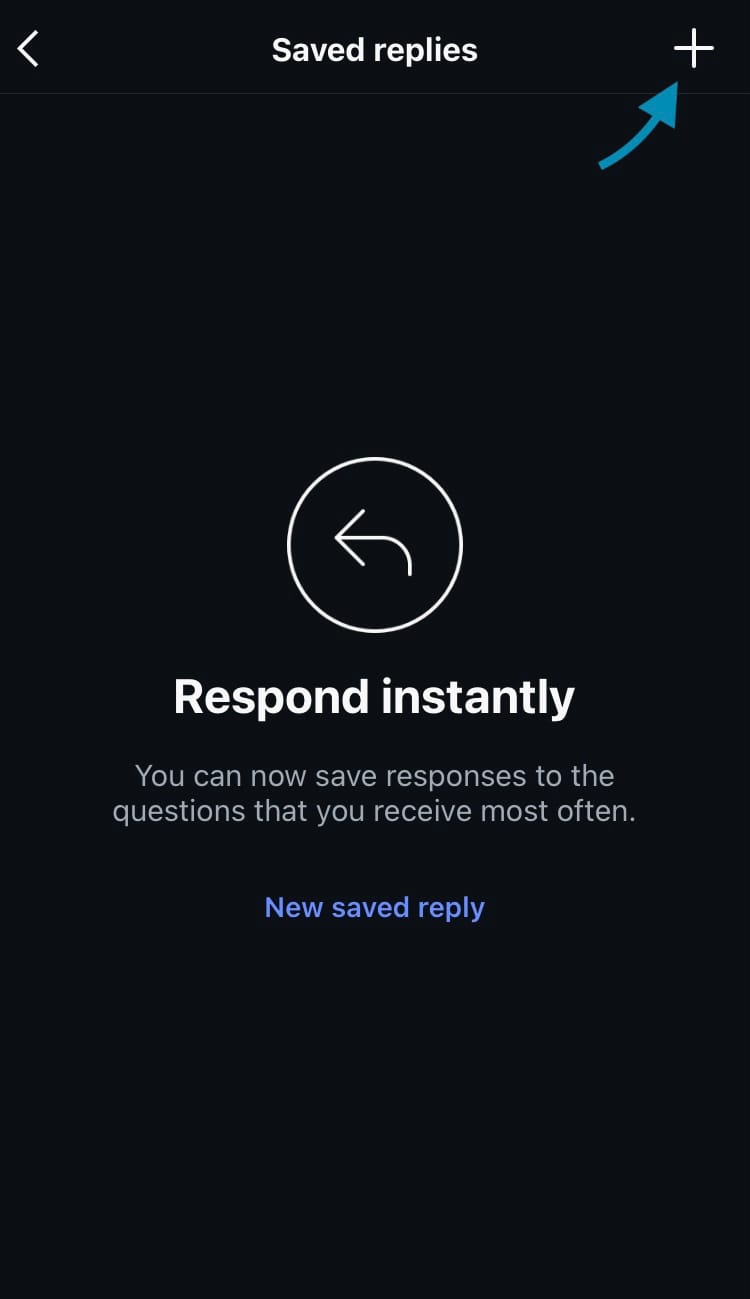
Set up Saved Replies
- Type in a shortcut. This is a letter, word, number or icon that allows you to access your saved reply in a direct message conversation.
- Type in the full message that you want to save as a reply.
- Tap ‘Save’ in the top right-hand corner of the screen.
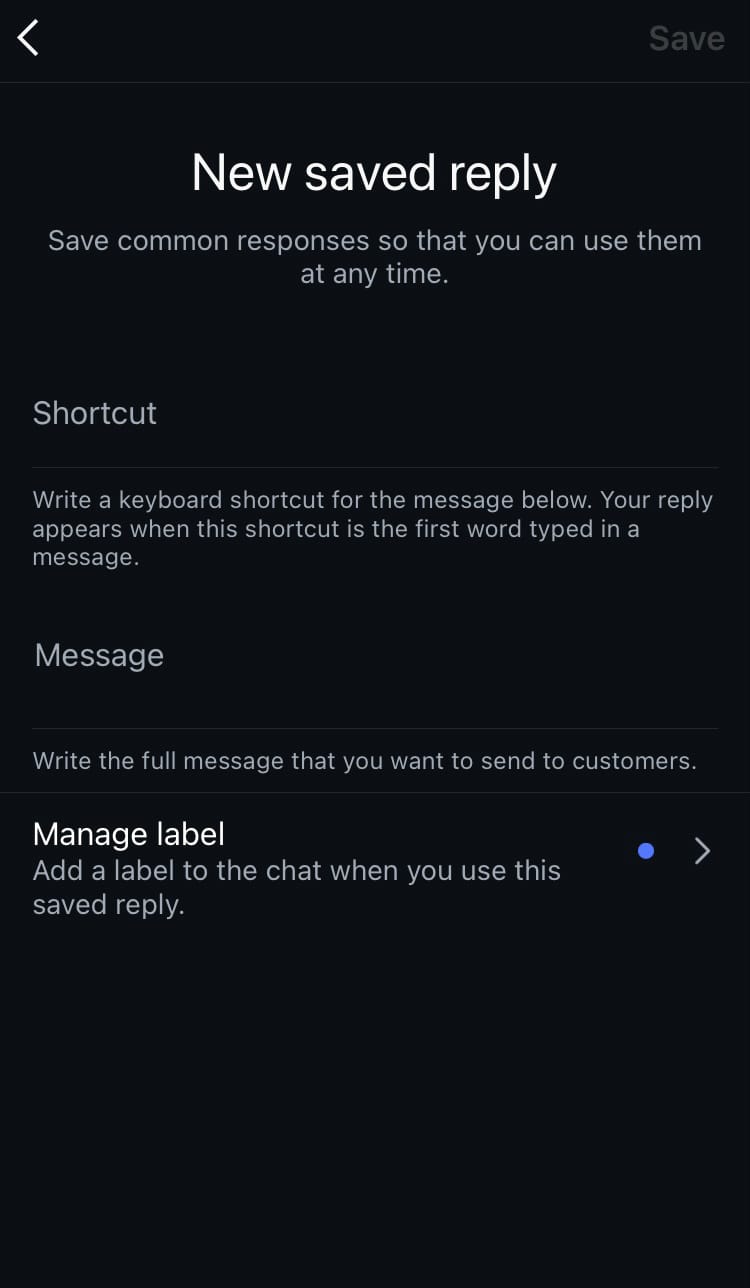
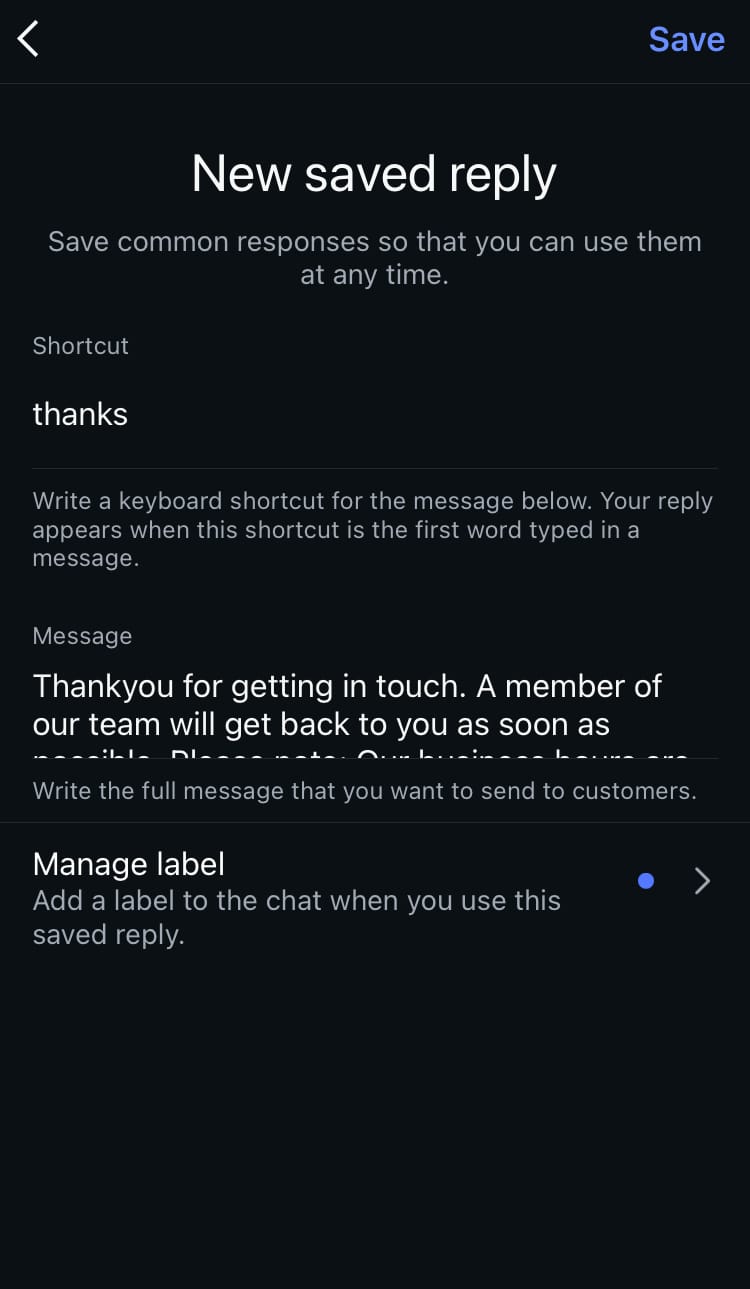
Add a new saved reply
To use a saved reply in a DM conversation:
- Type in the shortcut you created when you set up your saved reply.
- Hit the speech bubble icon that appears in your text bar.
- Make any edits you wish.
- Hit the send icon.
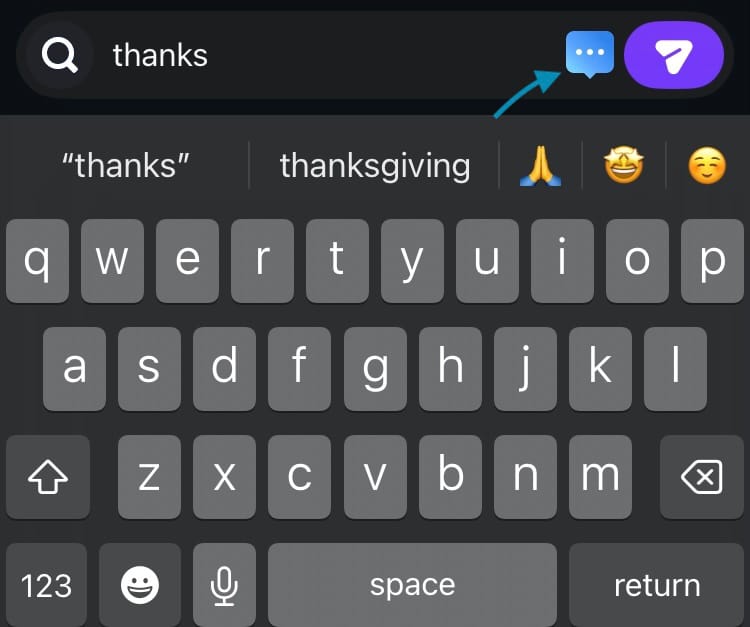
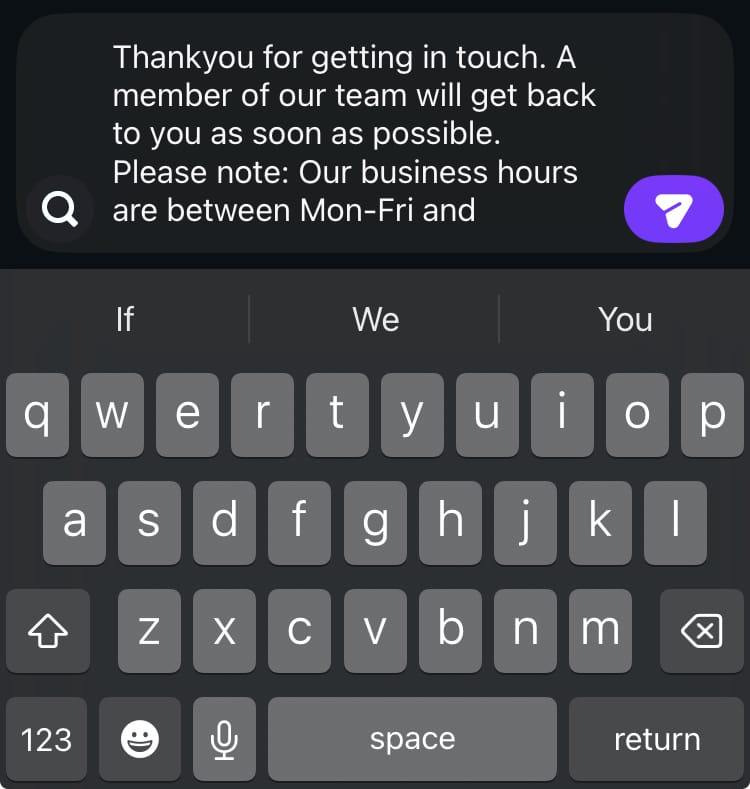
Access a saved reply in a DM chat
3. Response Suggestions
Another time-saving solution is the Response Suggestions feature. When available, Instagram can suggest responses you may wish to use in a DM chat. You can choose to turn on suggestions based on your saved replies and/or suggestions based on replies that you send often.
To turn Response Suggestions on:
- Open Instagram and tap on the DMs icon at the centre of the navigation bar at the bottom of the screen.
- Tap on the 3-dot menu in the top right-hand corner of the screen.
- Choose ‘Tools’.
- Select ‘Response suggestions’.
- Toggle the buttons next to ‘Saved replies’ and ‘Previous replies’ to on.
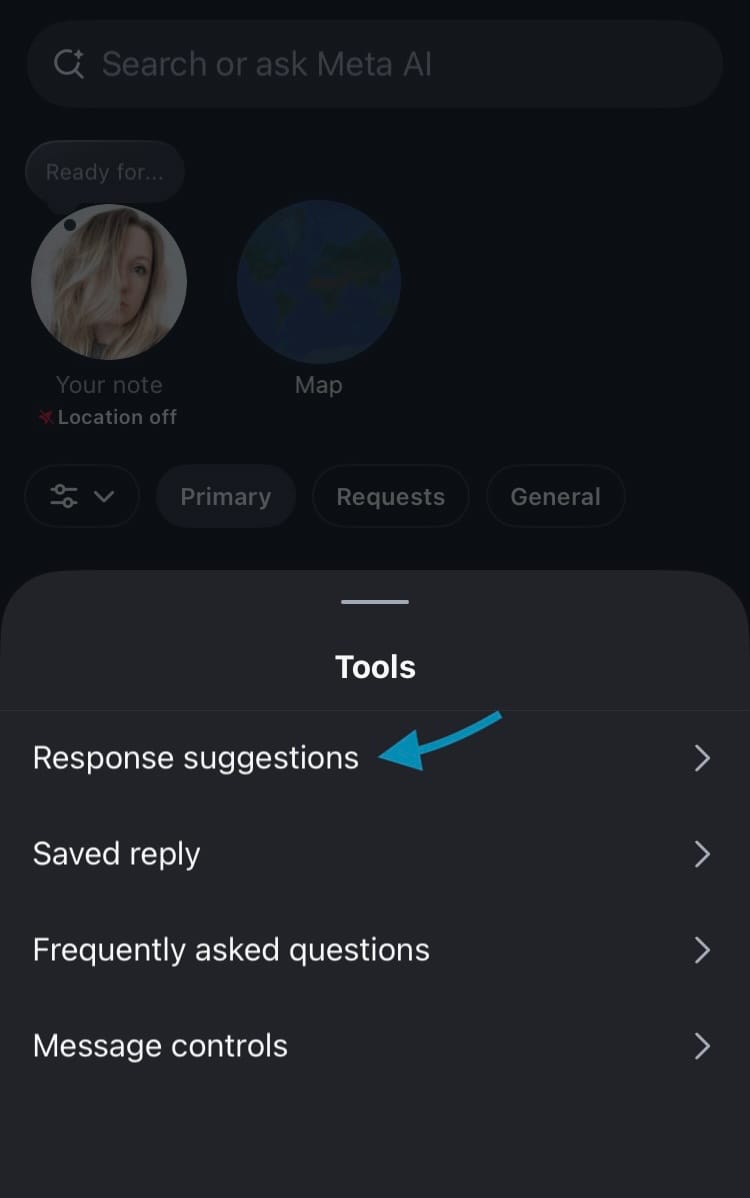
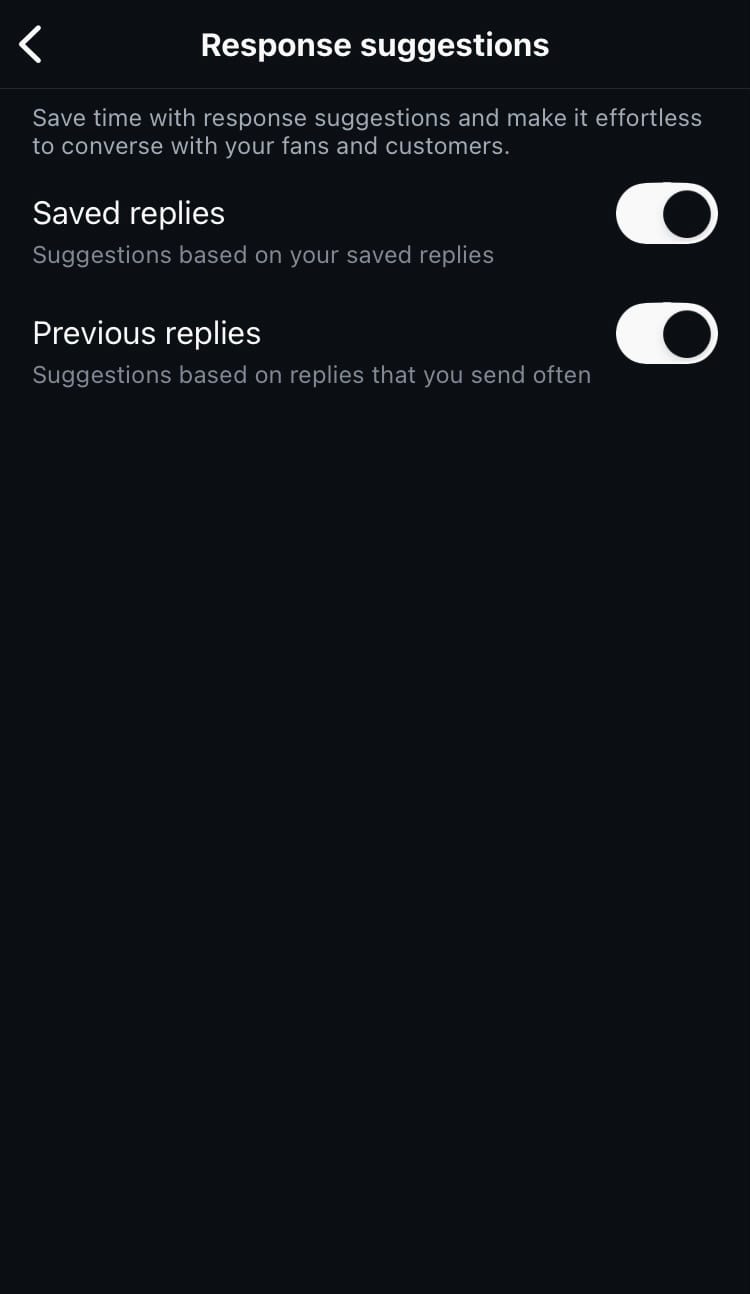
Turn on Response Suggestions
4. Frequently Asked Questions
Pre-load an initial chat with the option to select a question that comes up regularly for your brand. If you have Frequently Asked Questions set up, when someone first opens a chat with your business they will be presented with the option to select a question. This prompts them to start the chat with a common question being only one click away. They still have the option to message with their own text if desired.
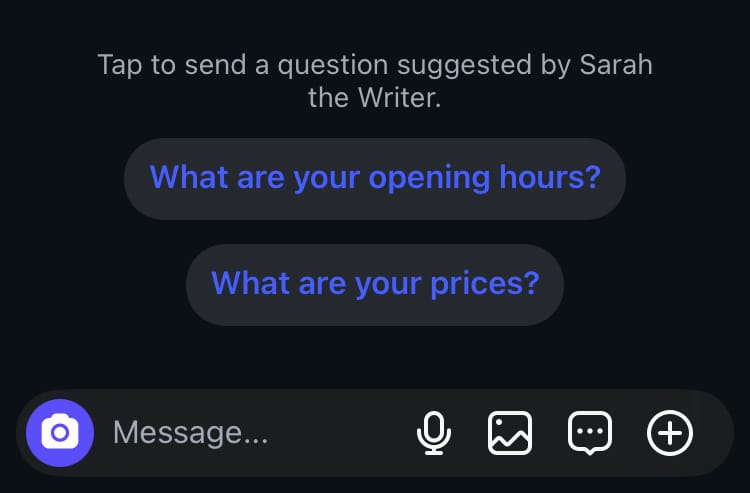
To set up Frequently Asked Questions:
- Open Instagram and tap on the DMs icon at the centre of the navigation bar at the bottom of the screen.
- Tap on the 3-dot menu in the top right-hand corner of the screen.
- Choose ‘Tools’.
- Select ‘Frequently asked questions’.
- Type in a question.
- Hit ‘Save’ in the top right-hand corner of the screen.
- Check and (if necessary) toggle the button next to ‘Show Questions’ to turn the feature on. Note: you may need to toggle this button to turn it on every time you add a new question.
- Select ‘Add Question’ to add an additional question. You can add a maximum of four questions.
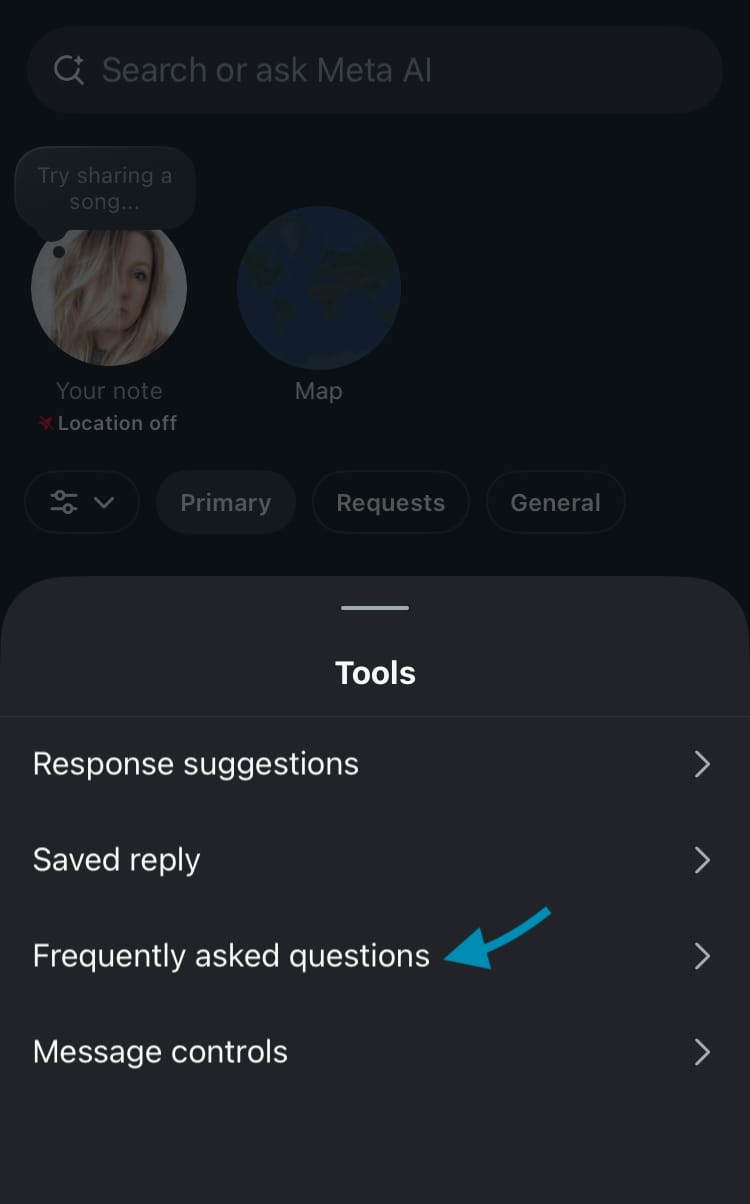
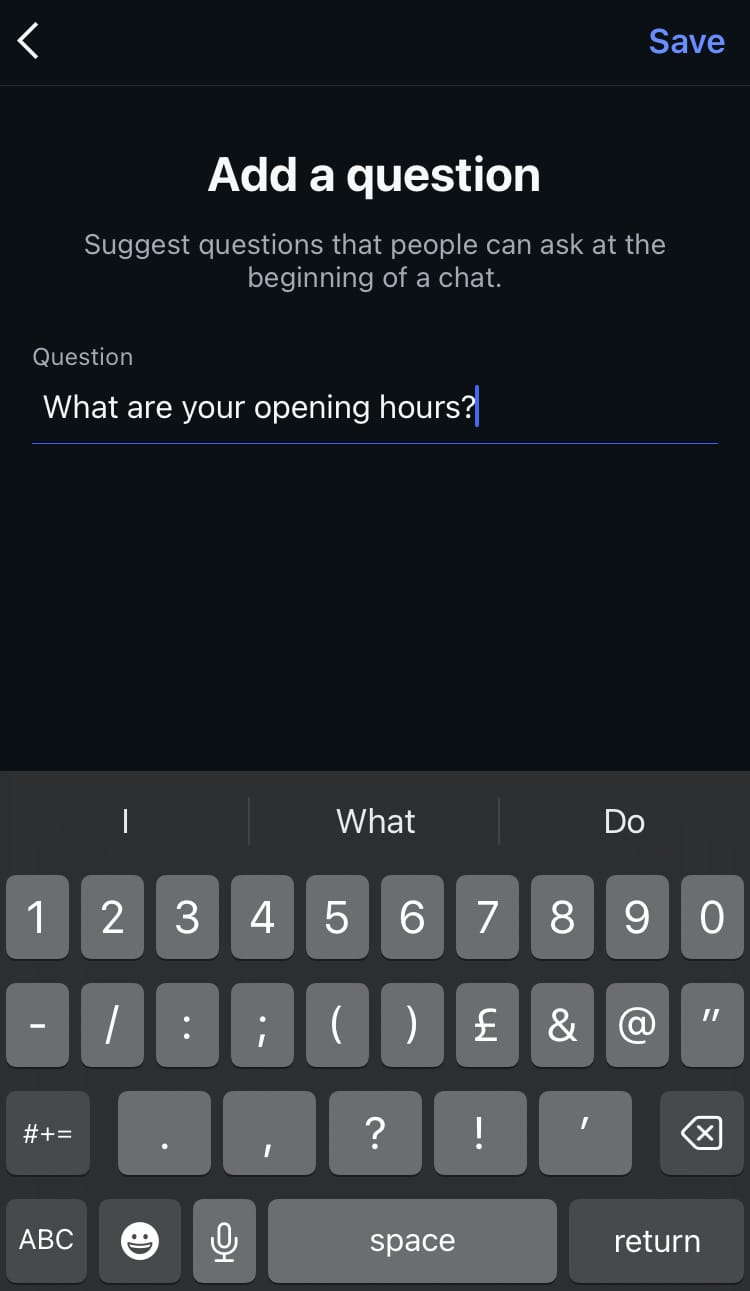
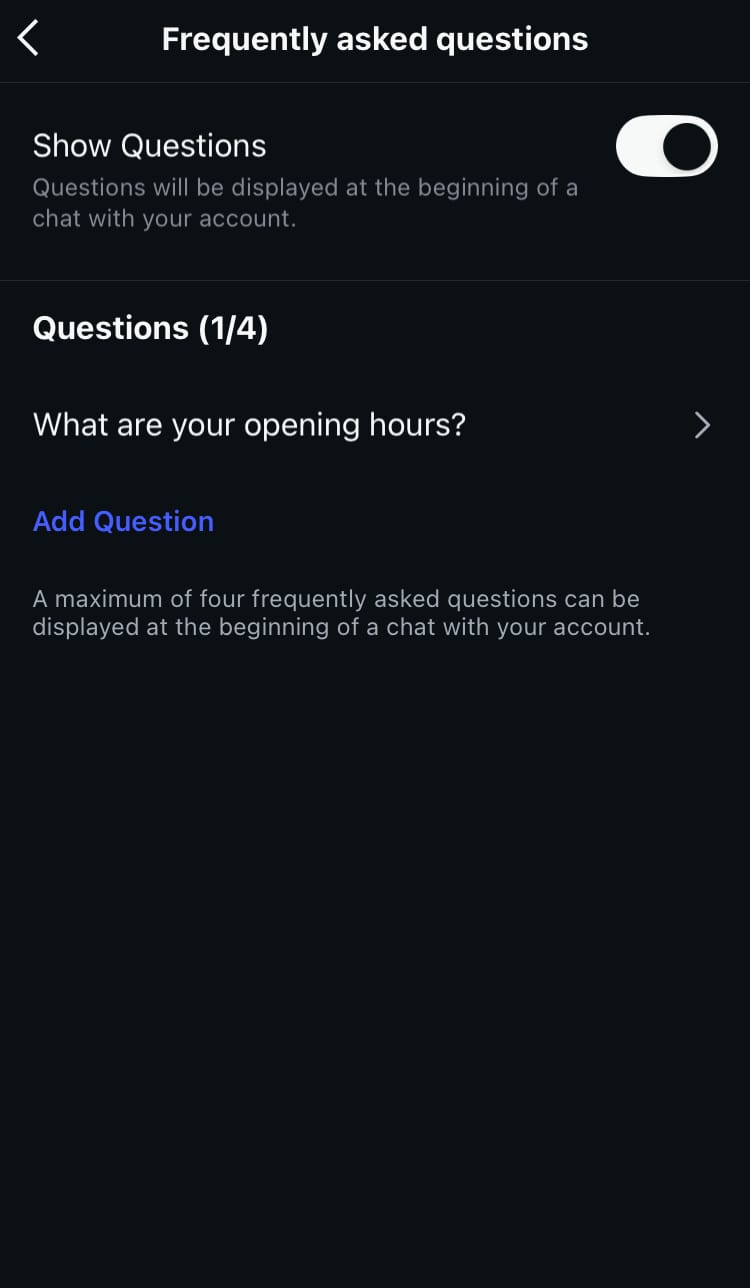
Set up Frequently Asked Questions
5. Access to messages
Help your team work cohesively by making sure every relevant person has access to messages. When turned on, anyone with approved access for Facebook Pages, Meta Business Suite, Pages Manager app, Business Manager, Creative Studio and third-party apps can view and send messages from your Instagram account. This means wherever your team is working from they can access, start and respond to messages.
To allow access to messages:
- Open Instagram and tap on the DMs icon at the centre of the navigation bar at the bottom of the screen.
- Tap on the 3-dot menu in the top right-hand corner of the screen.
- Choose ‘Tools’.
- Select ‘Message controls’.
- Make sure the button next to ‘Allow access to messages’ is toggled on.
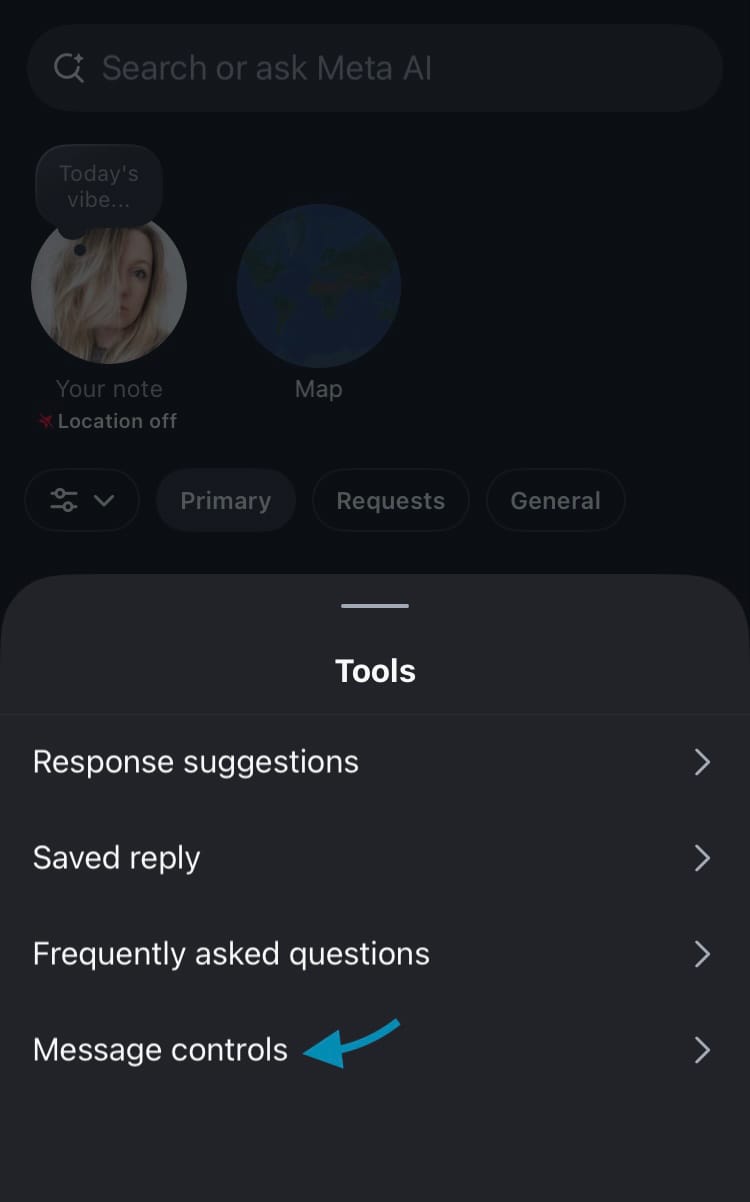
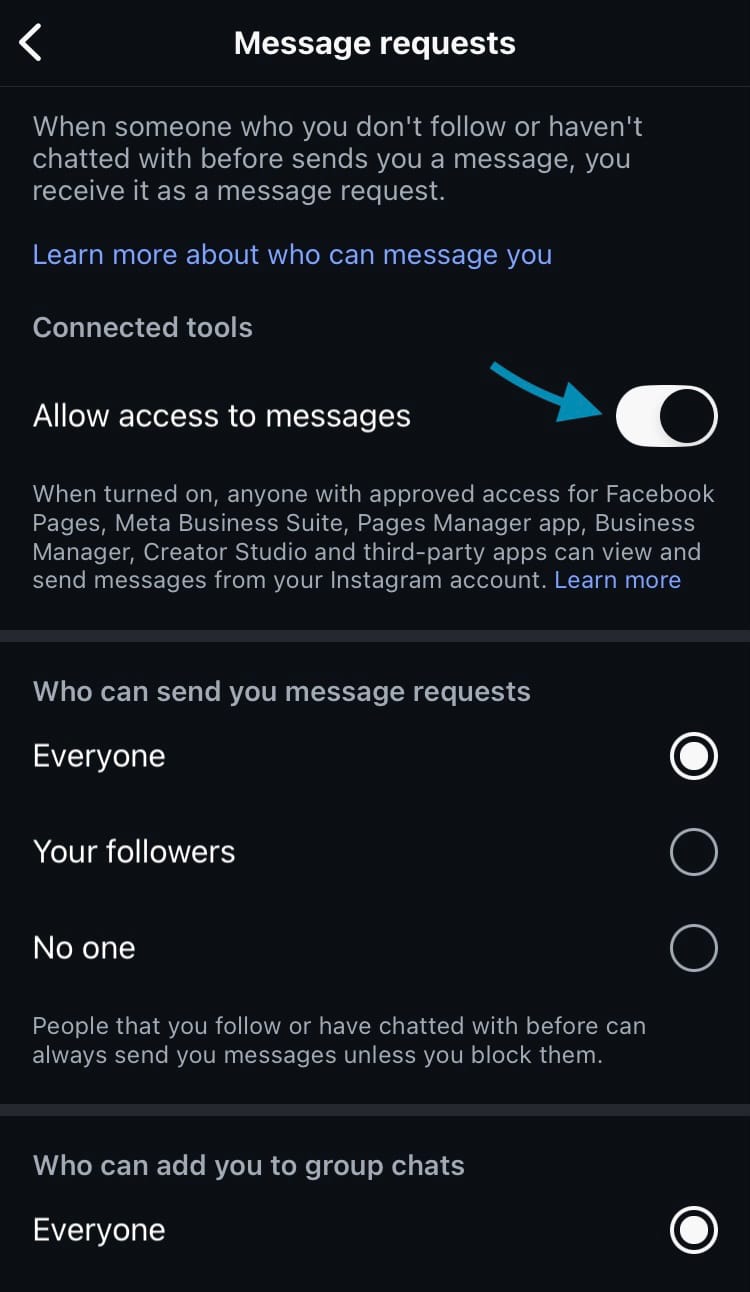
Allow access to messages
Also designed to make your business run more effectively is Minter.io - the social media analytics tool every business needs. With personalised, in-depth analytics, competitor insights and hashtag campaign tracking, you can have all the data you need to grow a business successfully through social media simply laid out in one beautiful space. Try it today!
Grow your business on social media with analytics.