Discover the NEW Instagram Map feature
Instagram is globally rolling out a NEW map feature right now. This shiny addition to Instagram’s interactive connectivity features bridges the gap between the online world and everyday life.
With this fresh feature, friends can:
- Share their real-time locations with people they trust
- Interact with other people’s locations
- Discover posts, stories and notes with location tags from the people they follow
- Explore places anywhere in the world
By the end of this article, this could be the only map you’ll want all your friends using.
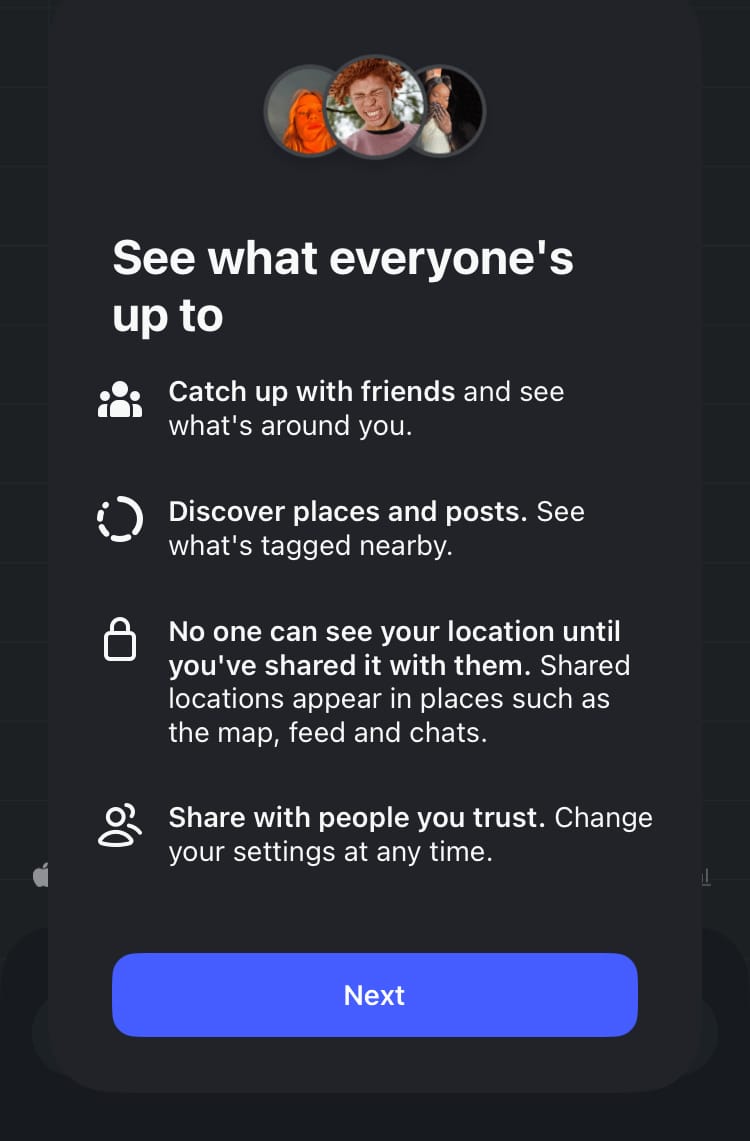
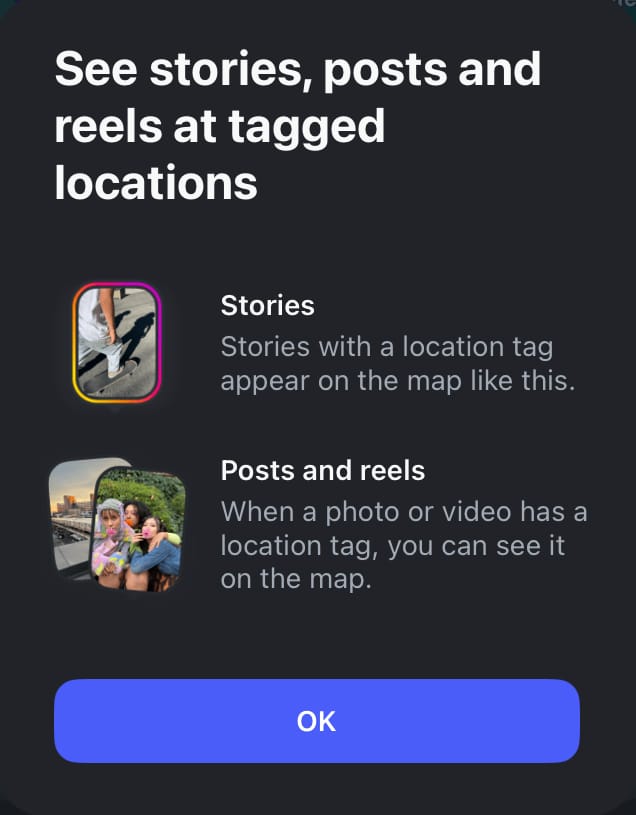
The NEW interactive Instagram map
How to access the map
The Instagram map can be found at the top of your direct messages. Access your DMs from the centre of the navigation bar at the bottom of the screen.
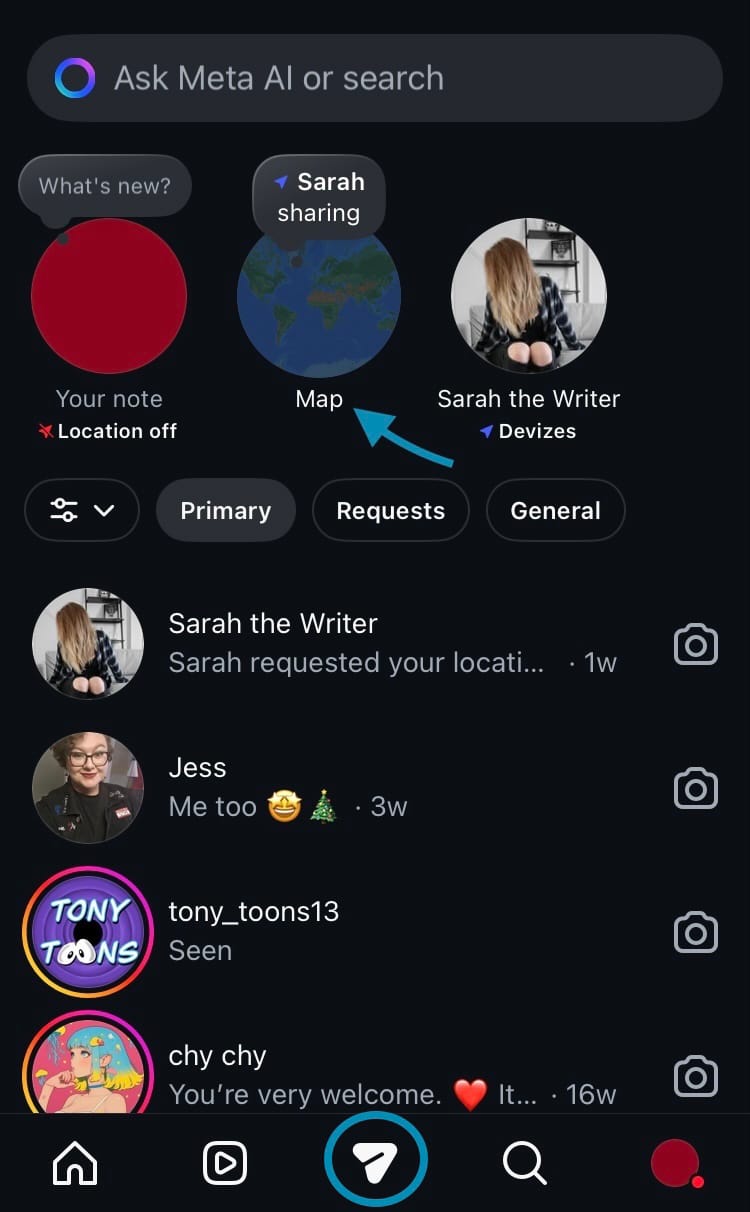
How to share your location
You can choose who can see your location but you can only share your location with other accounts that follow you back. If you choose to turn location sharing on, your precise location updates every time you open Instagram. It disappears if you don’t open the app for 24 hours. Your location will appear in the map, at the top of your DMs inbox, as well as other places such as notes. You can turn off location sharing at any time.
When you first access the Instagram map, your location is off by default. If you choose not to share your location, you can still access the map and see information about the friends who have enabled their location to be viewed by you.
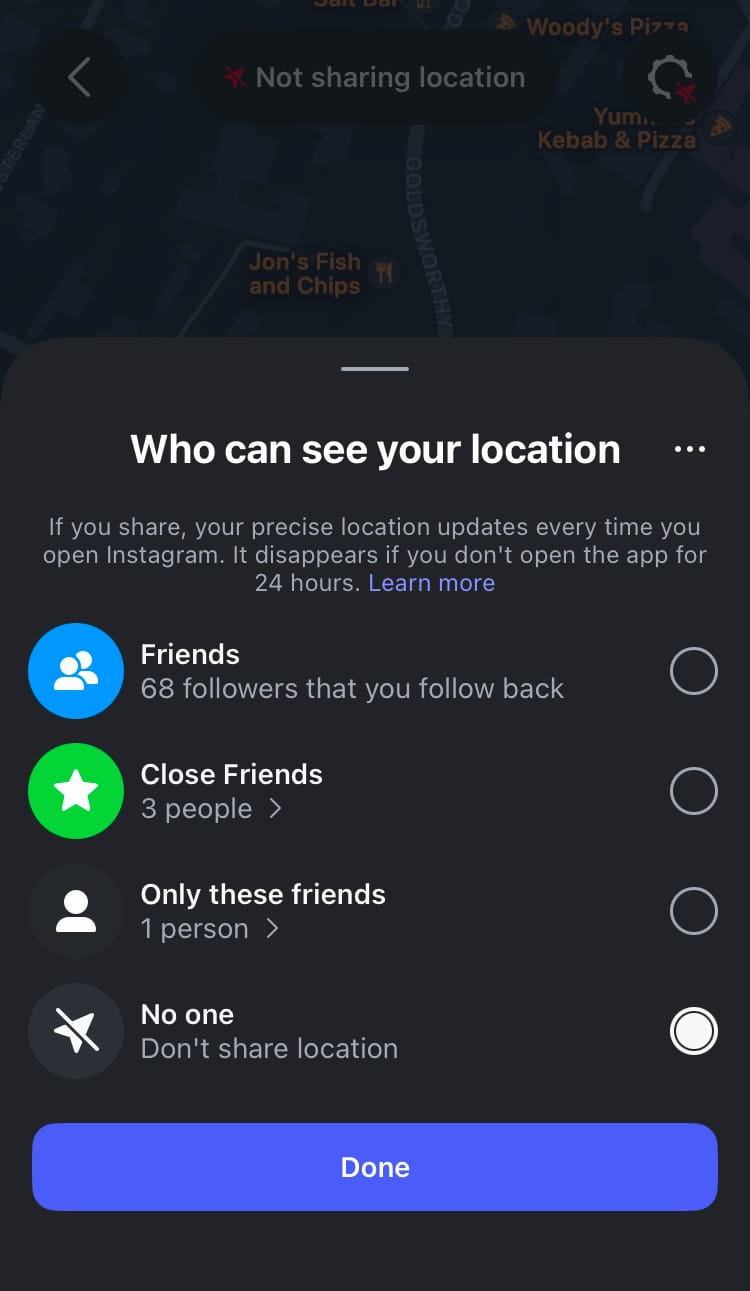
There are several location-sharing options so you can choose to share your location with the people you know and trust.
Choose to share your location with:
- Friends - followers who follow you back
- Close Friends - a specific list of people you choose to view specific feed posts, Instagram Stories posts and your map location
- Only these friends - a group of people specifically chosen to share your location with through the map feature, separate from your Close Friends list
- No one - don’t share your location
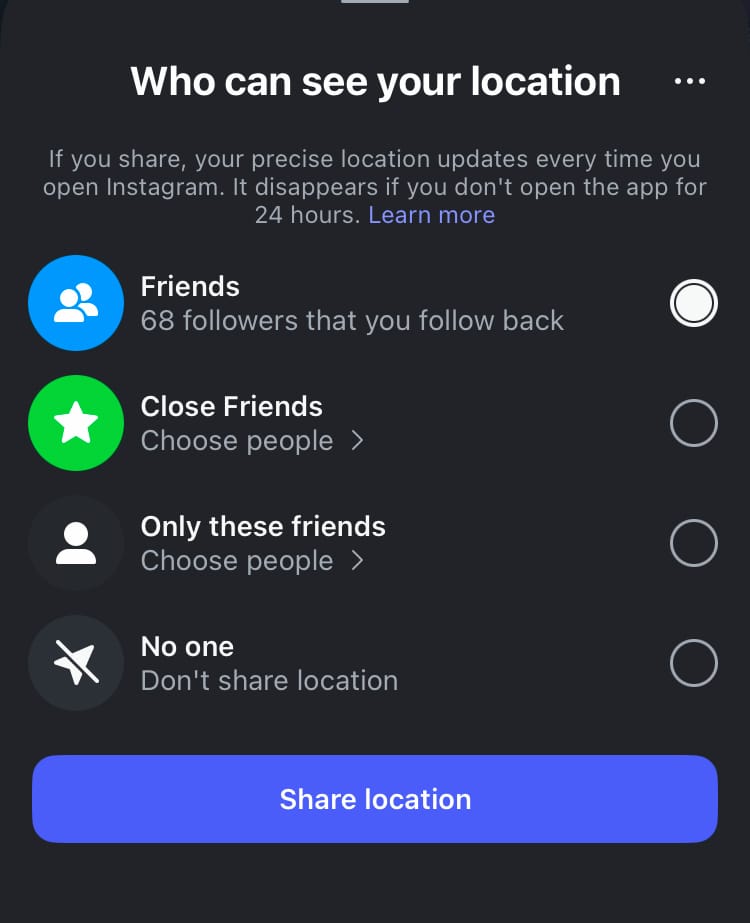
You can change who can see your location at any time by tapping the cog settings icon in the top right-hand corner of the screen. Remember to hit the button at the bottom of the screen to confirm any changes.
Location-sharing icon key
Whether your location settings are on or off, there will be an icon on the cog setting icon which indicates your location-sharing settings.
Here’s what they mean:
- A blue arrow: you’re sharing your location with your selected audience
- A red arrow with a line through it: you’re not sharing your location
- An orange triangle: You need to enable permissions on your device to share your location
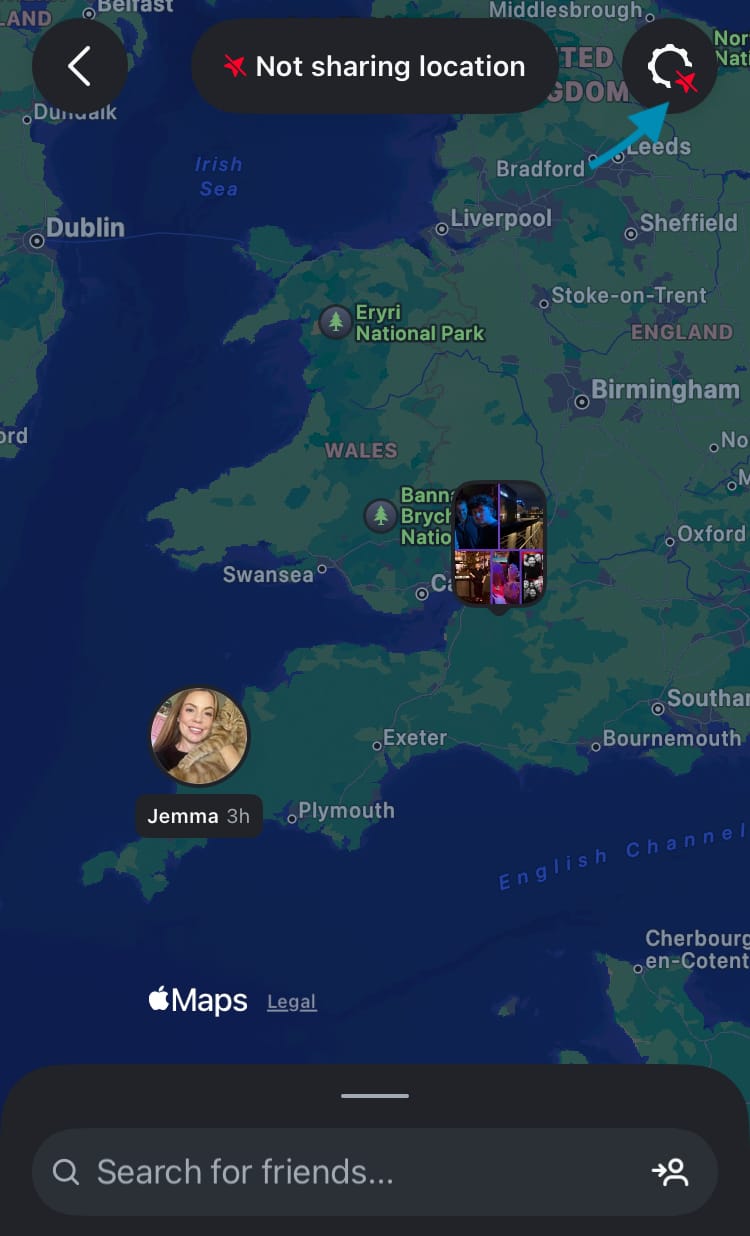
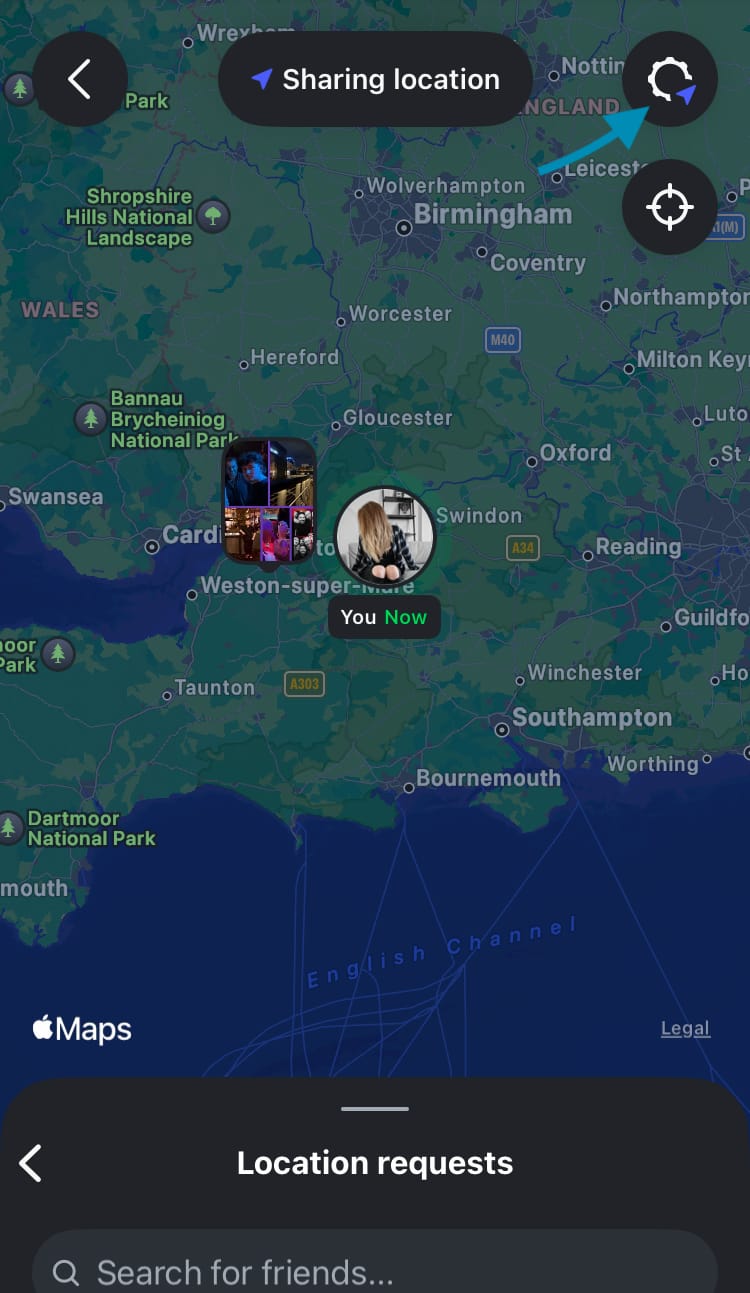
Location-sharing icon key: red arrow = not sharing location, blue arrow = sharing location
How to turn off your location
You can stop sharing your location at any time. Choose to turn off your location for 3 hours, 24 hours or until you turn it back on again.
Here’s how:
- Tap the settings cog icon in the top right-hand corner of the screen.
- Choose ‘No one’.
- Select an option for how long you want to turn off location sharing.
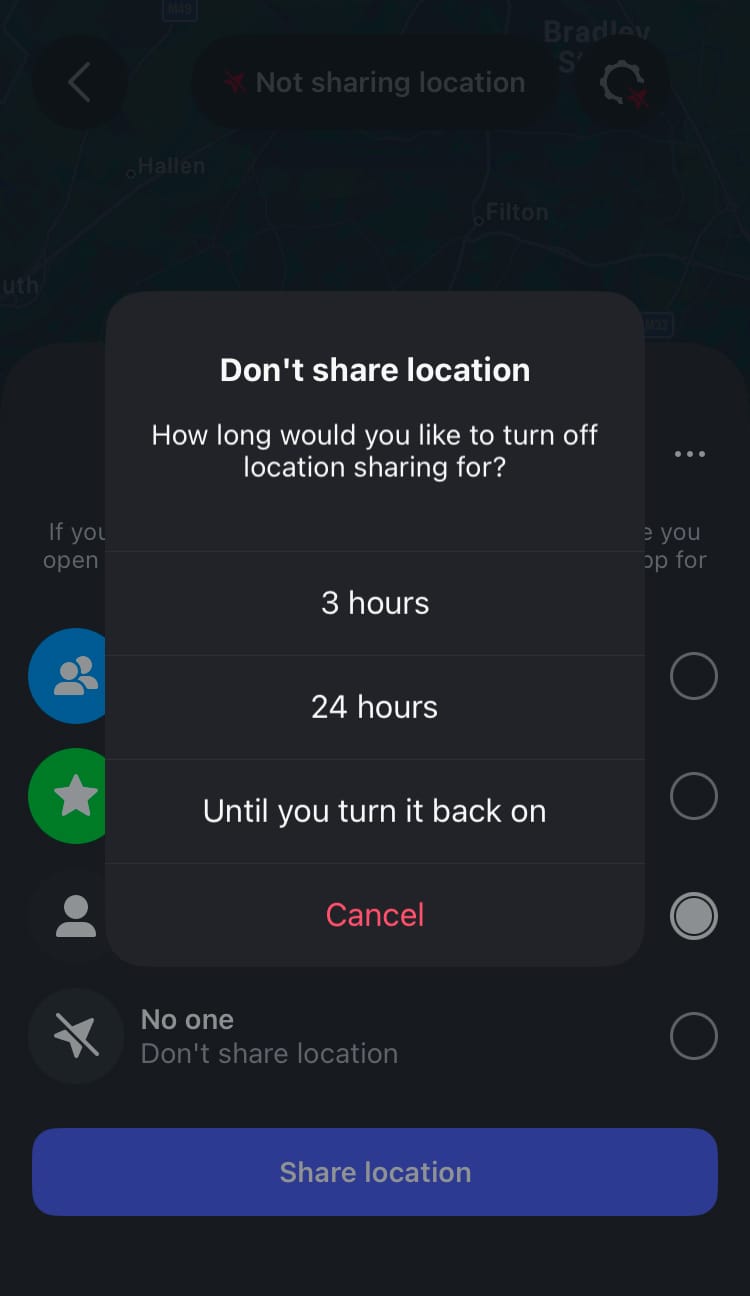
Turn off your location for 3 hours, 24 hours or until you turn it back on.
How to hide specific locations
If you want to share your location with friends but wish to hide specific locations from being shared (such as your work, home, doctor’s surgery etc.), you can do this by setting up hidden places.
Here’s how:
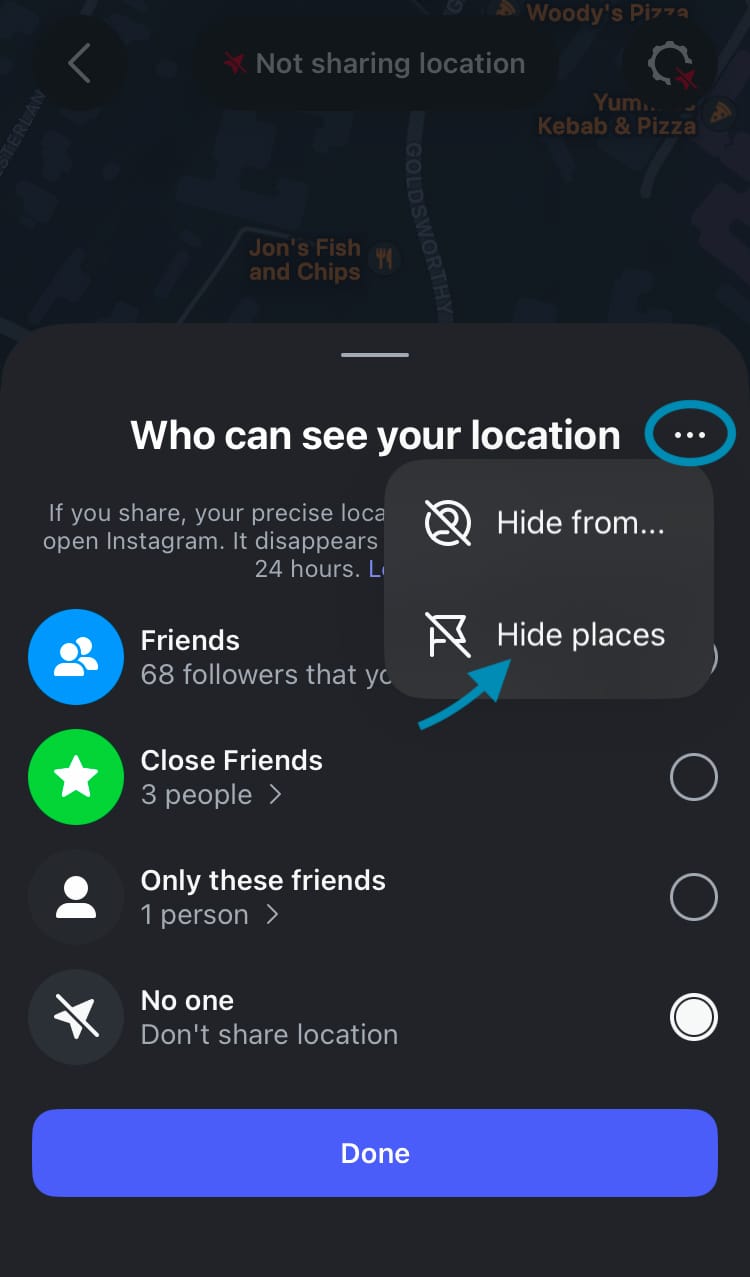
- Tap the settings cog icon in the top right-hand corner of the screen.
- Hit the 3 dot menu.
- Choose ‘Hide places’.
- If you haven’t created a hidden place yet, tap the ‘Set up’ button.
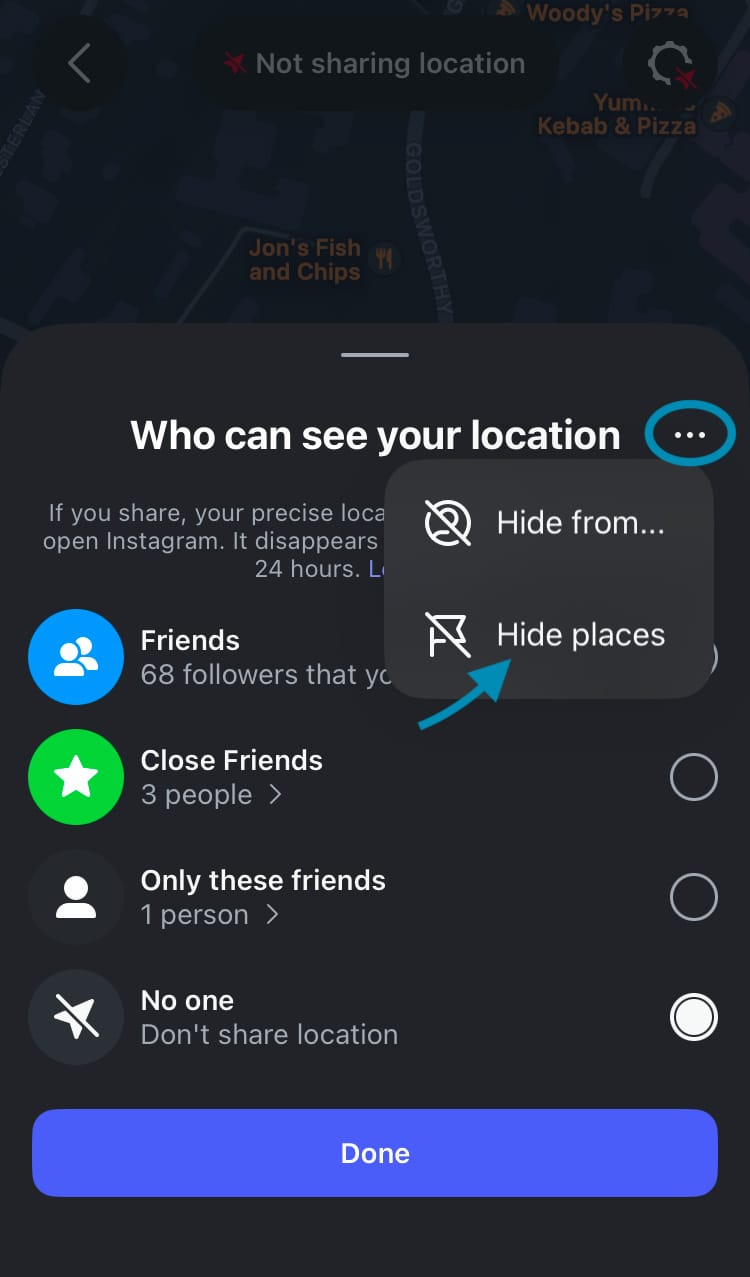
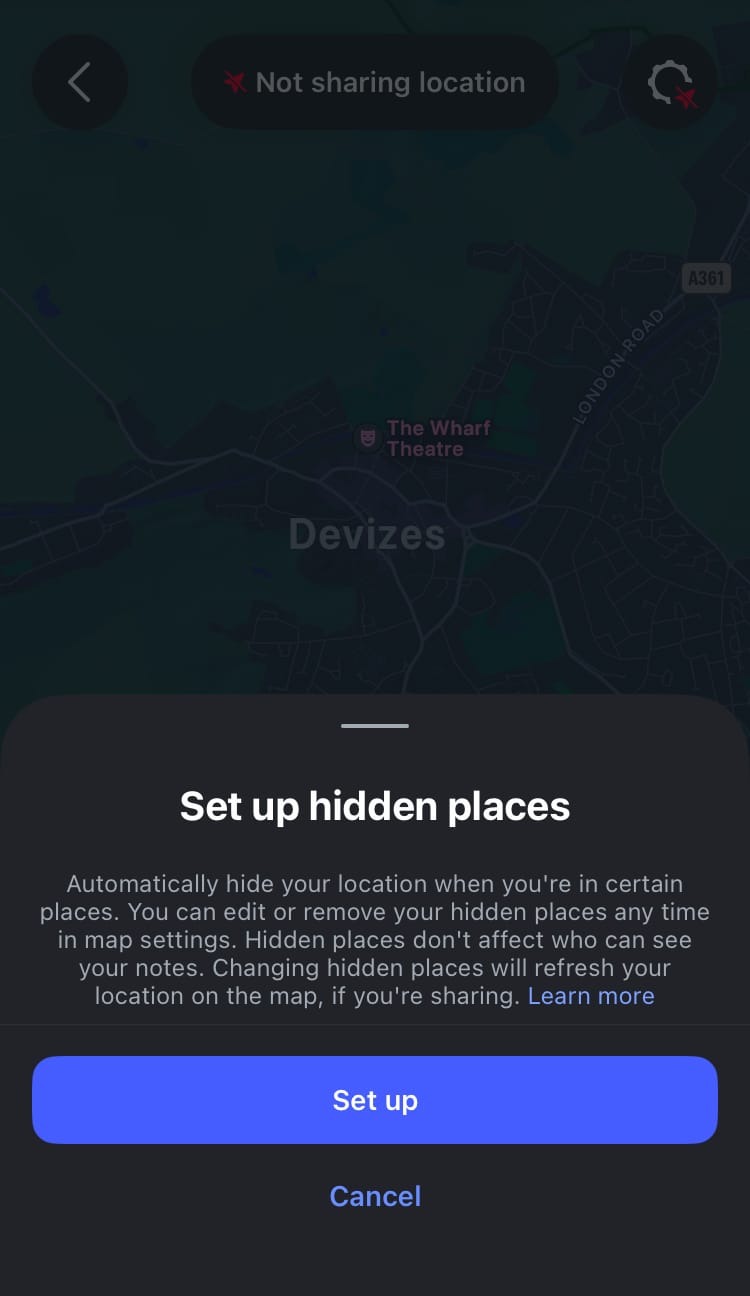
Hide sharing your location from specific places, Steps 1-4
- Drag, pinch and pull the map so the hidden location icon and its radius cover the place you want to hide sharing your location from.
- Use the slider to determine the size of the area you want to hide.
- Tap ‘Next’.
- Type a name for the location.
- Tap ‘Done’.
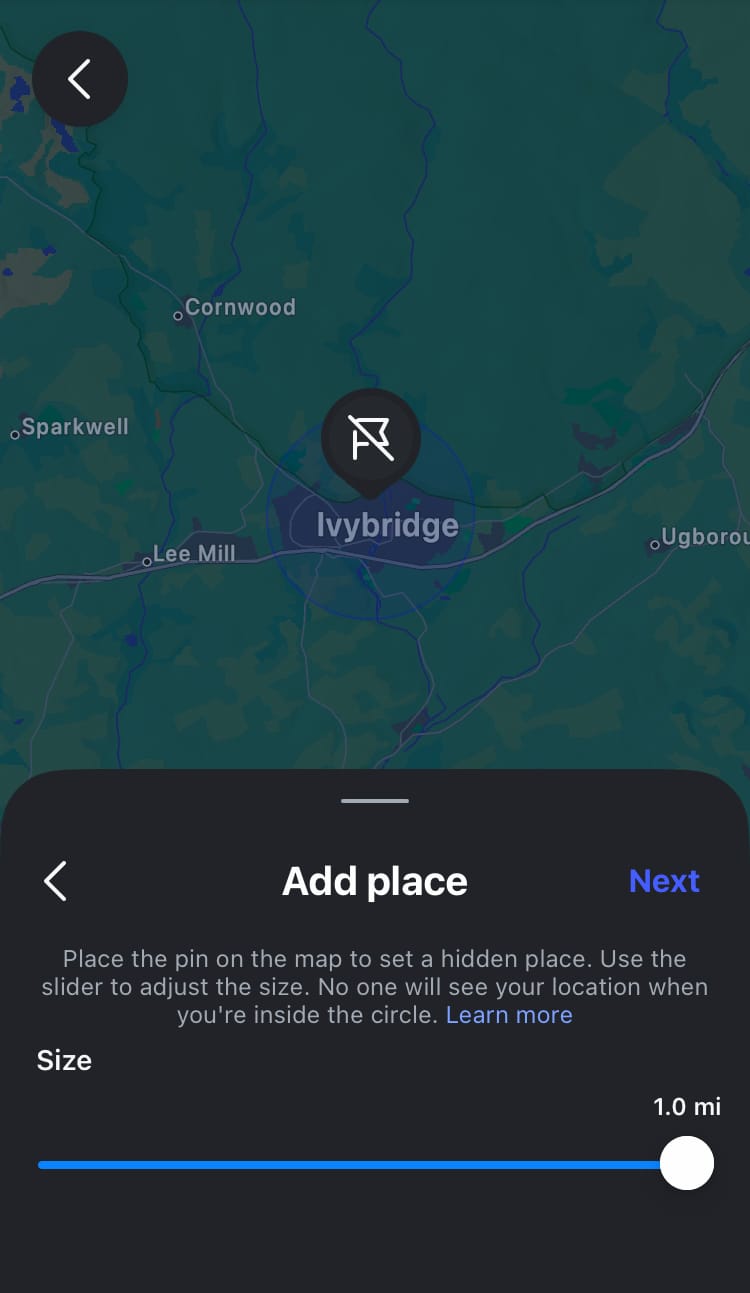
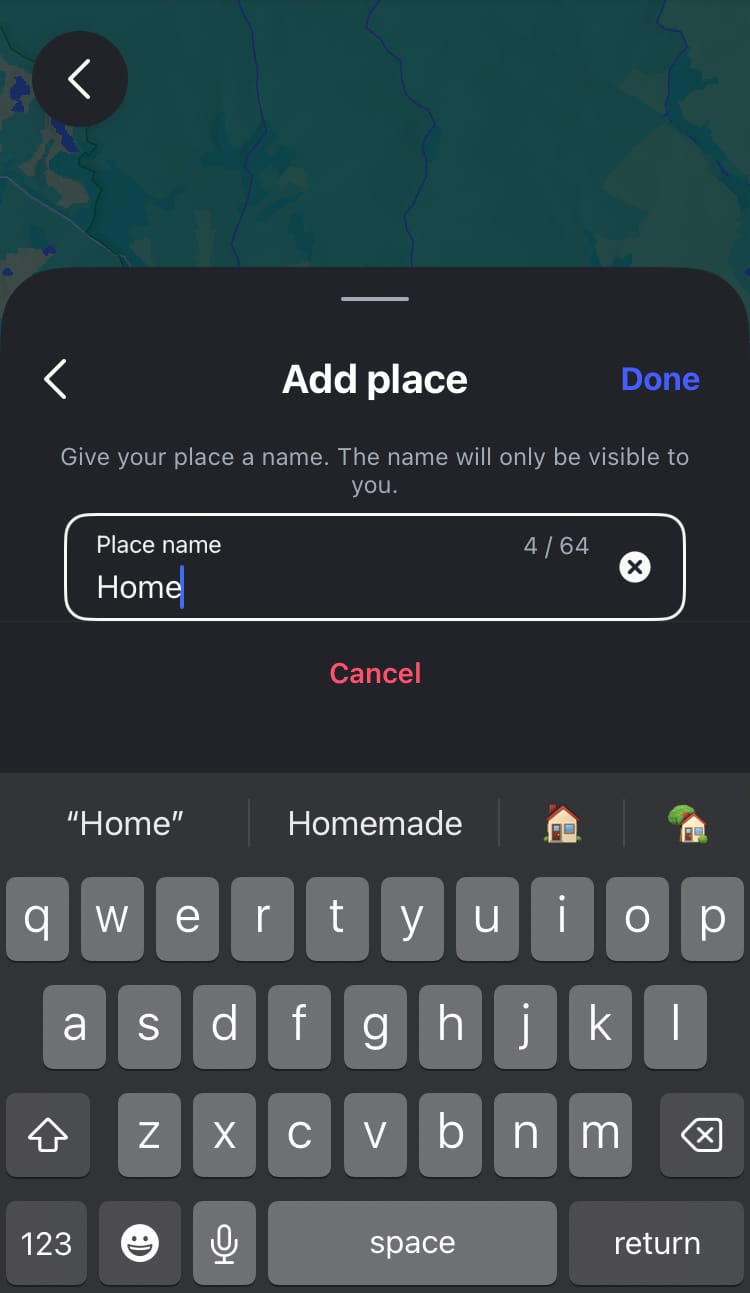
Hide sharing your location from specific places, Steps 5-9
How to edit or delete a hidden place
You can edit or delete a hidden place at any time.
Here’s how:
- Tap the settings cog icon in the top right-hand corner of the screen.
- Hit the 3 dot menu.
- Choose ‘Hide places’.
- Tap the pencil icon next to the hidden place you want to edit or delete.
- Choose ‘Edit place’ or ‘Delete place’.
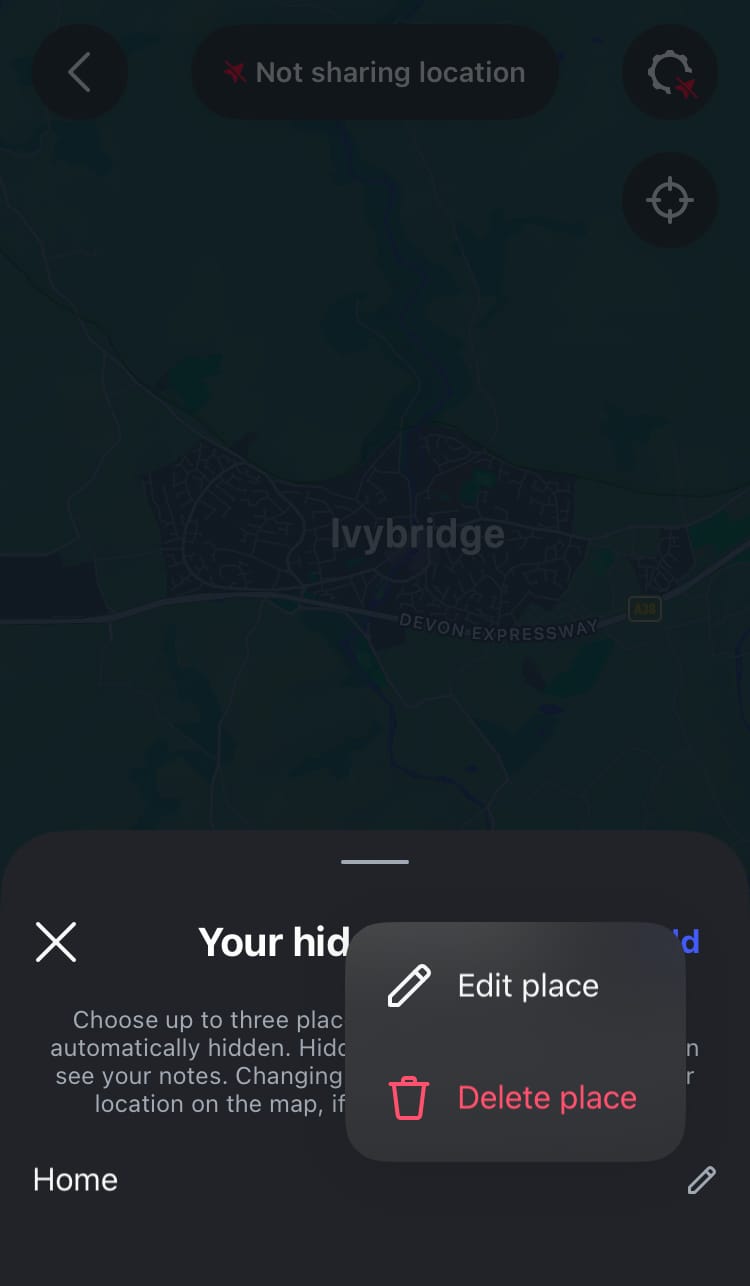
Edit a place you’re hiding sharing your location from
How to hide your location from specific people
If there are only certain people you wish to hide your location with, this feature will save you the time and hassle of adding everyone except those people (or a specific person) to your shared list.
Here’s how:
- Tap the settings cog icon in the top right-hand corner of the screen.
- Hit the 3 dot menu.
- Select ‘Hide from…’.
- Choose the accounts you wish to hide your location from.
- Tap the ‘Done’ button at the bottom of the screen.
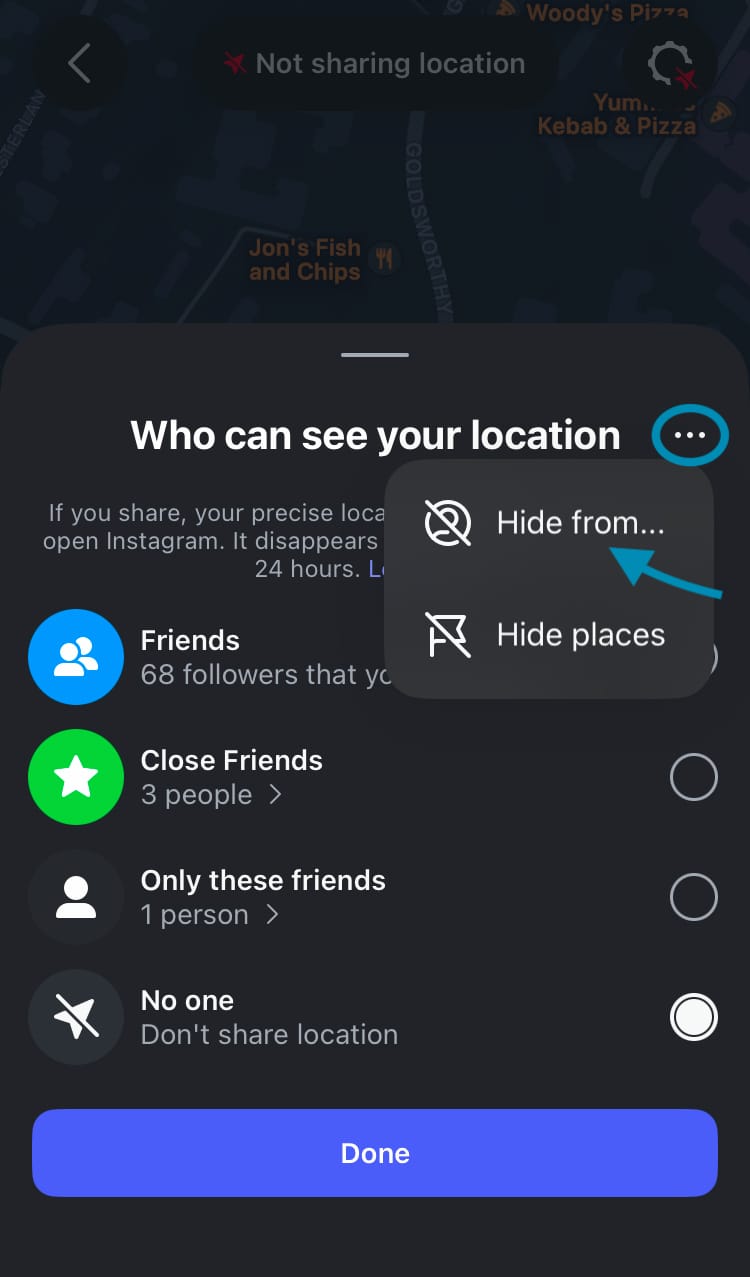
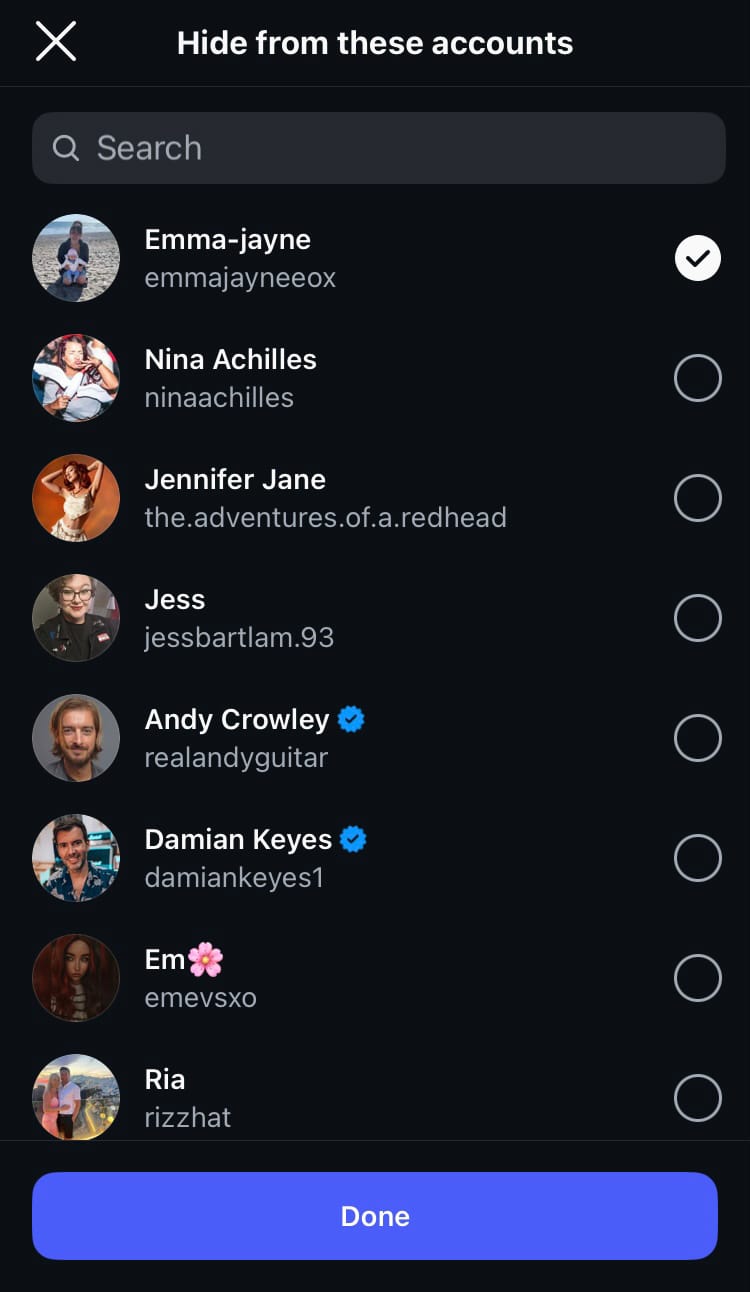
Hide your location from specific accounts
You can edit the people you’ve hidden your location from at any time by going into the ‘Hide from…’ menu again and adding more accounts or tapping hidden accounts to show your location to them again. Remember to hit ‘Done’ to save any changes.
How to view and interact with a friend’s location
At the bottom of the map there is a list of friends currently sharing their location with you. Use the search bar to quickly find the locations of specific friends. If someone is sharing their location with you but you aren’t sharing it back, there will be a ‘Share back’ button next to their name and location at the bottom of the map. Tap it to share your location with them.
On the map, there are several ways you can interact with your friend’s location.
Like it by tapping the heart icon. Your friend will be notified of the like and the map icon at the top of their DMs will be animated with heart icons.
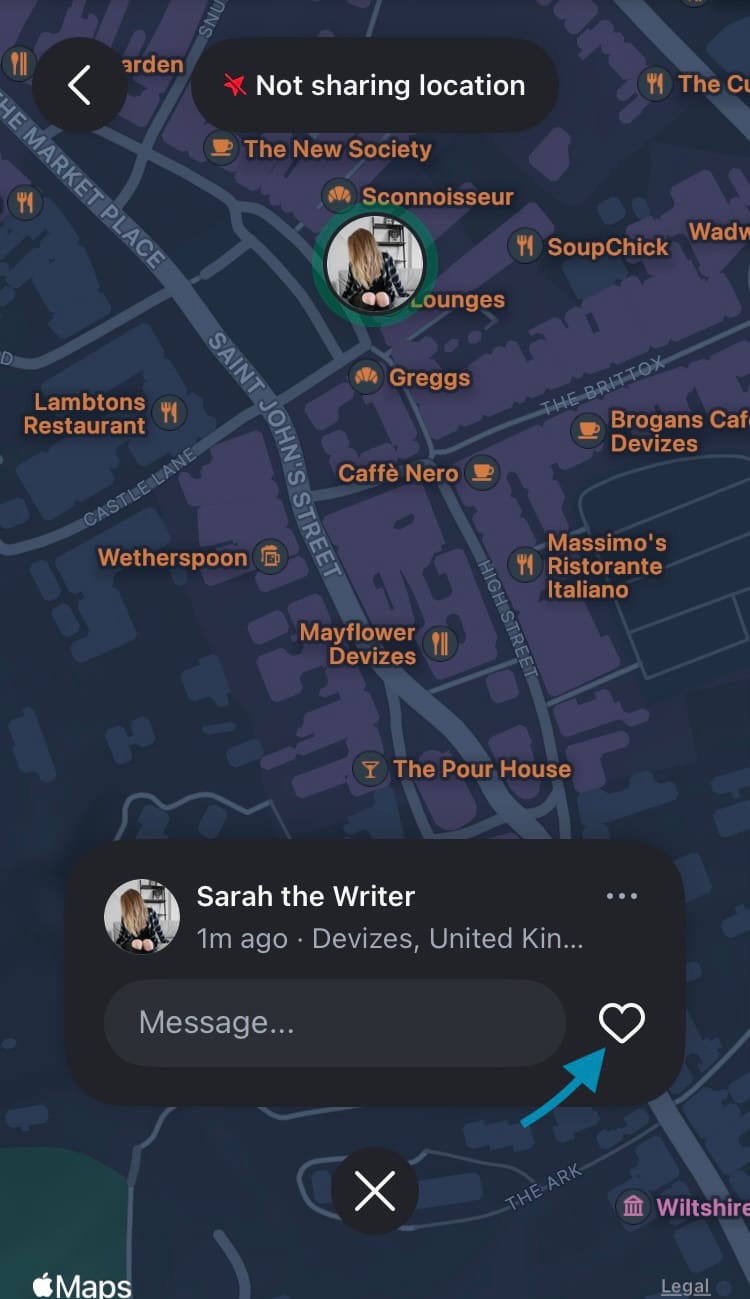
You can view who liked your location from the top of your map.
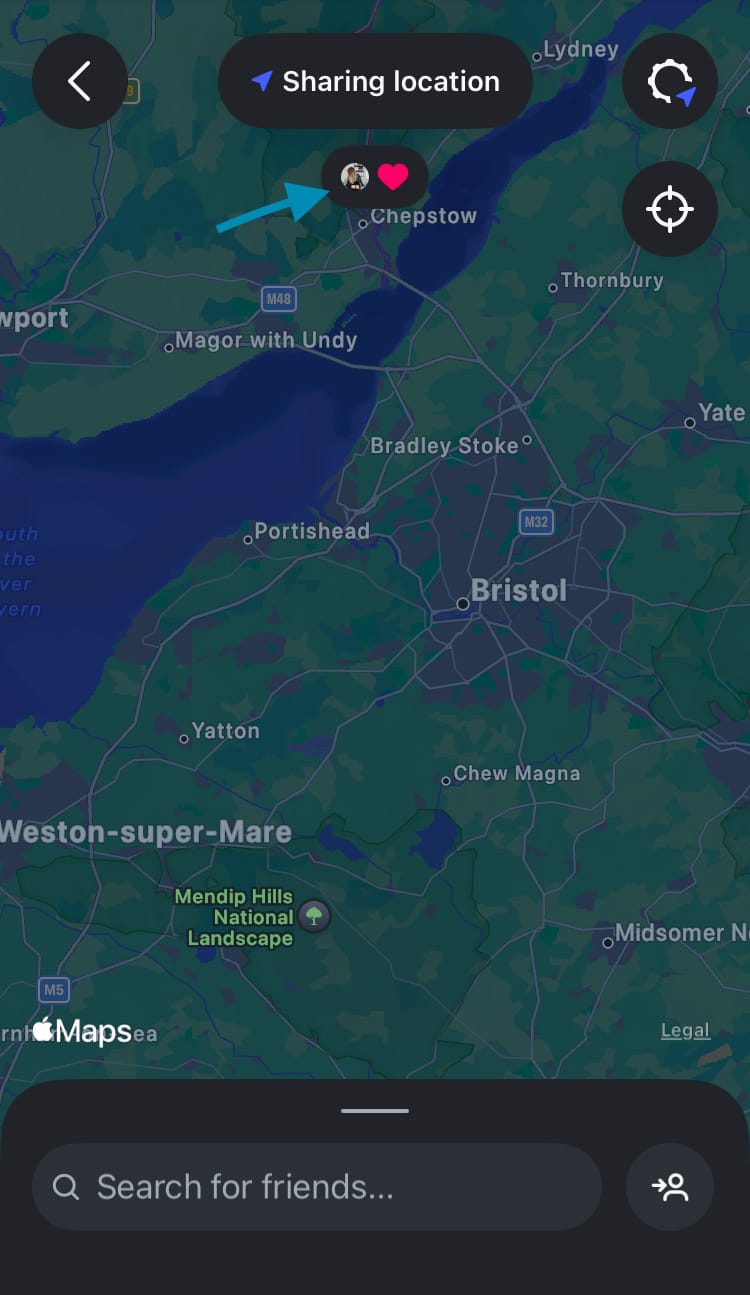
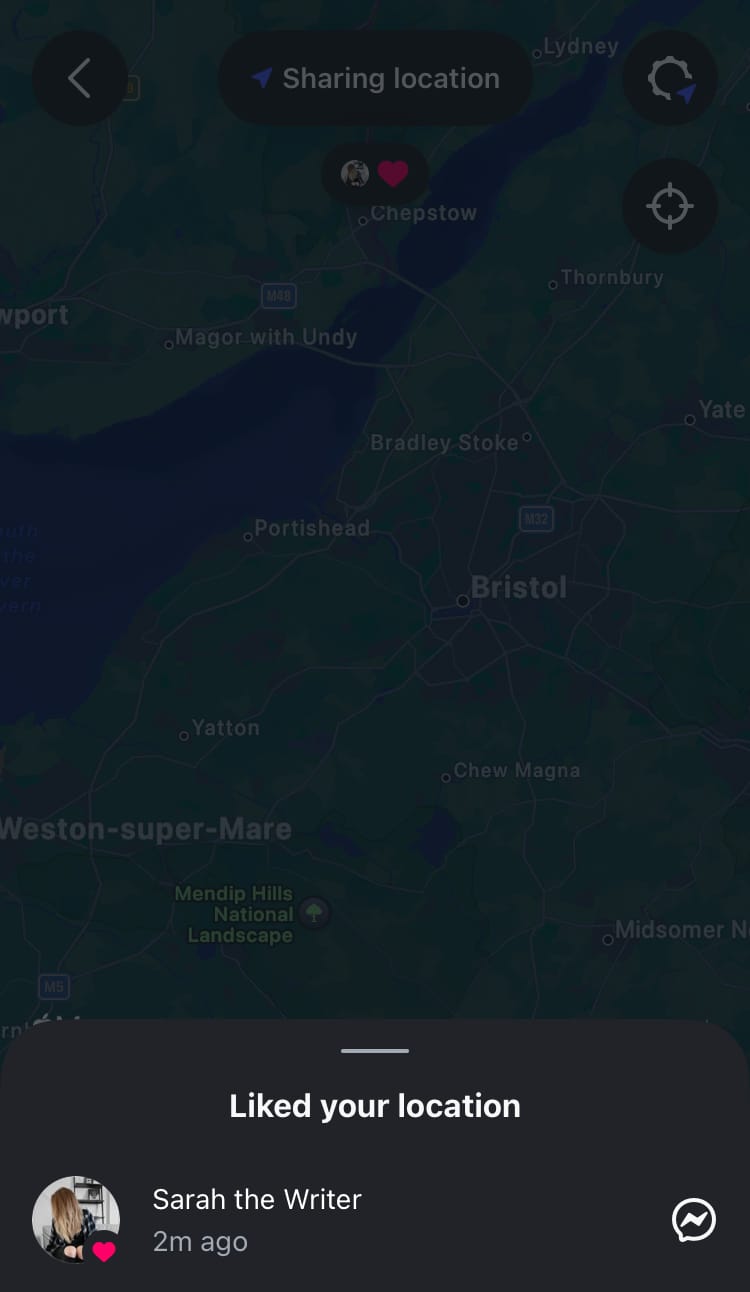
View who liked your location
Send a message to your friend directly through the map. Messages will start a chat between you and that person in your DMs, just like it does when you send messages through Instagram Stories.
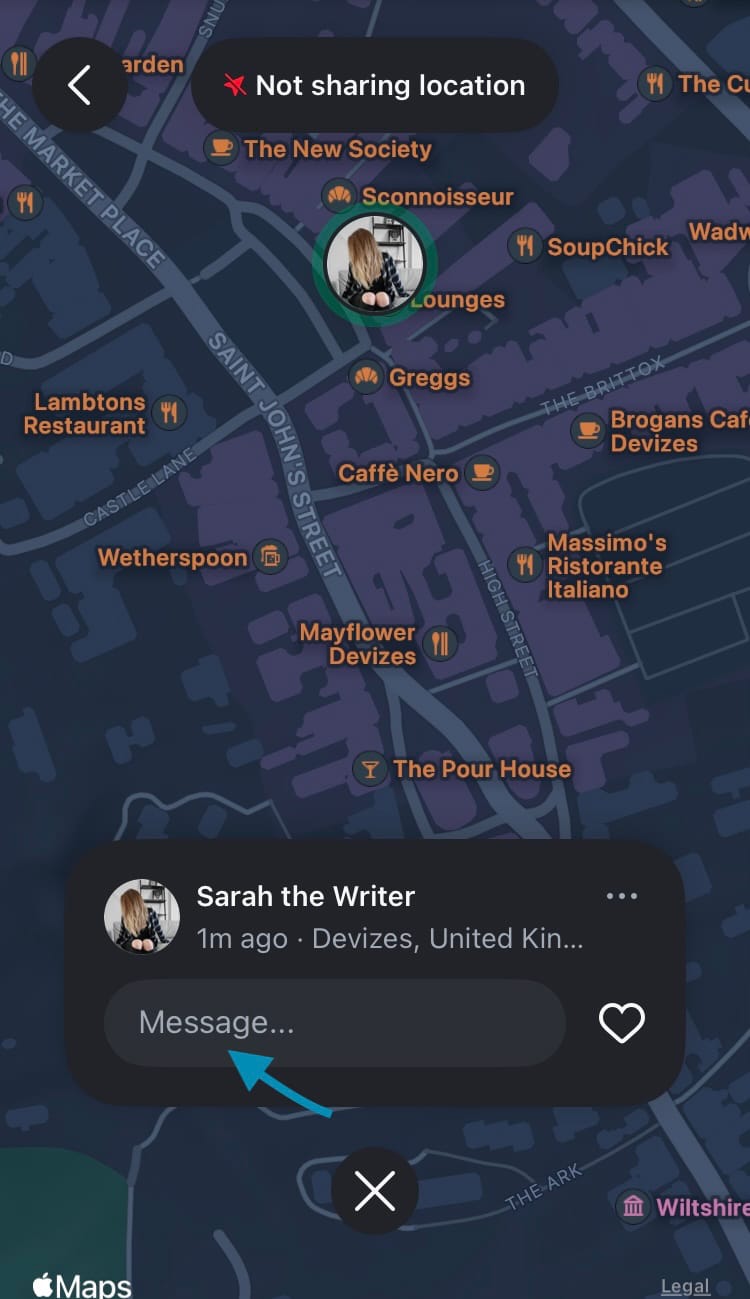
You can also access your friend’s Instagram profile through the map by tapping on their name or profile picture.
How to view and interact with location-tagged content
View and interact with posts with location tags from people you follow. Reels, posts, and stories with location tags will be available to interact with from the map for 24 hours after it’s been posted. Notes from people who follow you back are also available to view and interact with from the map for 24 hours.
Tap a post on the map to interact with it as you usually would elsewhere on the app. Tap on the user’s name or profile picture to access their profile directly from the map.
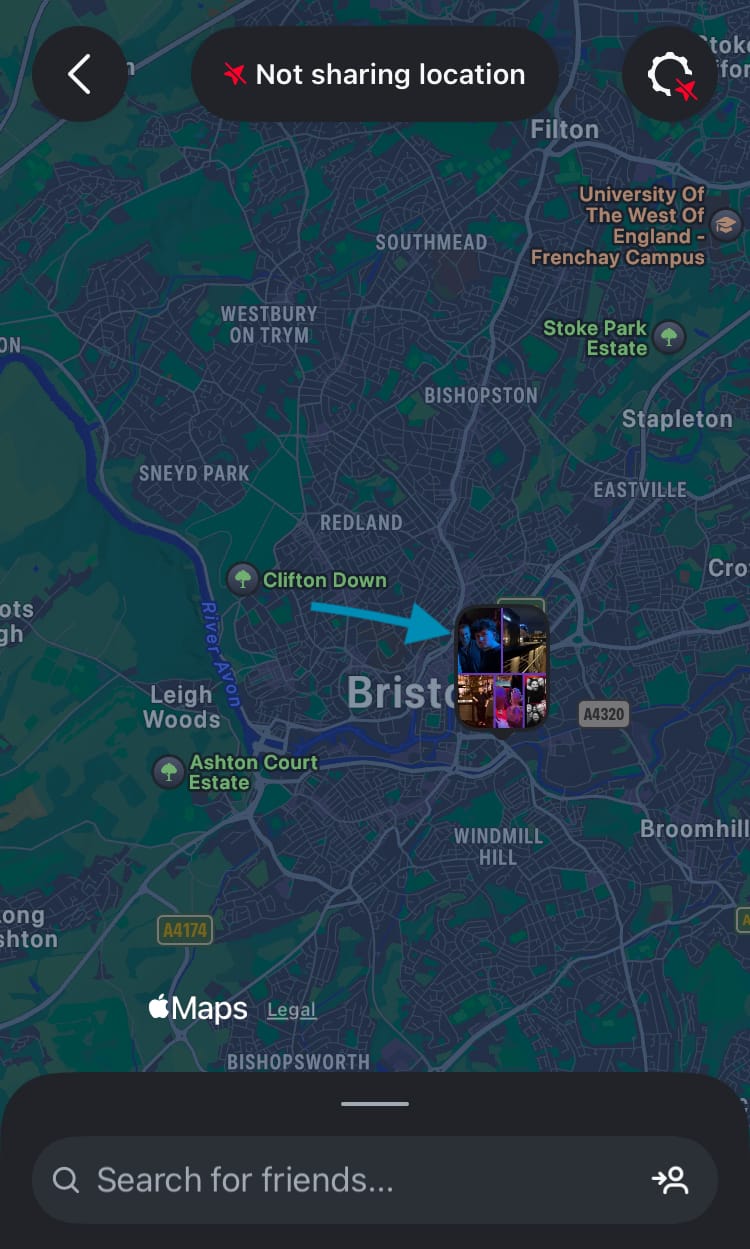
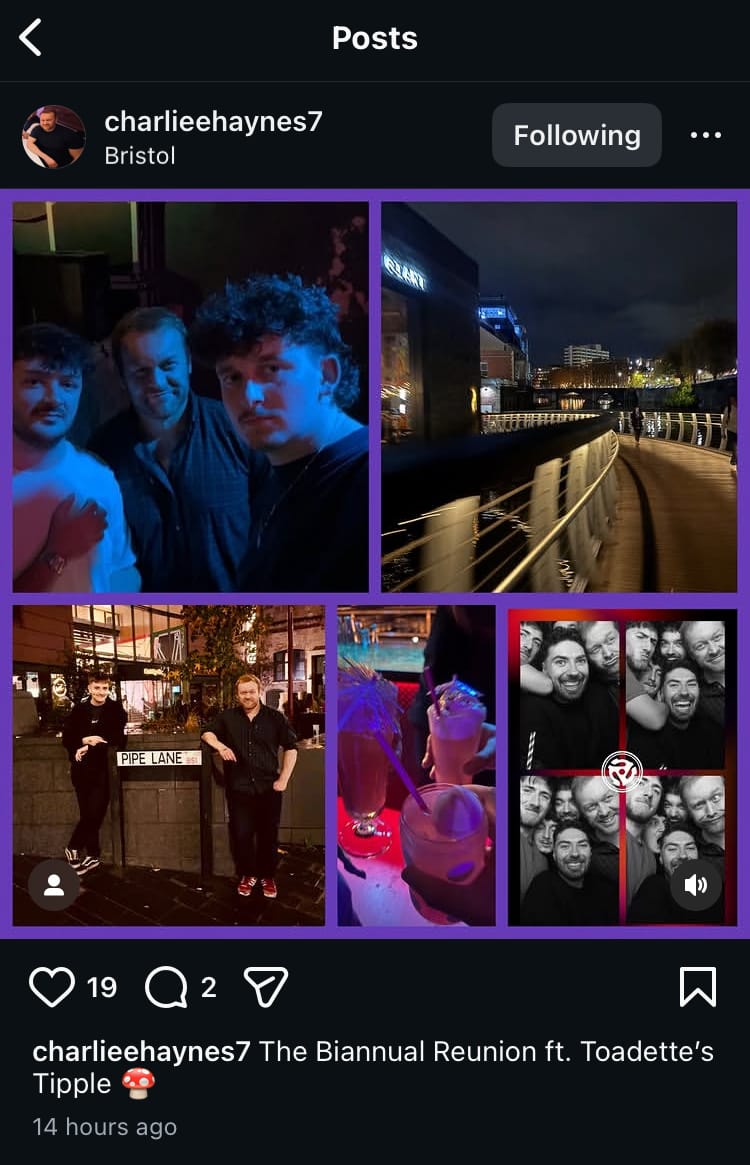
Tap a post to interact with it directly from the Instagram map
How to request to see a friend’s location
If you’re sharing your location with someone who isn’t sharing their location with you, you can send them a request to share their location with you. Note: you must be sharing your location to send a request.
Here’s how:
- Tap the location requests icon.
- Search for a friend.
- Tap the ‘Request’ button next to a user.
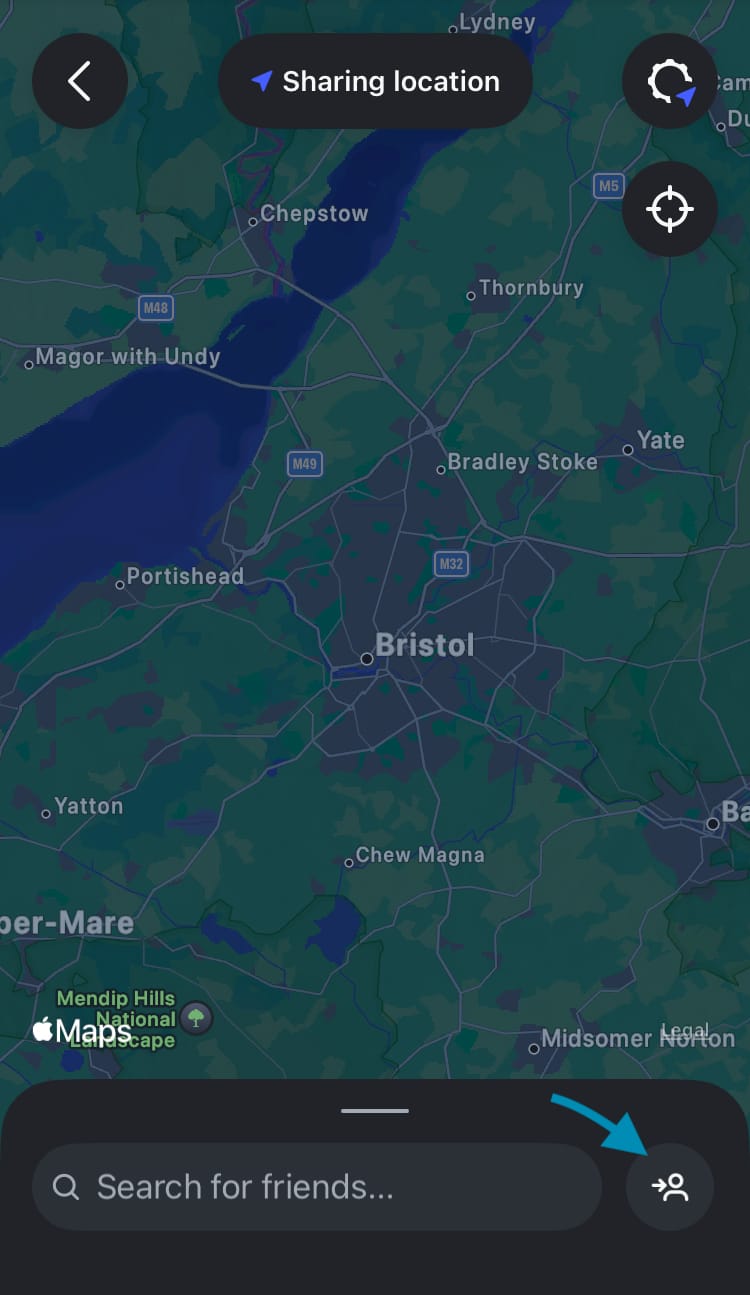
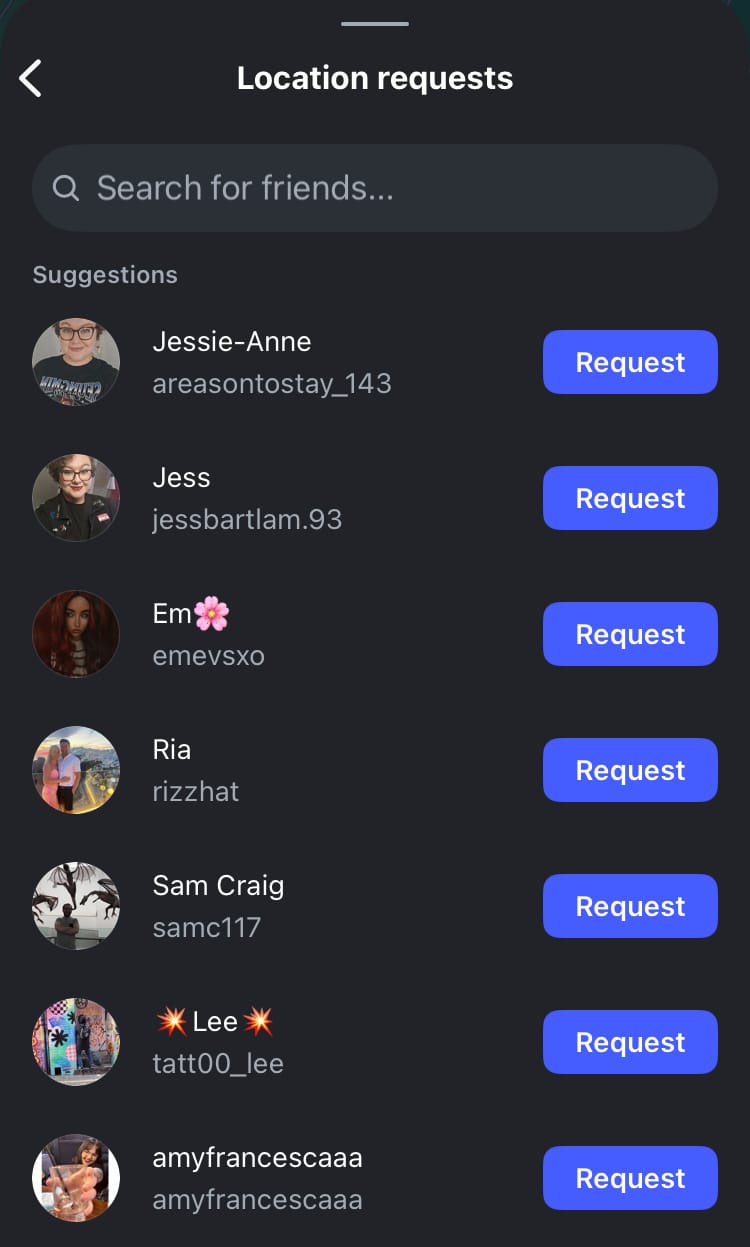
Request to view a friend’s location
You can cancel the request at any time.
Here’s how:
- Tap the location requests icon.
- Search for the friend that you want to cancel the request for.
- Tap the ‘Requested’ button next to that user.
- Choose ‘Cancel request’.
How to view, accept and delete location requests
When someone requests your location, it pops up as a notification, a DM and in your location requests in the map feature. From here you can confirm or delete it. People who have asked to see your location won't be notified if you decline their request.
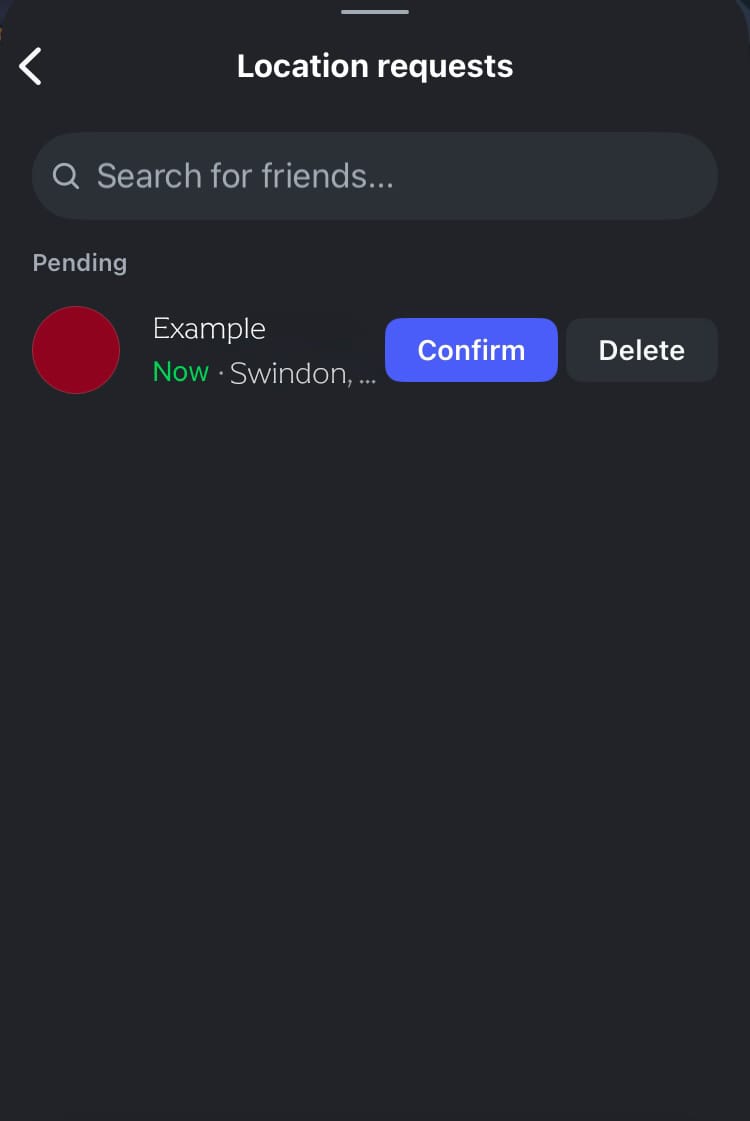
The Instagram map feature further strengthens Instagram’s focus on nurturing mutual connections and genuine relationships on the app, but businesses can also be discovered on the map too! Make sure you’re part of the conversation by building a thriving social media account that gets people talking and customers buying. Minter.io is the one-stop-shop you need to get your business noticed on social media, and it’s got a shiny new feature of its own - the AI Analyst. Check it out here!
All the metrics you need to grow your business on social media.