NEW: Change your Instagram algorithm with latest update

While the cool kids aim to go analogue in 2026, those of us who are keen to stay digitally connected have been granted influence over the Instagram algorithm. Algorithms have become a dominant force in the ever-connected online world, and algorithm fatigue has grown alongside them. However, this new update from Instagram allows users to shape their own algorithms to align more with what they wish to see. If you’re finally sick of viral cat videos clawing at your feed, or if your feed simply doesn’t align with your interests anymore, this is the update for you.
How the Instagram algorithm works
Algorithms are shaped by your activity. If you swipe past a piece of content immediately, Instagram knows not to show you similar things. Similarly, if you view and interact with content, Instagram is more likely to show you similar pieces of content in your feed, Reels tab and Explore tab. Essentially, the more you look at and interact with content, the more likely it is that Instagram will show you similar content on similar topics.
The problem with the algorithm
Glued to the screen grossing out over someone popping a zit? The algorithm’s clocked it. Look forward to watching more.
Commenting on a hateful reel that you can’t stay silent over? The algorithm’s noticed. Look forward to viewing more.
Sharing news of the world burning down with your friends and family while totally filled with fear? The algorithm’s pinged again. Look forward to more.
The more you look at and interact with a piece of content, the more likely similar content will appear in your feed, Reels tab and Explore tab. This can be a recipe for overwhelm, burnout and heartache. But what if you could tell Instagram when you’re fed up of watching certain things? What if you could say that you’re over it? Well, it turns out - you can!
Instagram’s solution
Instagram has recently introduced new ways to see and control your algorithm. View your top topics, decide what you want to see more of, less of, and what you want to remove entirely. Control how much sensitive and political content you’re exposed to and hide suggested posts with hashtags or captions that have specific words, phrases or emojis. Need a break? Snooze suggested posts for 30 days! Need a fresh start? You can even wipe your suggested content history and start again.
Get ready for more control over the algorithm than you can shake 67 at…
How to find your algorithm settings
Instagram states that this feature is available in the US and rolling out globally in English soon. I’m in the UK and I’ve got it so cross your fingers that you can access it through one of the 3 methods below. If not, it’ll be likely you’ll have it in the near future.
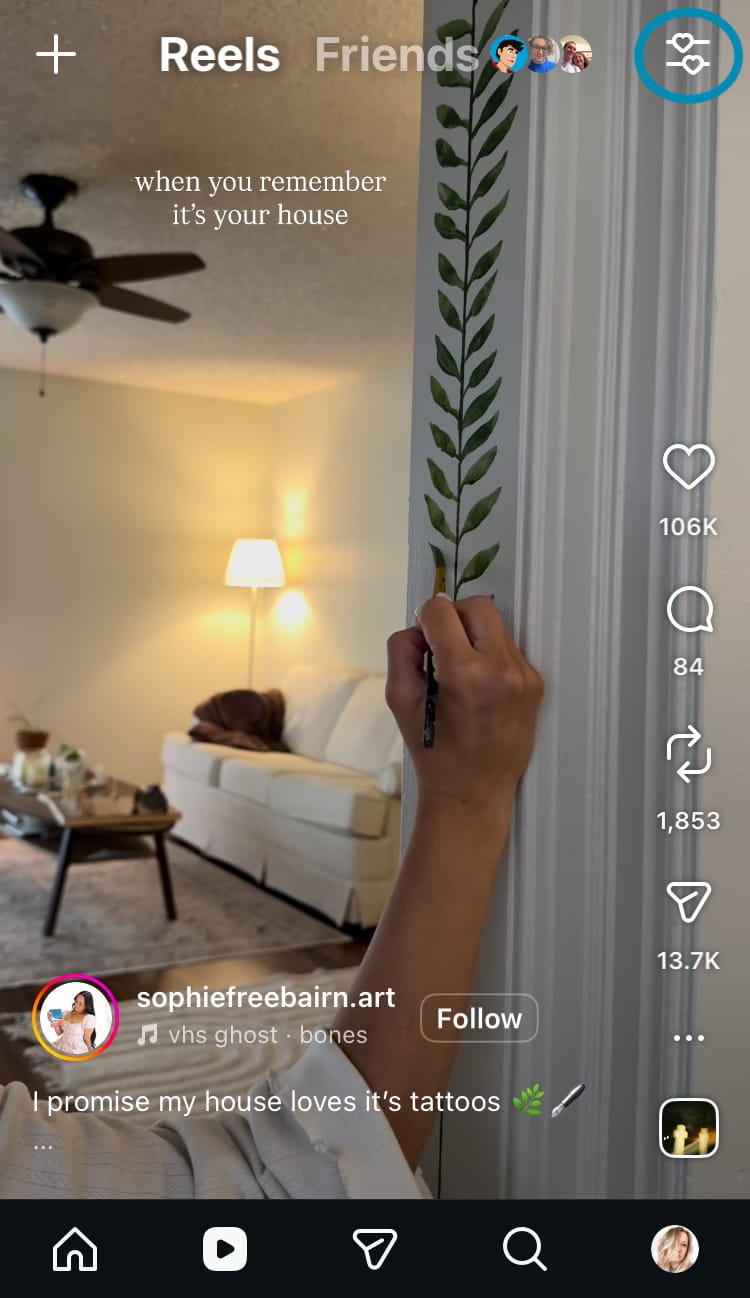
Through the Reels tab:
- Tap on the Reels tab using the navigation bar at the bottom of the screen.
- Tap on the icon that looks like 2 hearts on sliders, located in the top right-hand corner of the screen.
Through the feed:
- Go to any suggested post on your feed.
- Tap on the 3-dot menu in the top right-hand corner of the post.
- Choose ‘Manage content preferences’ from the menu.
- Tap on ‘Your algorithm’.
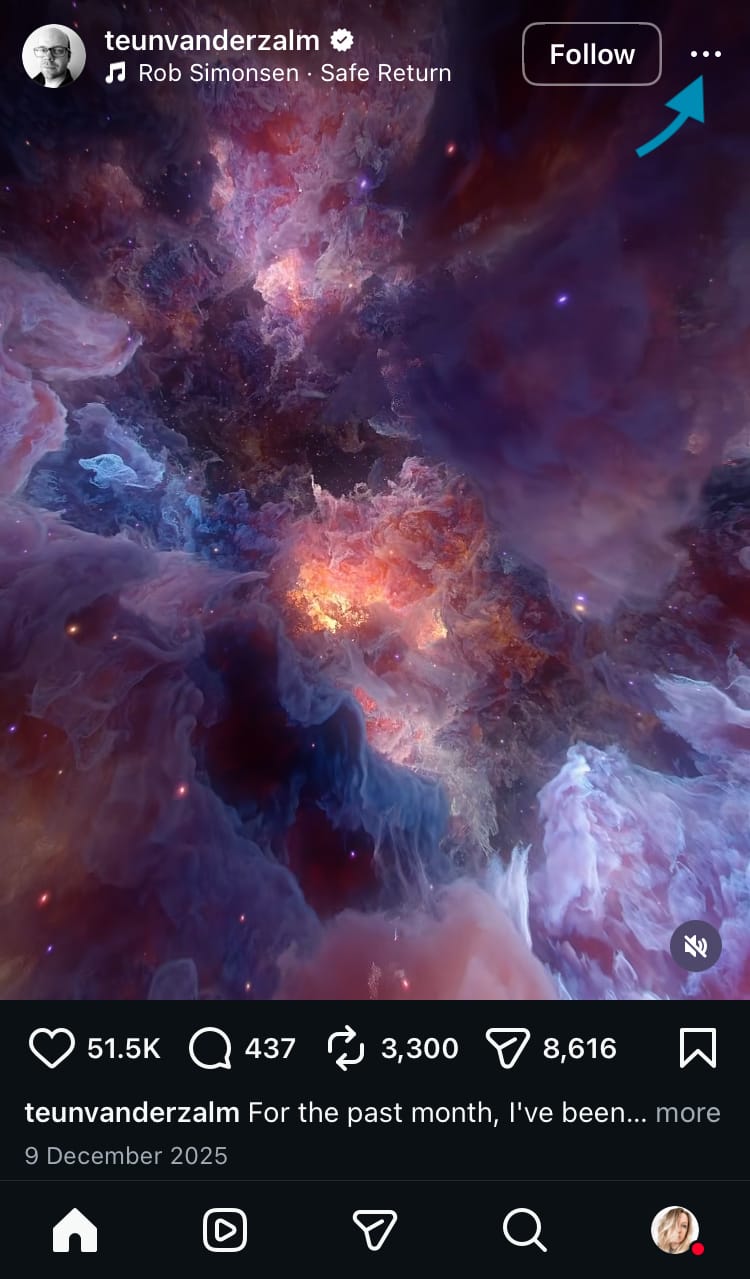
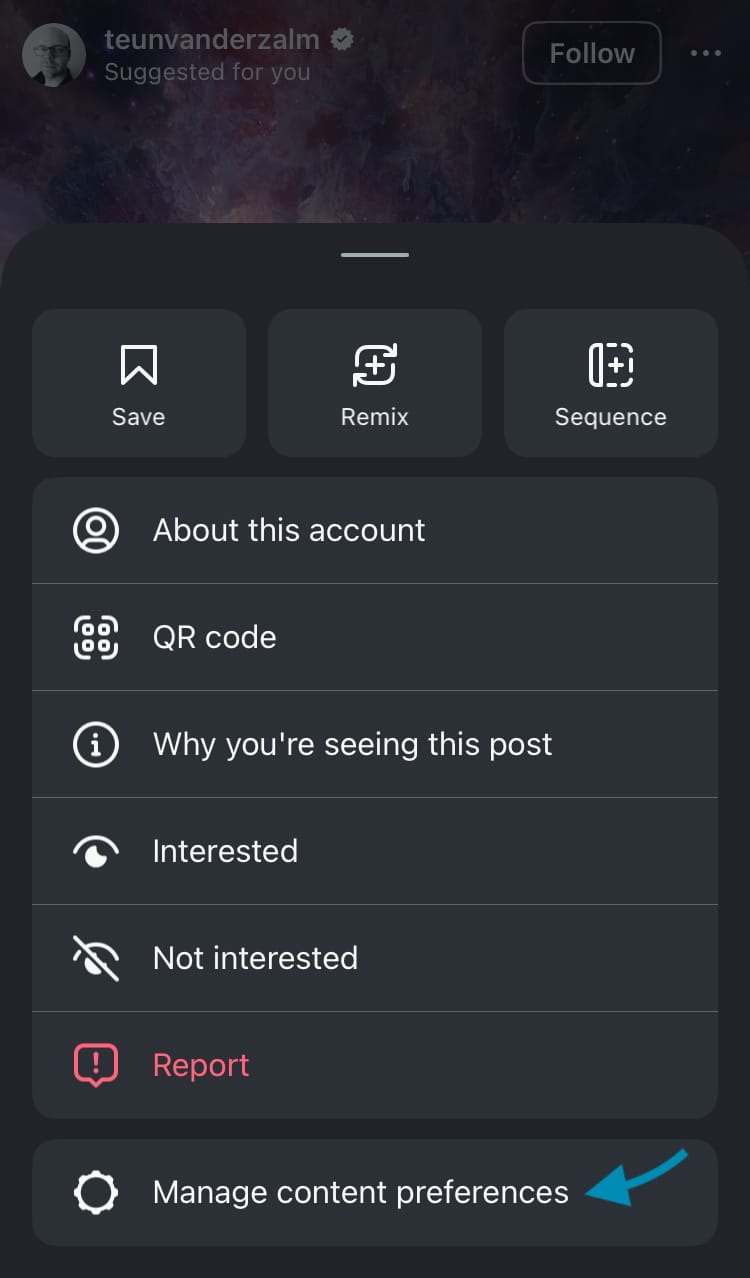
How to find your algorithm settings through the feed
Through your profile:
- Go to your profile using the navigation bar at the bottom of the screen.
- Tap on the 3-bar menu in the top right-hand corner of the screen.
- Scroll down and tap on ‘Content preferences’ which is situated under ‘What you see’.
- Choose ‘Your algorithm’.
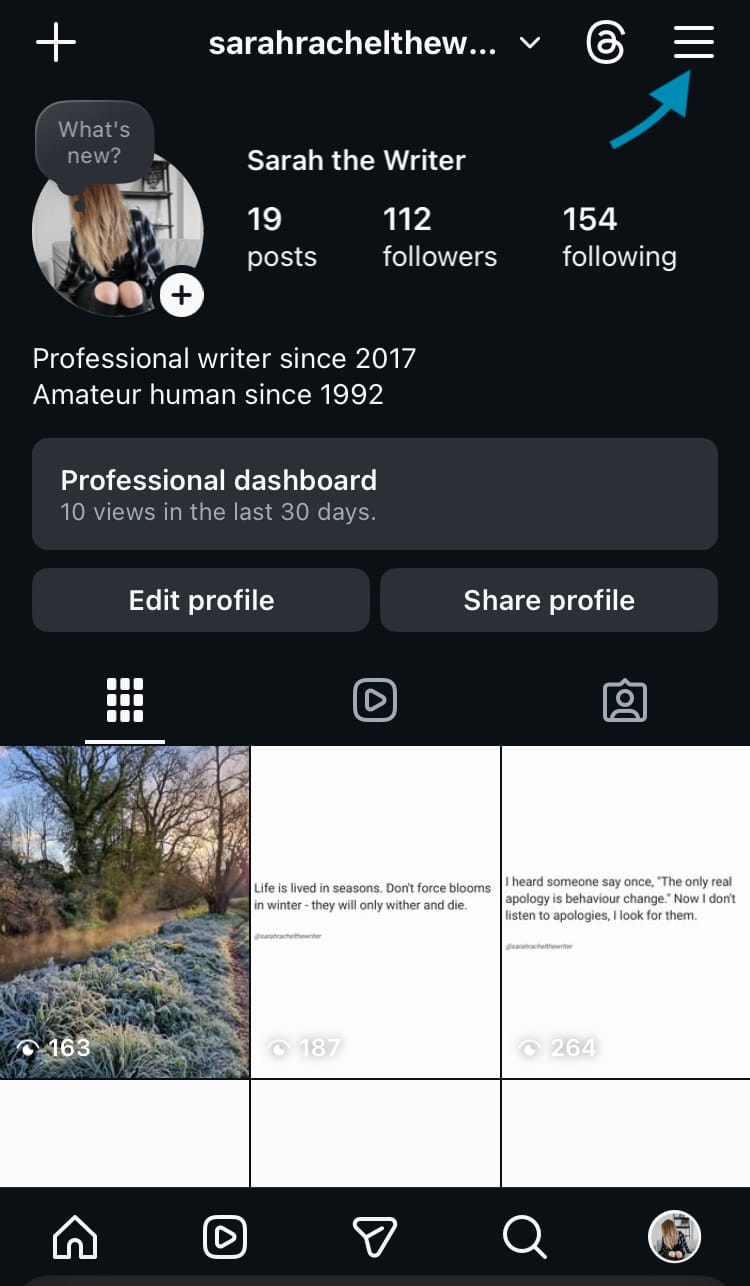
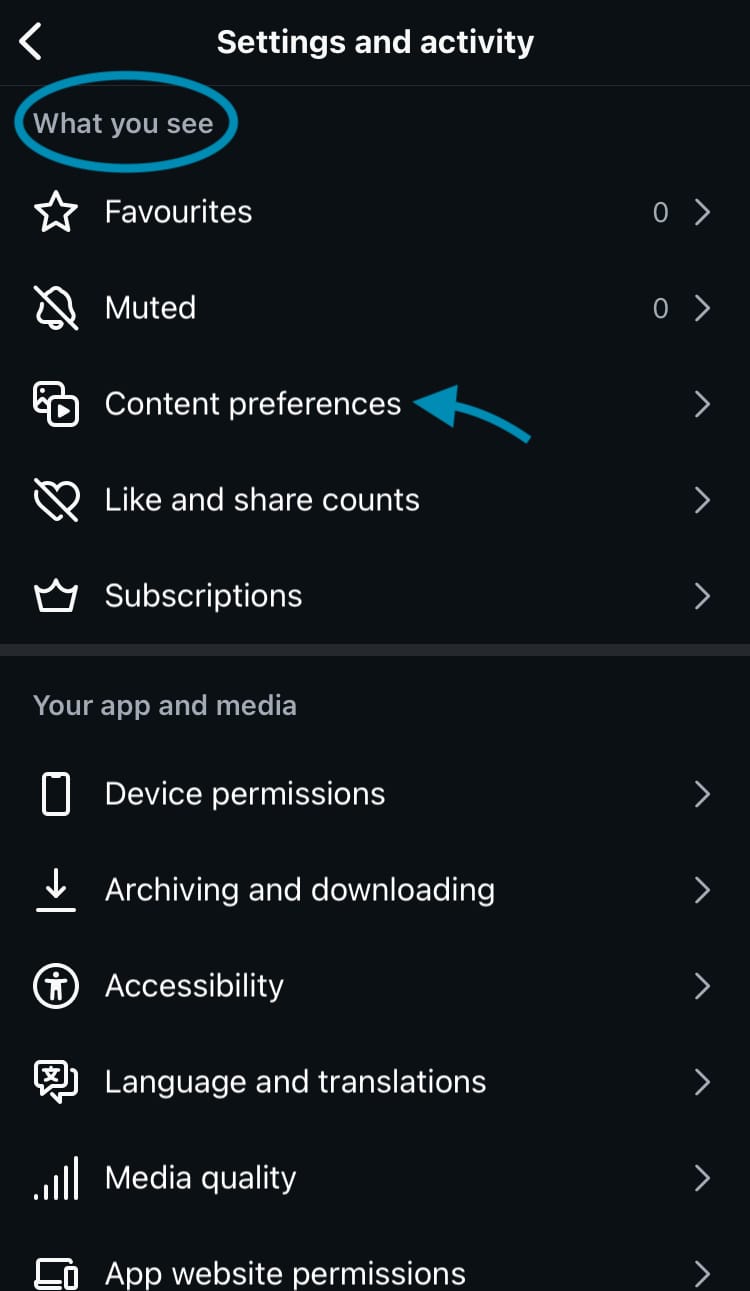
How to find your algorithm settings through your profile
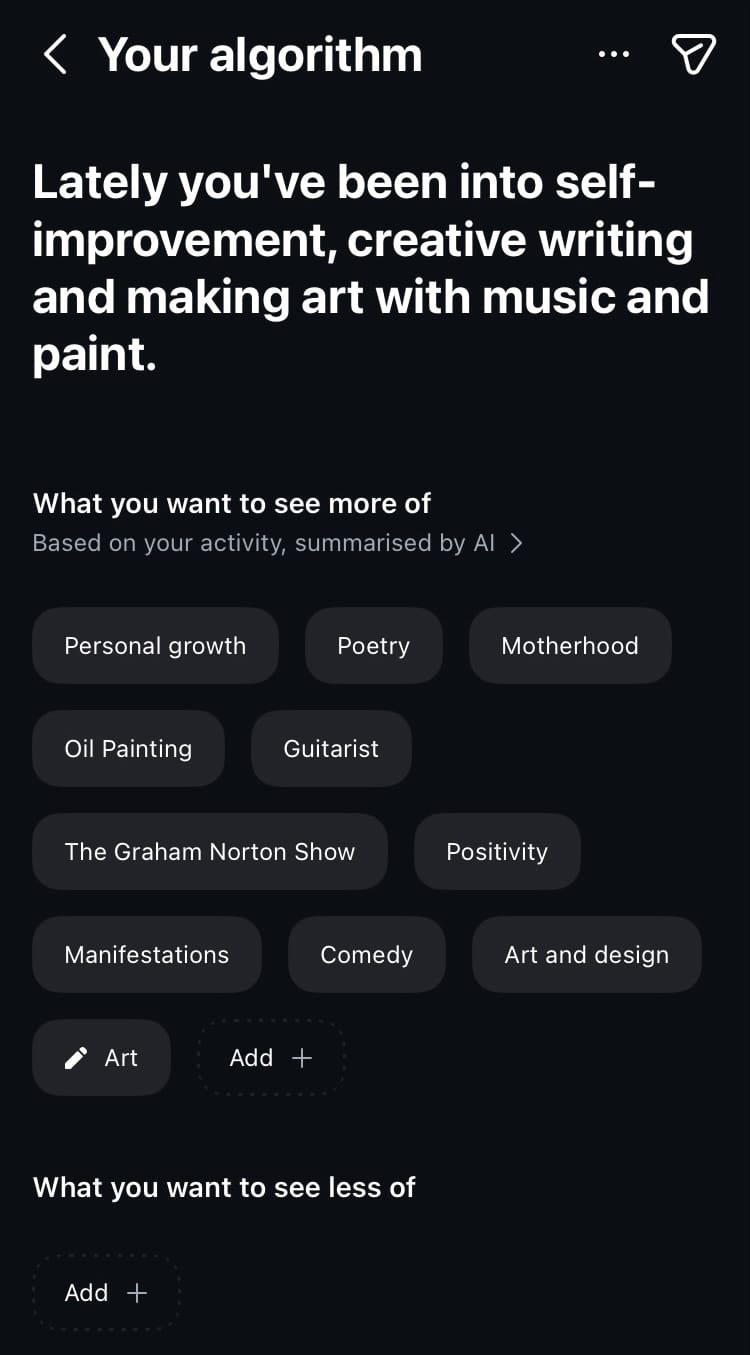
Here you can see a summary of your top interests based on your activity, summarised by AI. From here you can alter your algorithm to reflect topics that interest and inspire you. You also have the opportunity to share your algorithm summary with your audience.
Let’s look through the options…
Remove an interest
Take a look at the topics Instagram thinks you want to see more of. If something immediately pops out at you as something you don’t want suggested to you anymore, you can remove the interest.
Here’s how:
- Tap on a topic.
- Select ‘Remove interest’.
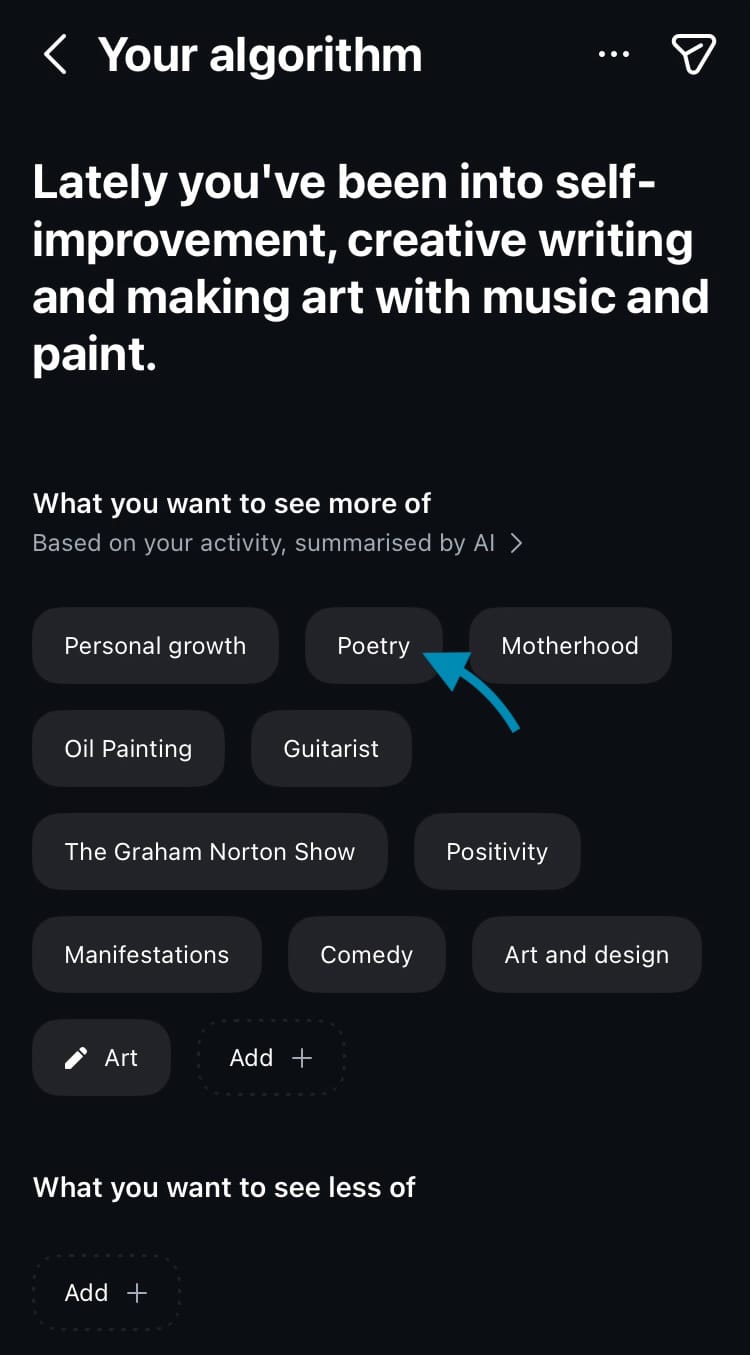
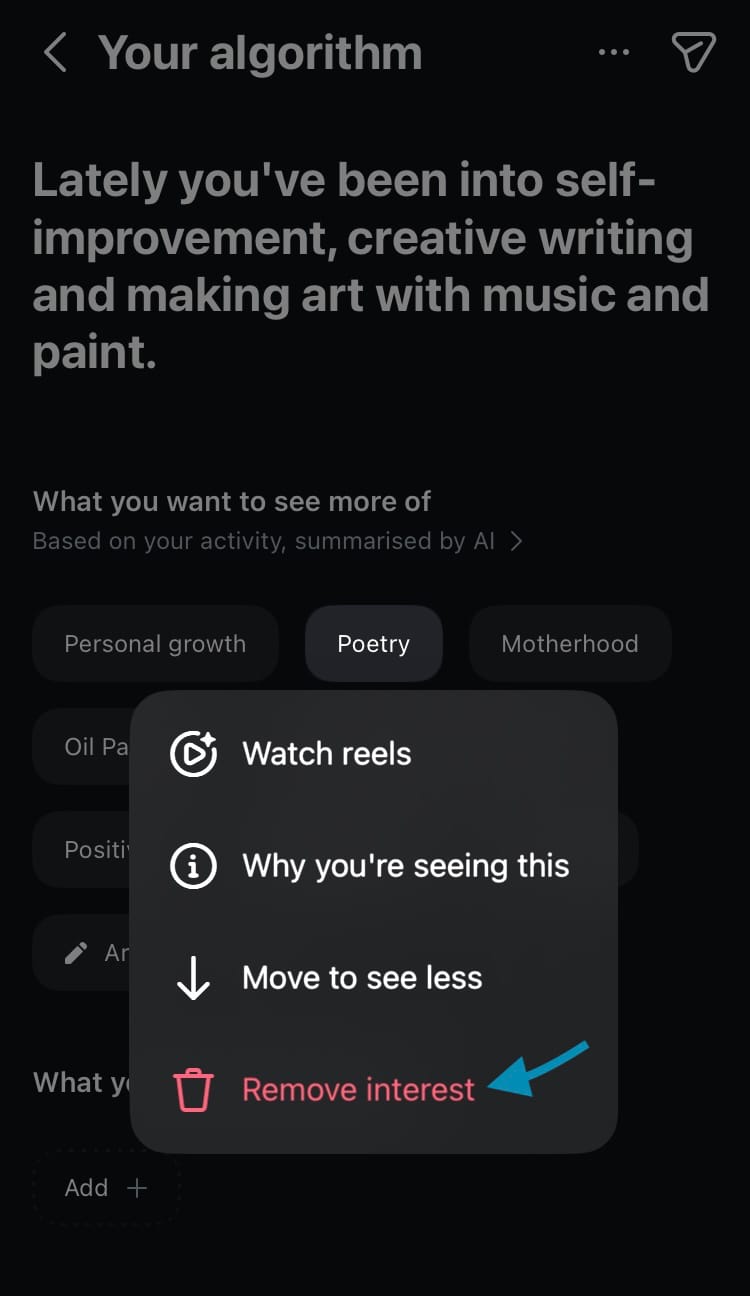
How to remove an interest
Add a new interest
Is your list of interests missing something major? You can add an interest manually.
Here’s how:
- In the section labelled ‘What you want to see more of’ select ‘Add’.
- Type in an interest.
- Tap on the arrow at the end of the text bar.
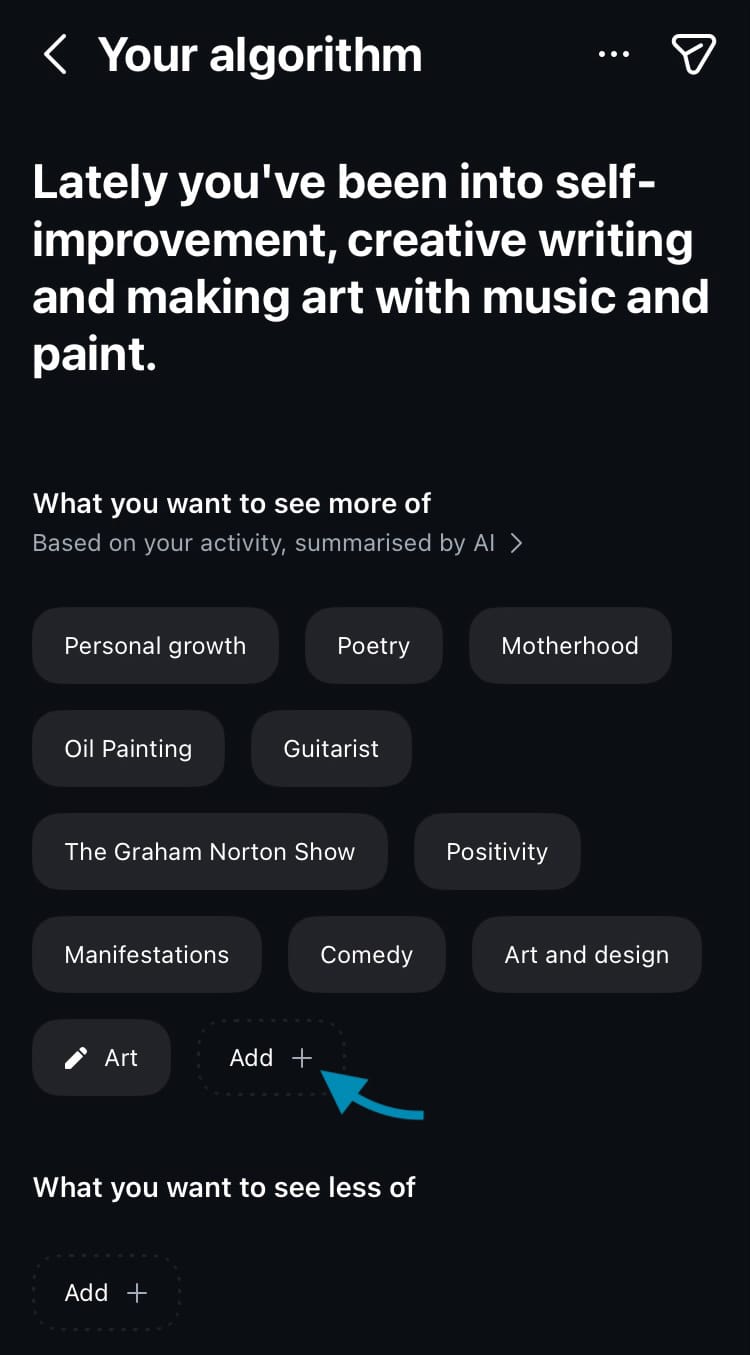
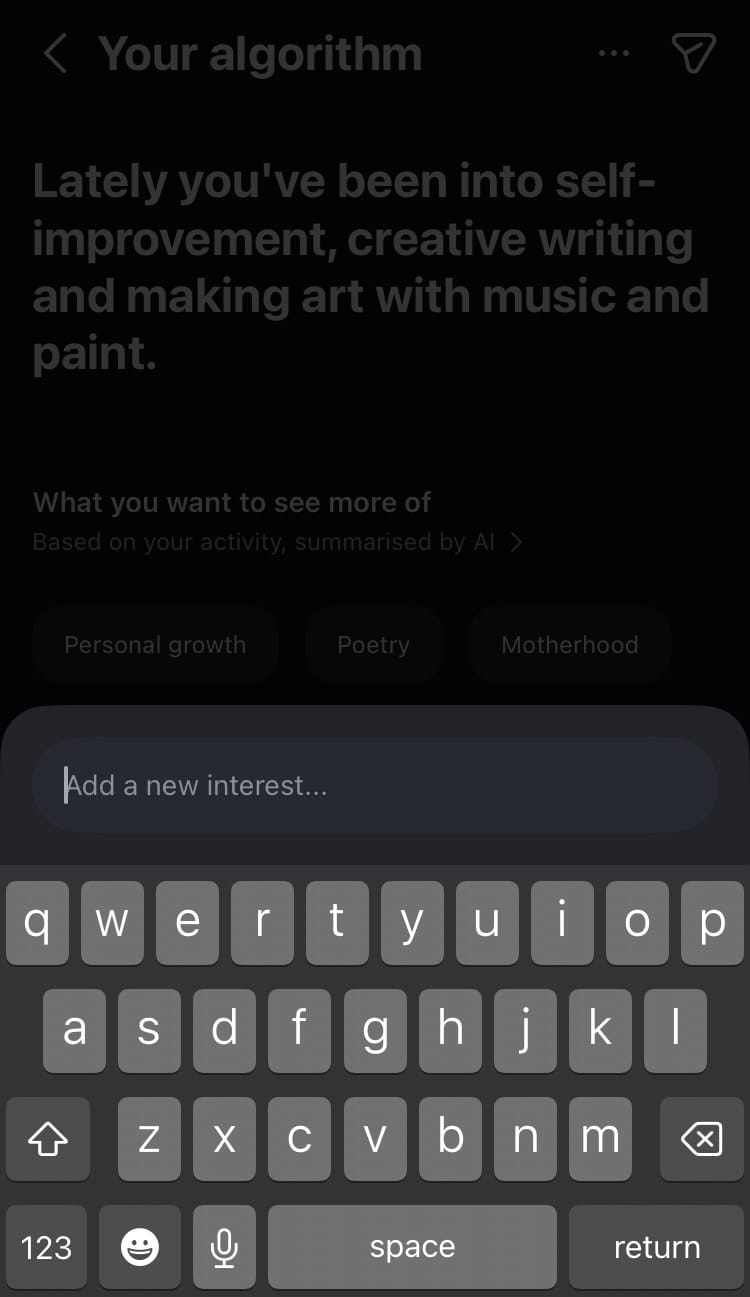
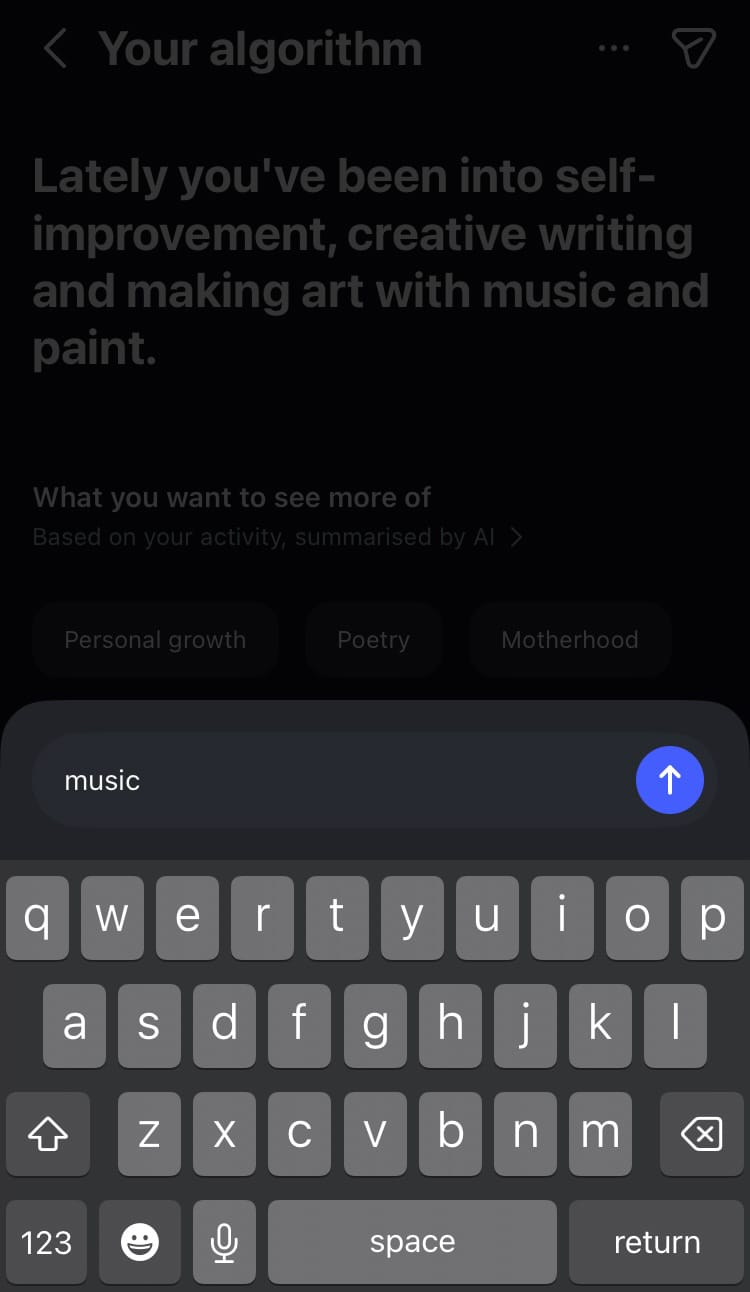
How to add a new interest
See less of an interest
Want to see a little less of an interest without removing it entirely? There are two ways you can do this.
From a topic:
- Choose an interest from the section labelled ‘What you want to see more of’ and tap it.
- Select ‘Move to see less’.
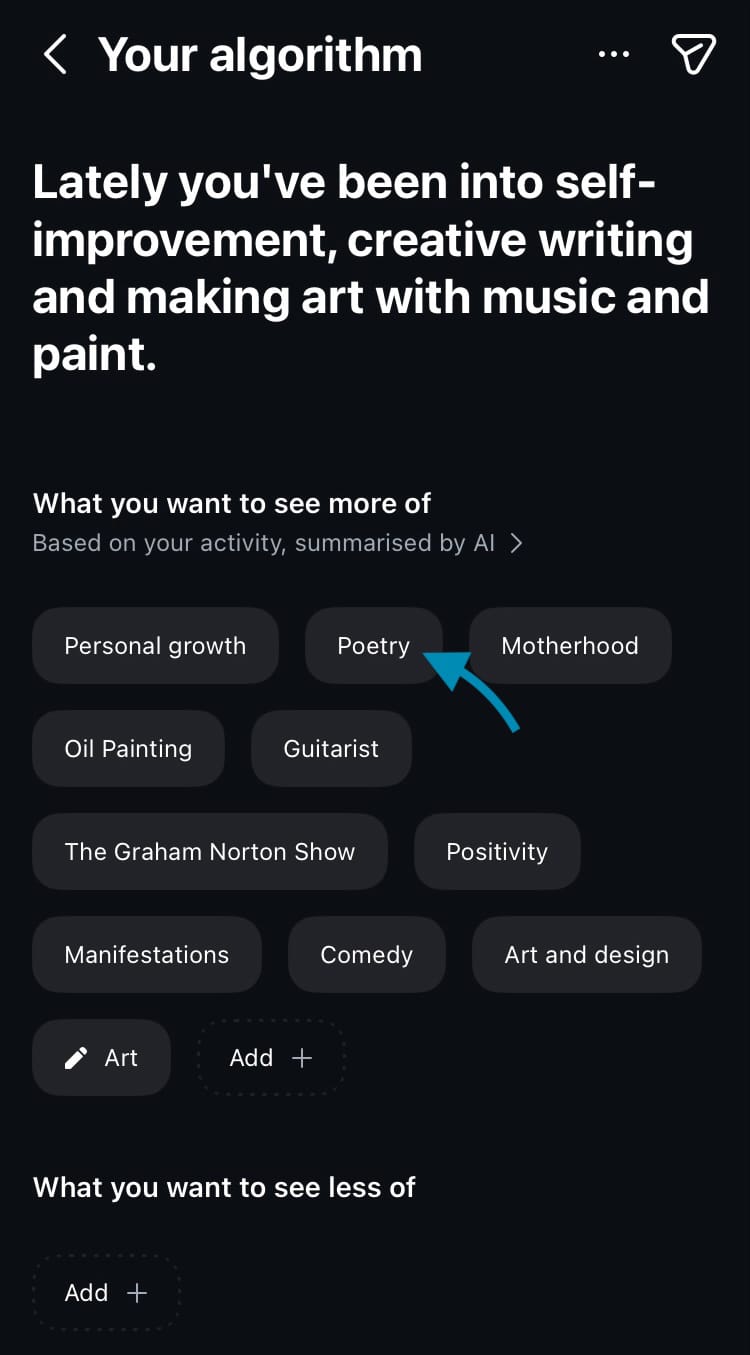
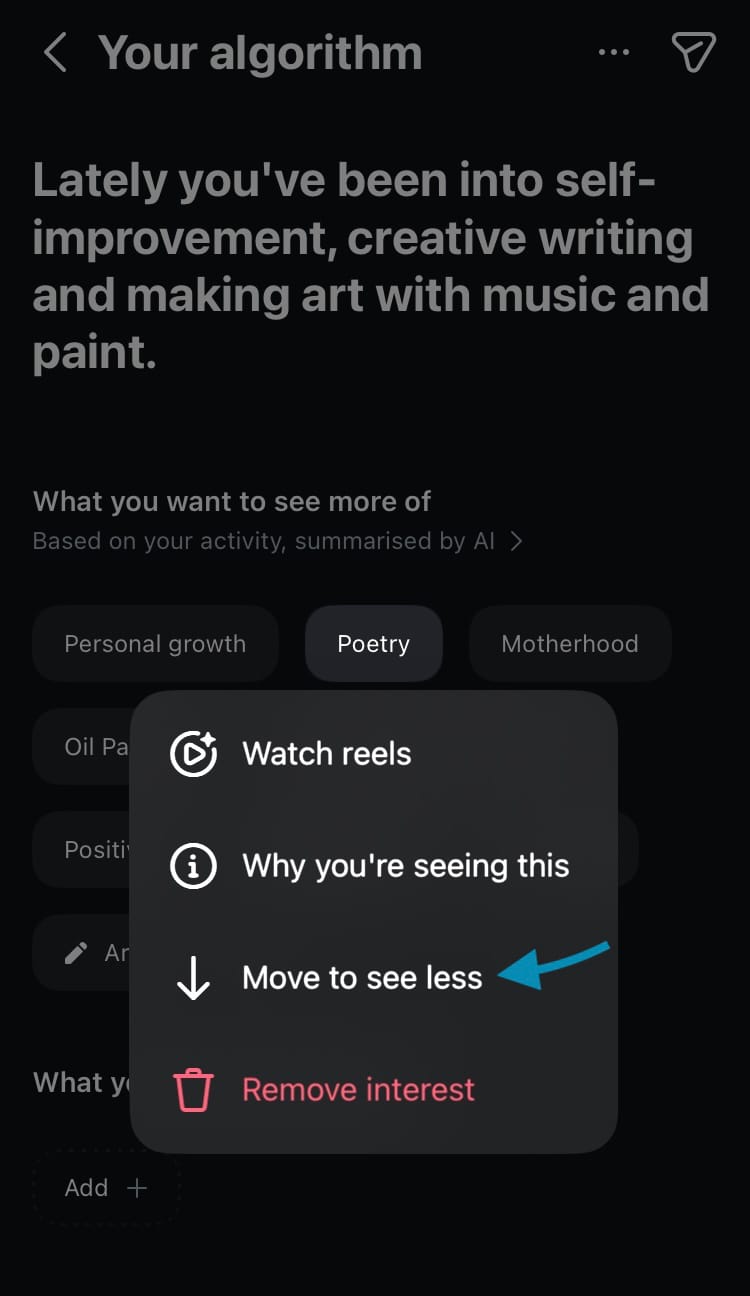
How to see less of an existing interest
Manually:
- In the section labelled ‘What you want to see less of’ select ‘Add’.
- Type in an interest.
- Tap on the arrow at the end of the text bar.
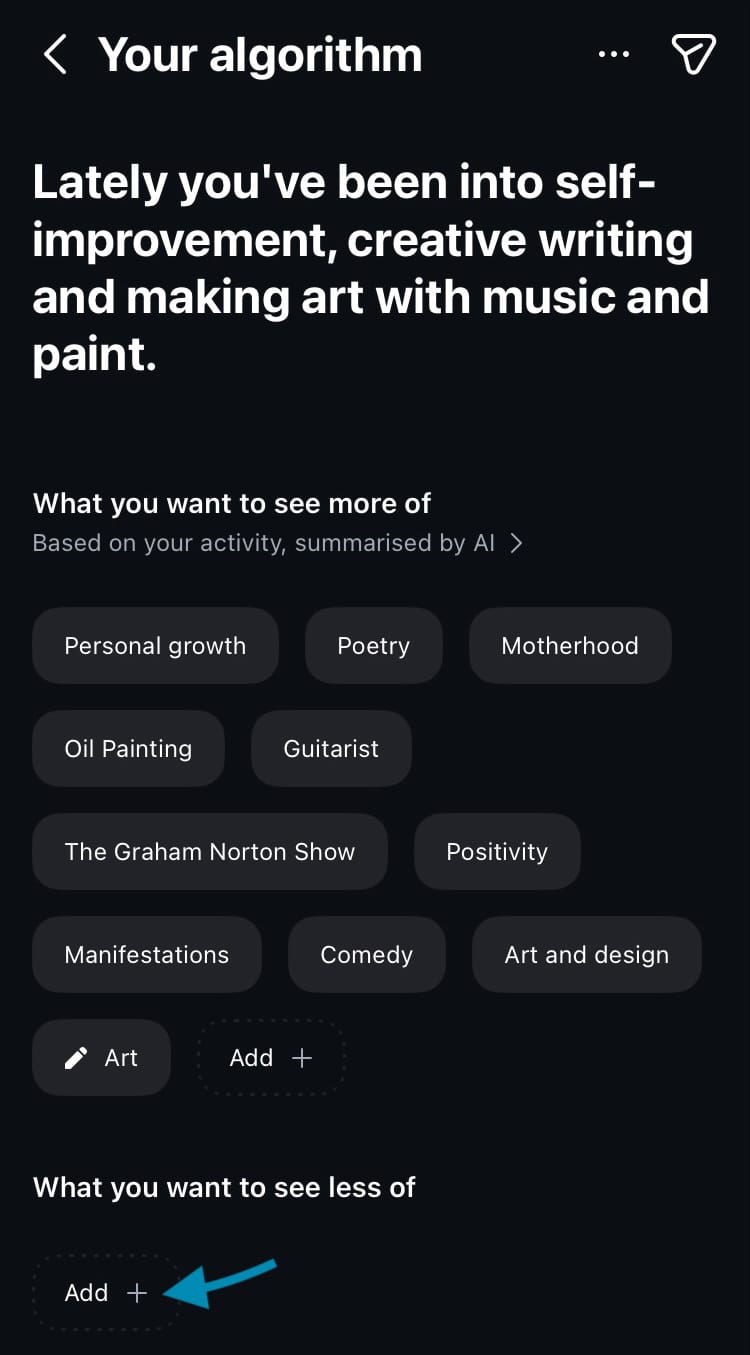
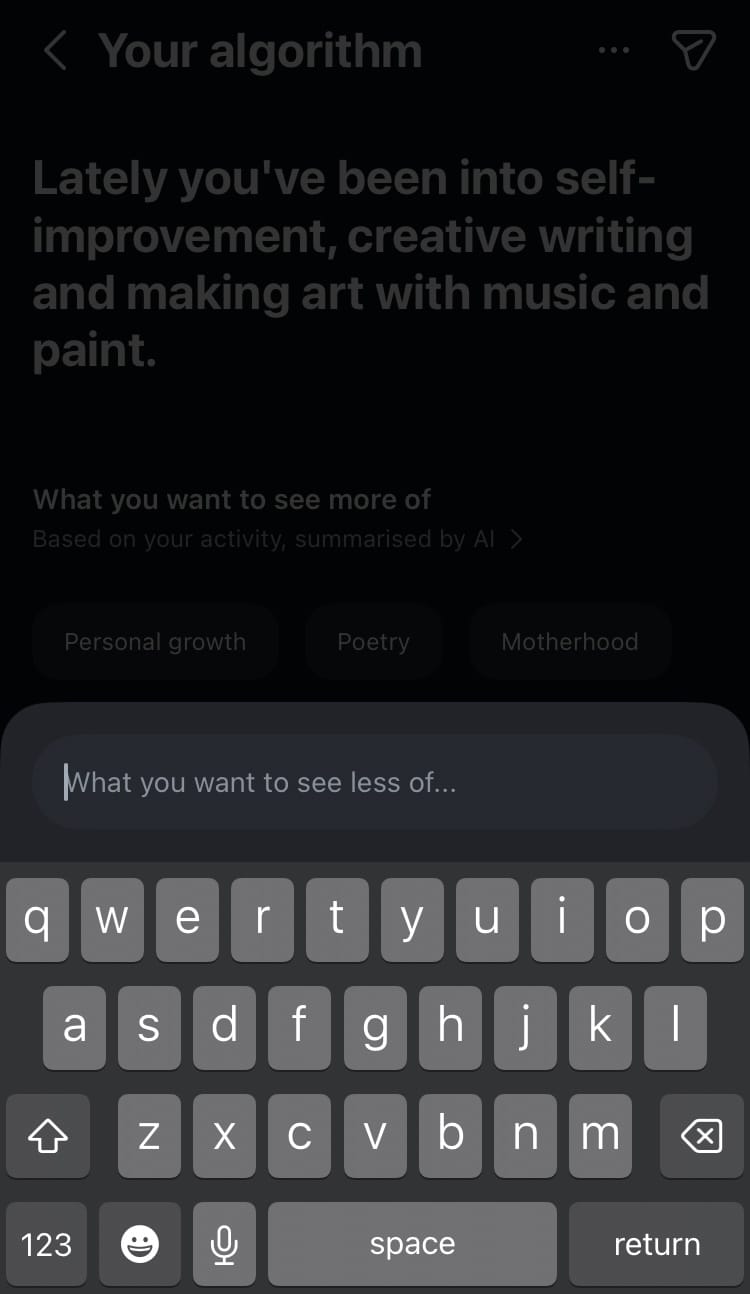
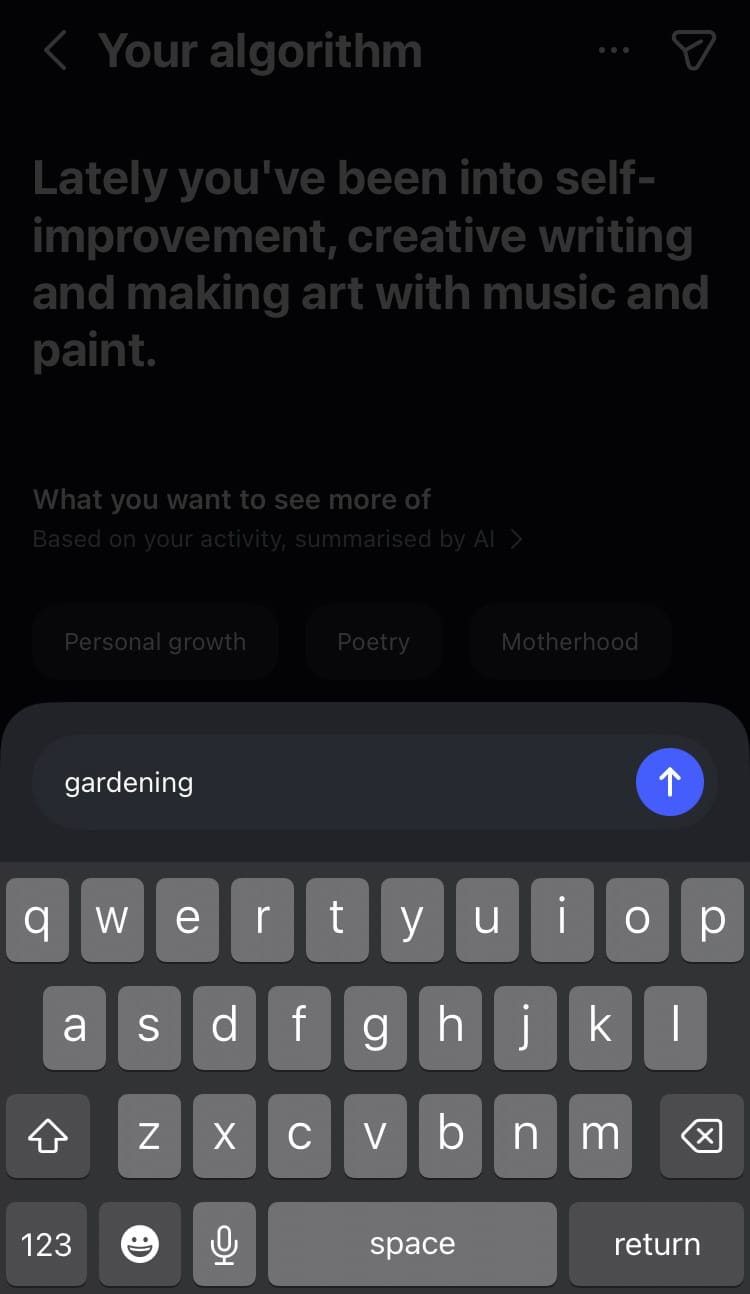
How to manually add an interest you want to see less of
Share your algorithm to Instagram Stories
Want to share the overview of your algorithm to your Instagram Stories? You can do this in seconds.
Here’s how:
- Tap on the arrow in the top right-hand corner of the screen.
- Customise your Instagram Stories post by adding text, stickers, audio, mentions, changing the background colour and more!
- Tap ‘Your story’, 'Close Friends' or the arrow at the bottom of the screen for more sharing options.
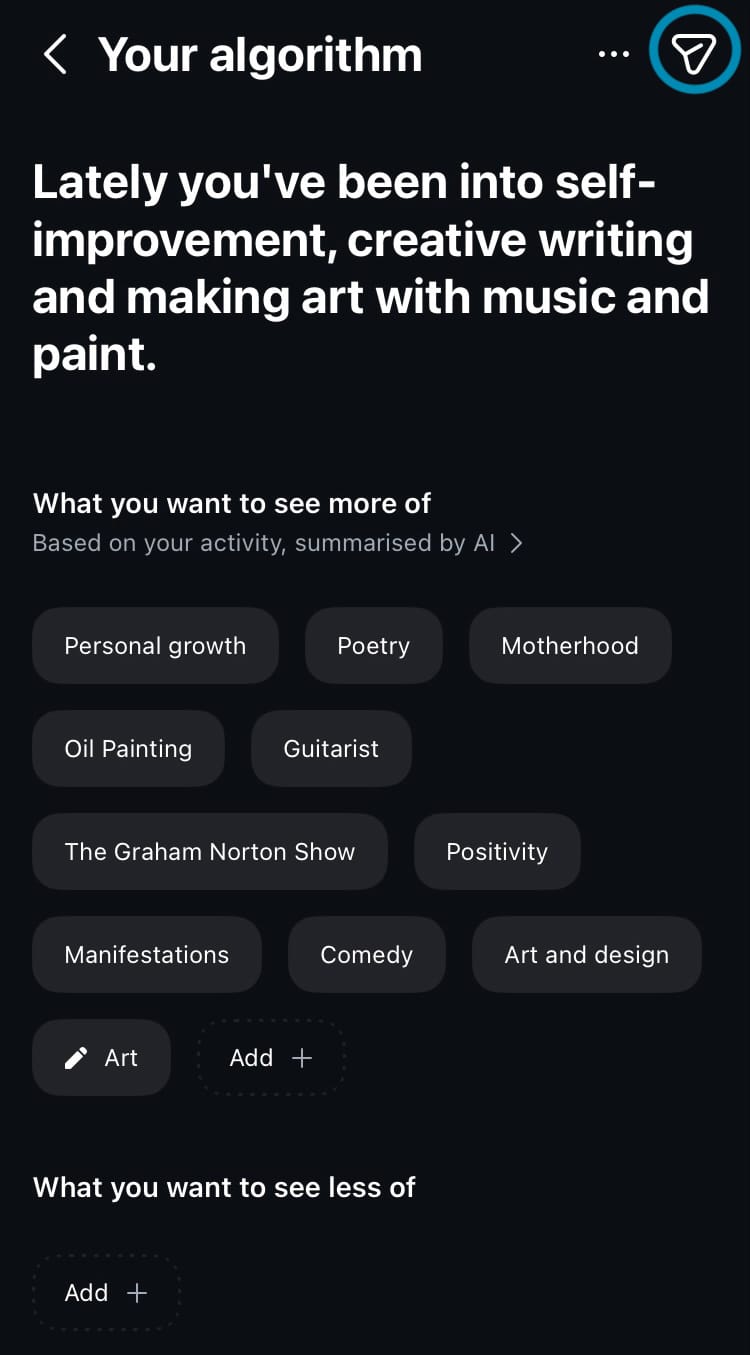
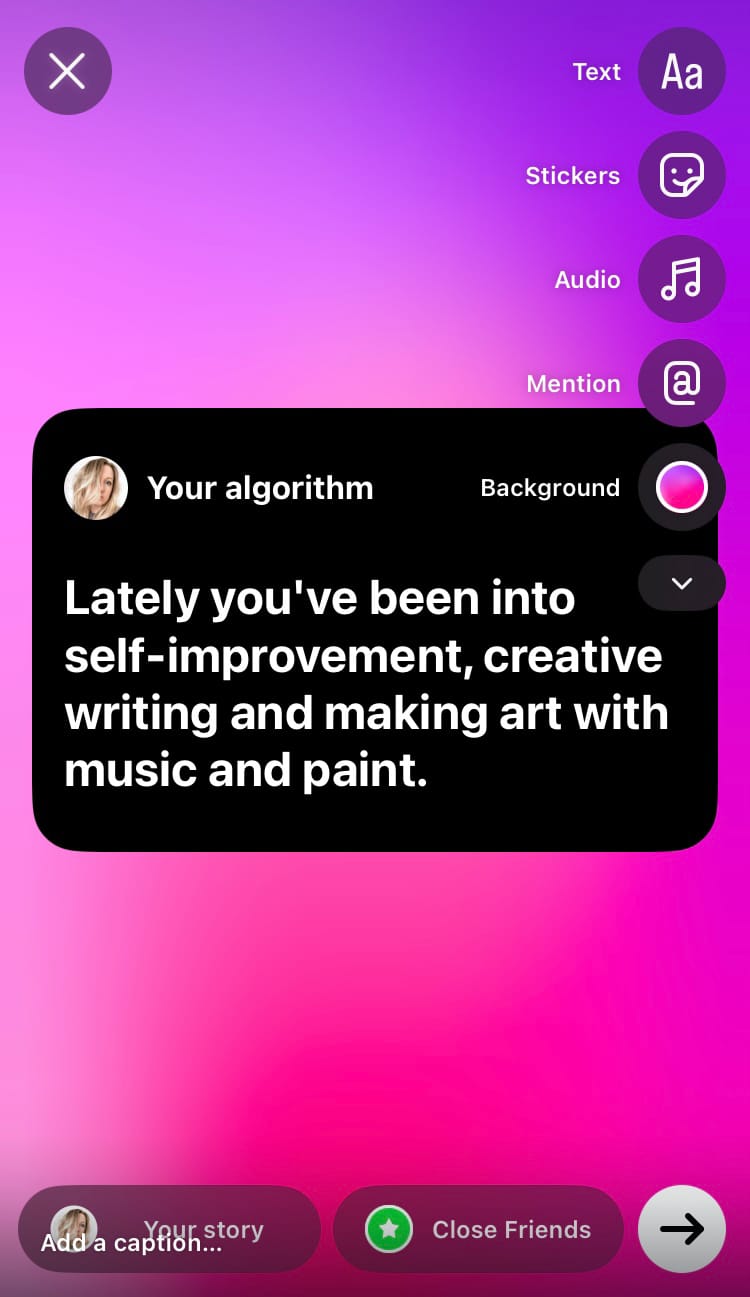
How to share your algorithm overview to your Instagram Stories
Additional settings
When you have your algorithm altered to your liking, check out additional settings to tailor your experience on Instagram even further. Hit the 3-dot menu in the top right-hand corner of the screen for instant access to political and sensitive content settings. Tap ‘More content preferences’ for even more useful options.
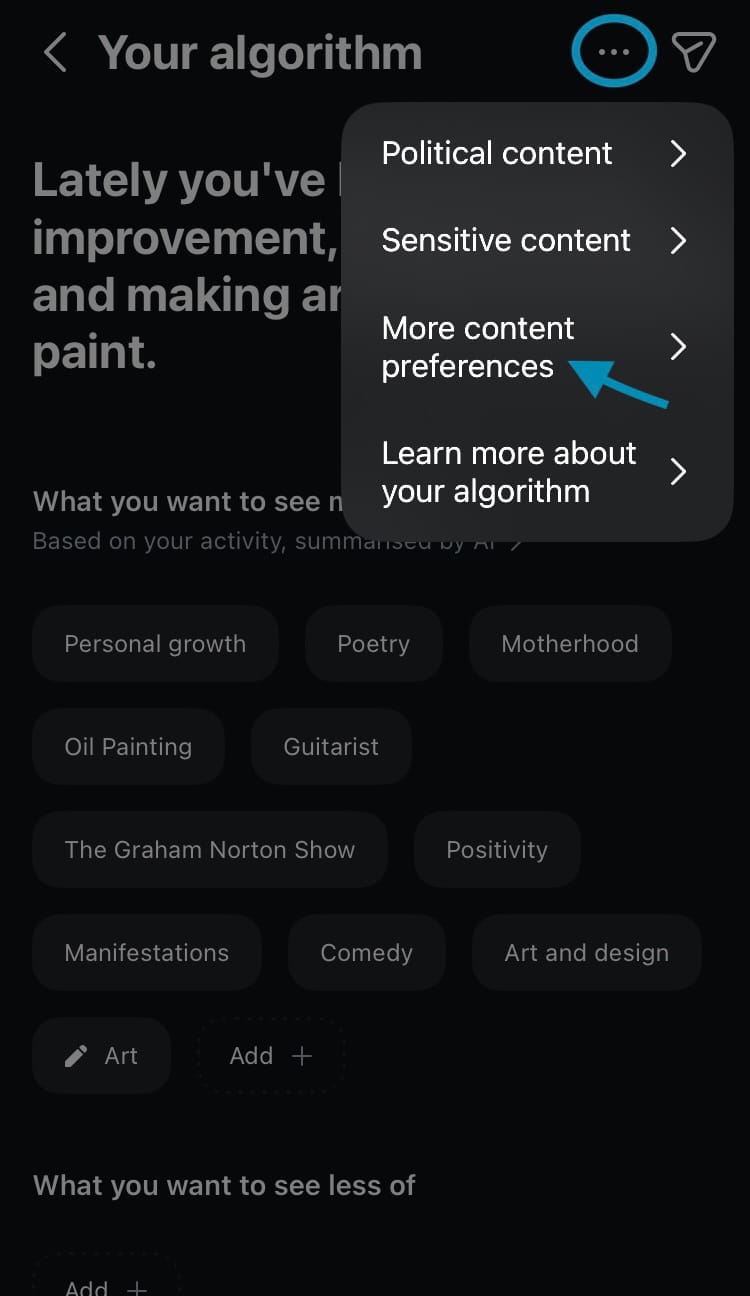
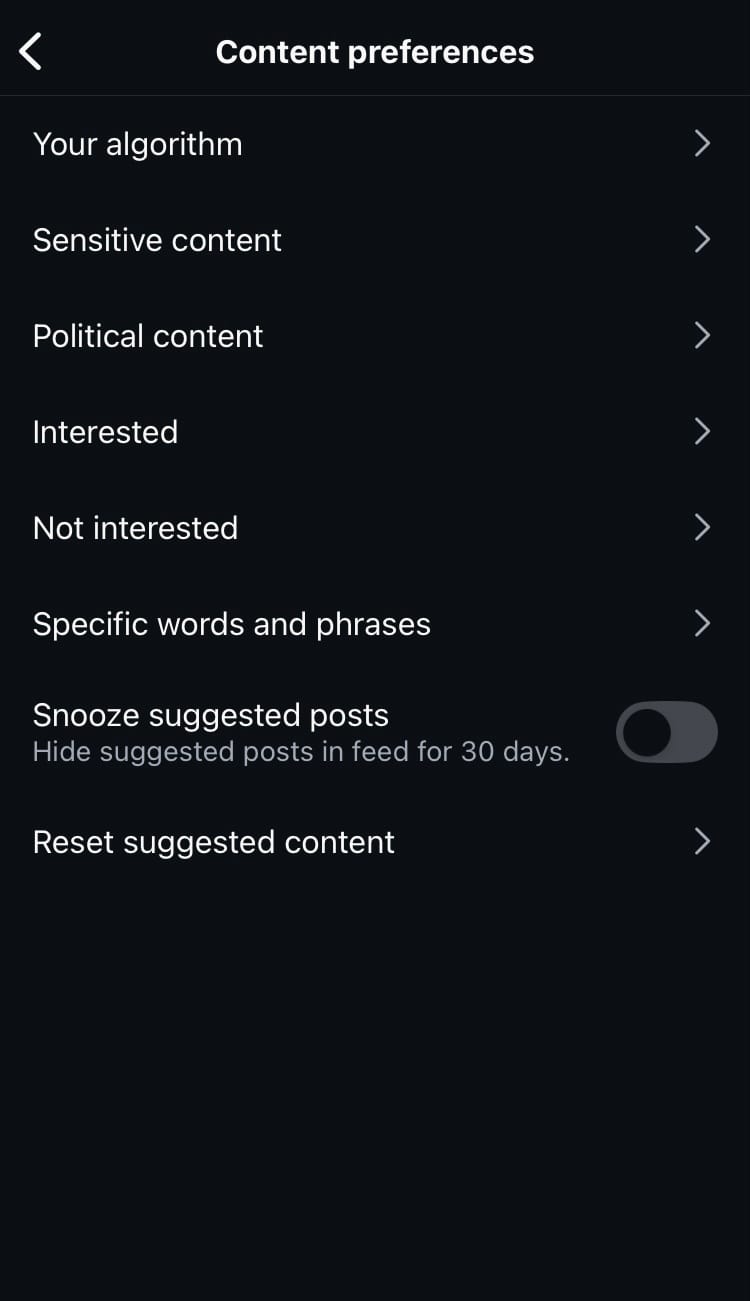
More content preferences and additional settings
Let’s look at the options on this menu…
Sensitive content
Content that is considered sensitive doesn’t go against the Instagram Community Guidelines but includes topics that not everyone wants to see. Choose between less, standard or more sensitive content.
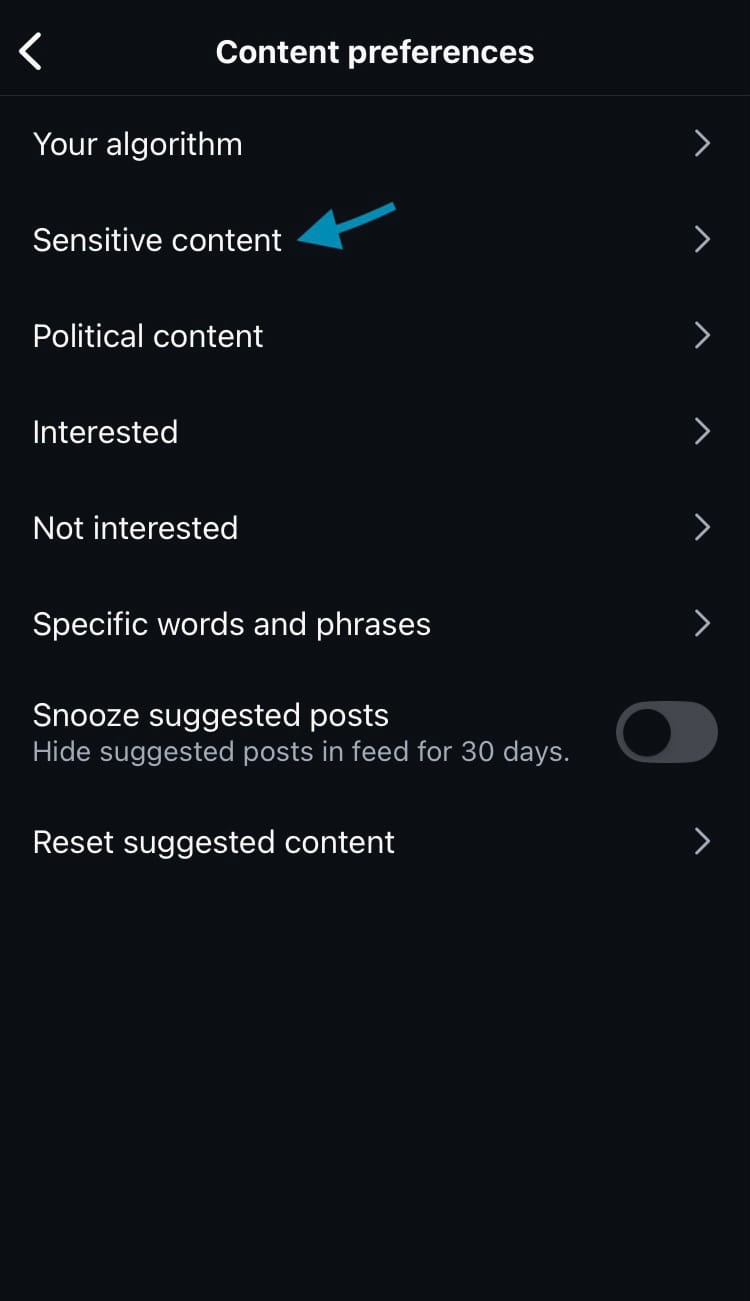
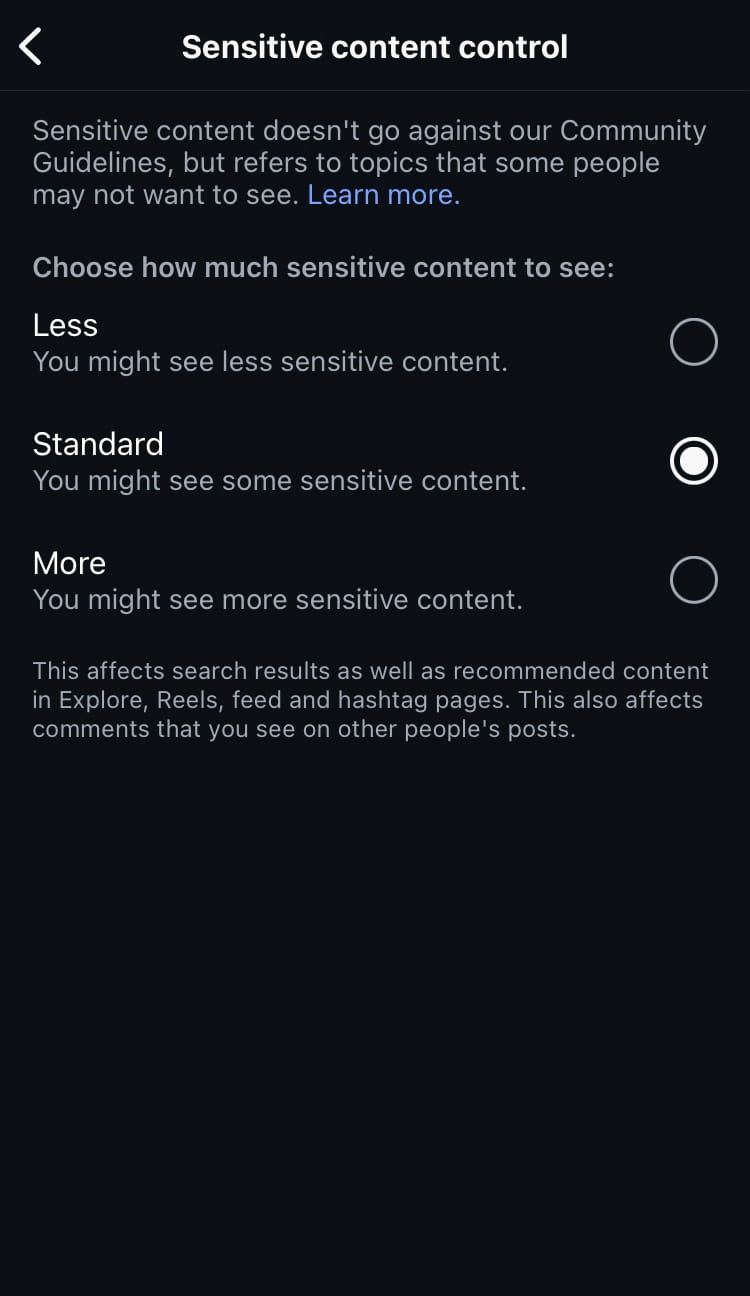
Change your sensitive content settings
Political content
Had enough of politicians and political chat filling your feed? You can allow or remove political content suggestions by toggling the button next to ‘Suggest political content’.
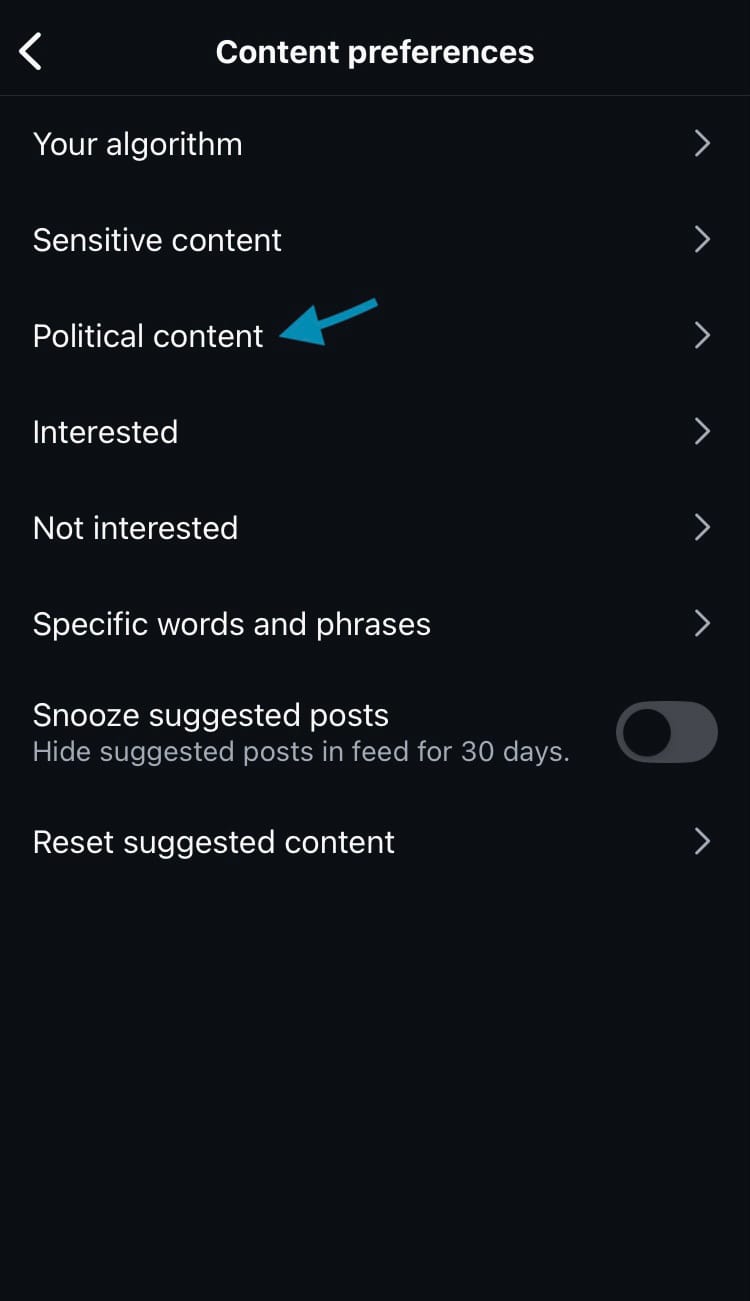
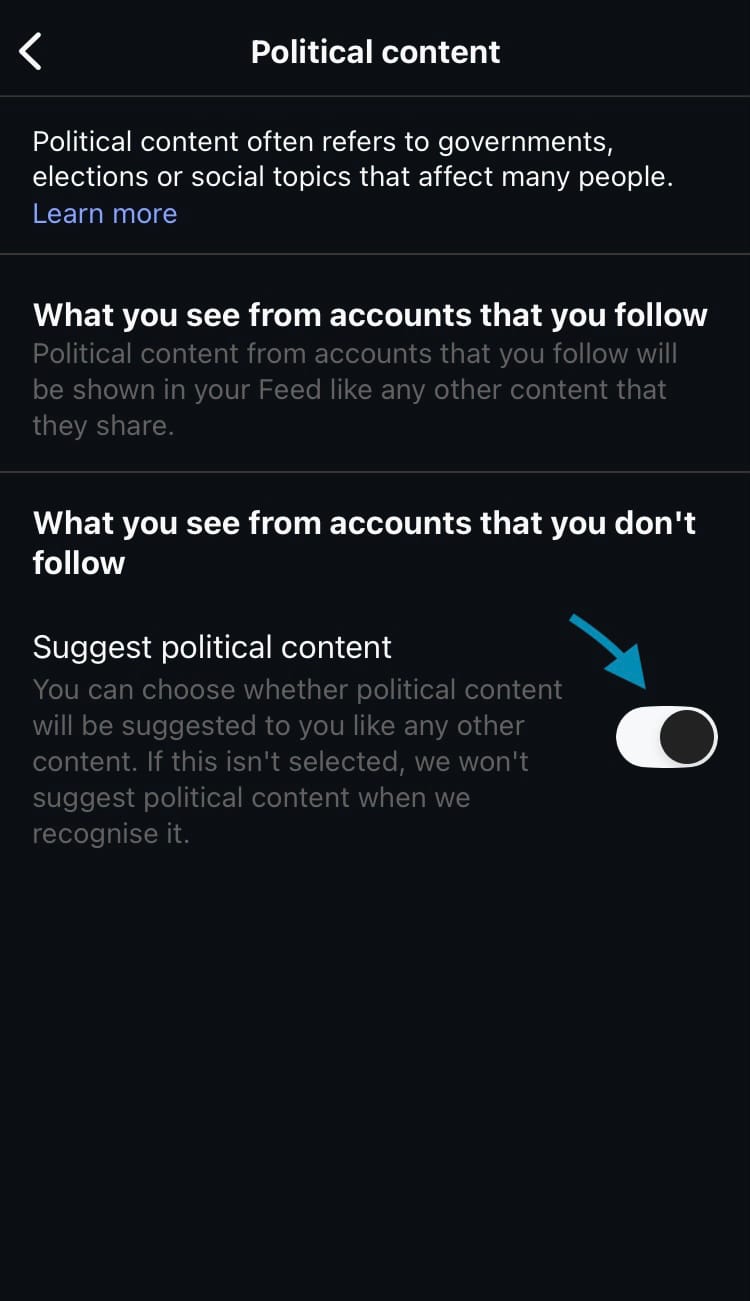
Hide or allow political content suggestions
Hide specific words and phrases
Choose to hide suggested posts with specific words, phrases and emojis in hashtags or captions. You can add or remove items at any time. Simply add words, phrases and/or emojis separated by commas and hit the ‘Add’ button before tapping ‘Done’ in the top right-hand corner of the screen.
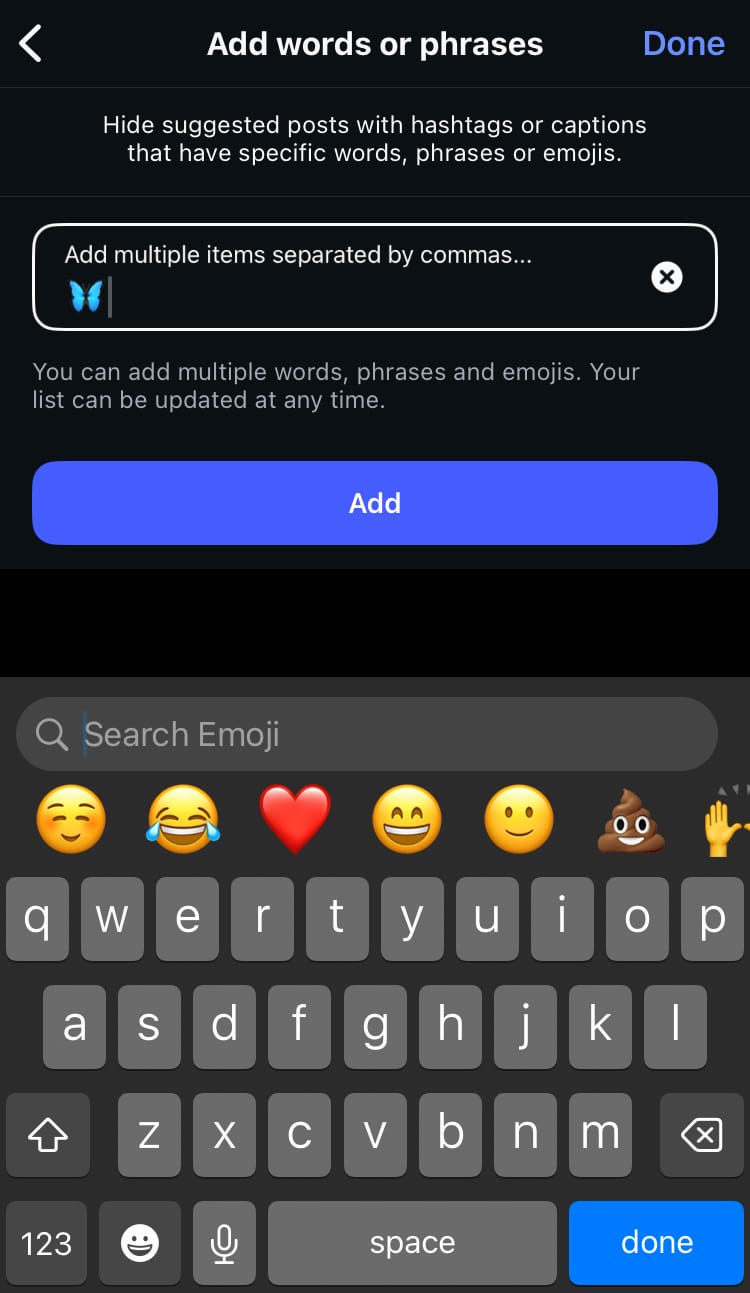
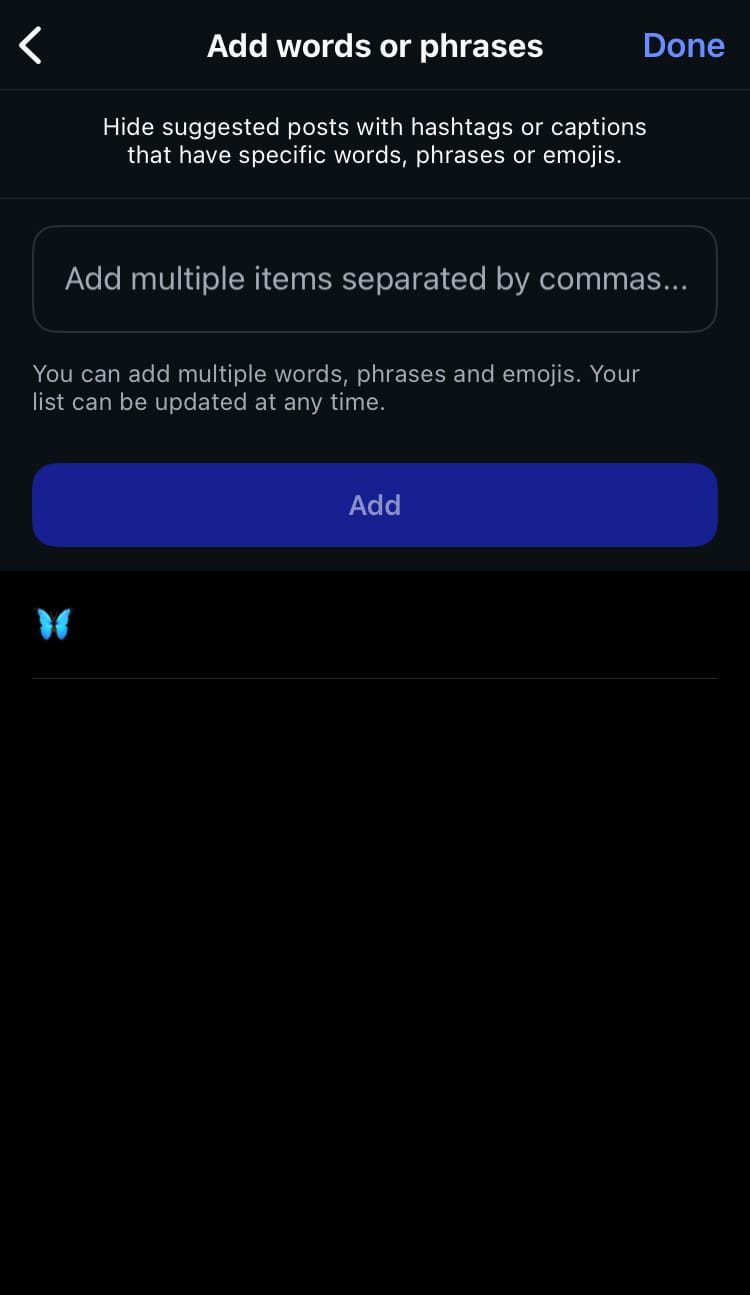
How to hide suggested posts with specific words, phrases or emojis
Snooze suggested content
Need a break from suggested content? Toggle the button next to ‘Snooze suggested posts’ and suggested posts will be hidden from your feed for 30 days.
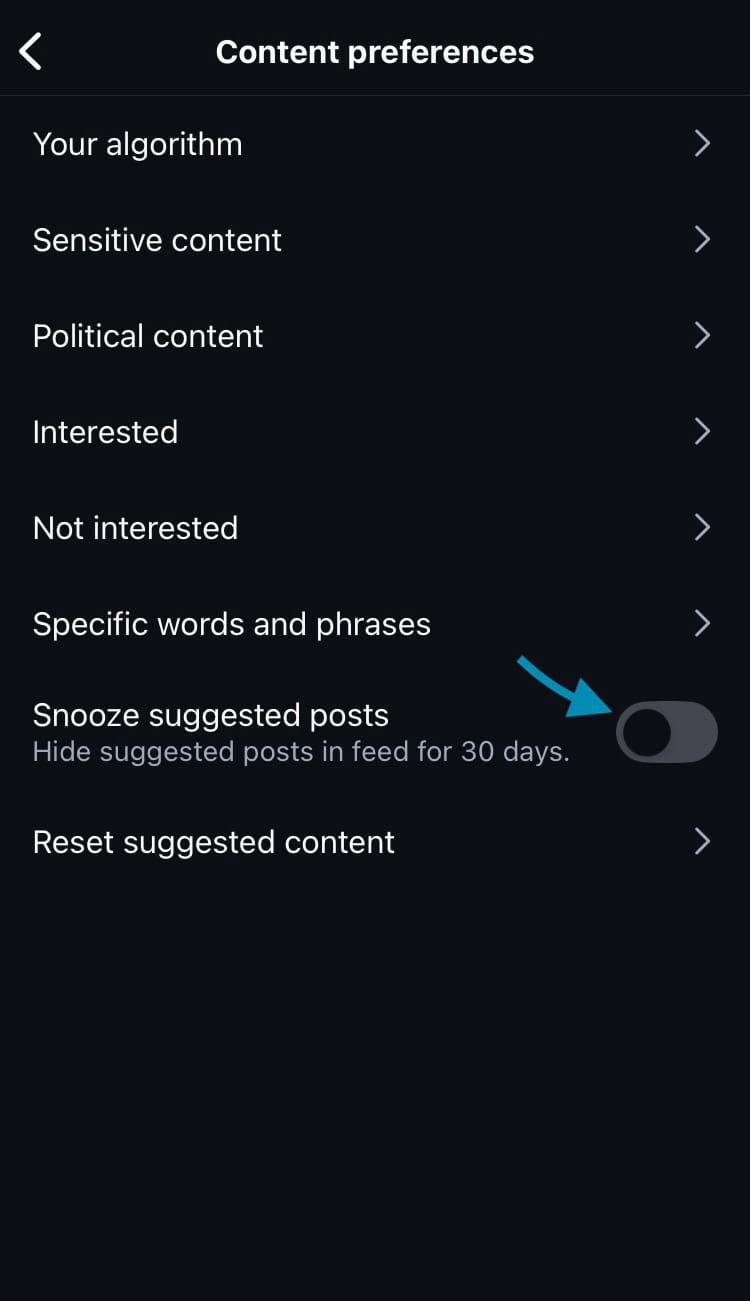
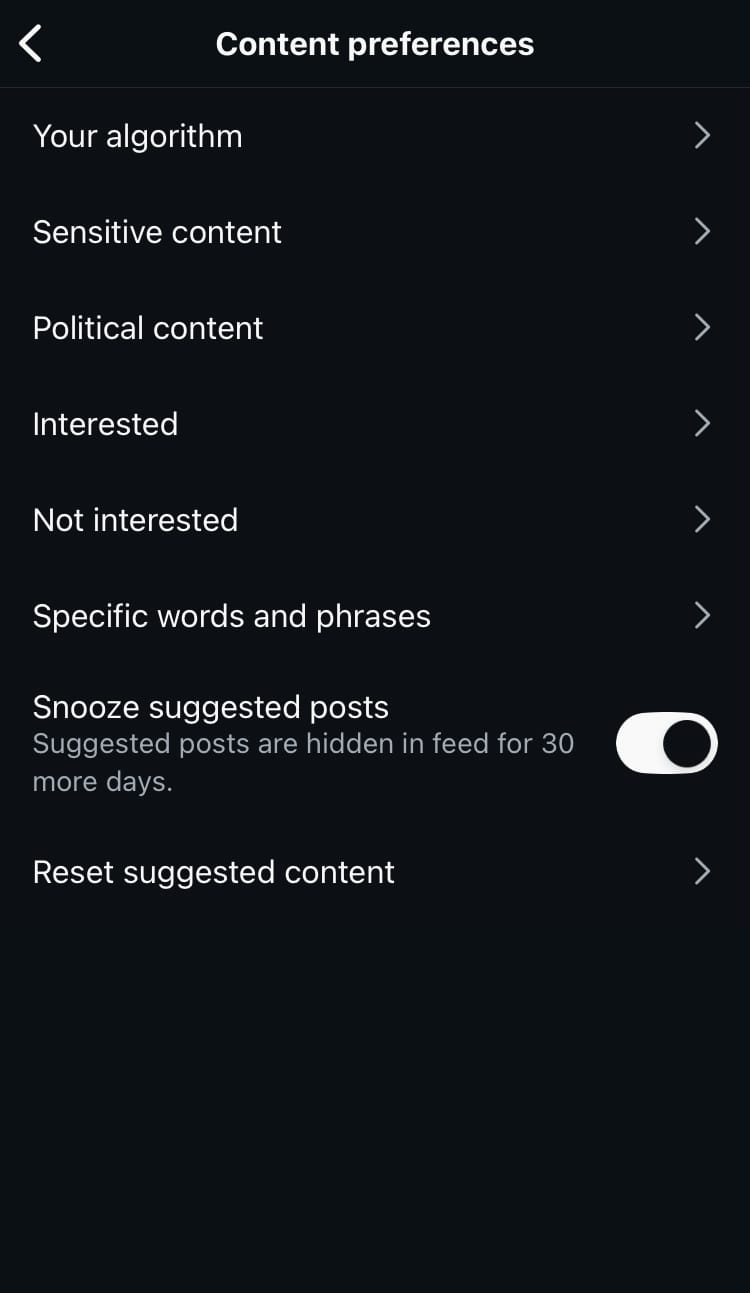
How to snooze suggested content for 30 days
Totally reset your suggested content
Feel you need a bigger change? You can reset your suggested content entirely by choosing ‘Reset suggested content’. Slap the button at the bottom of the screen a few times and you’ll start seeing new suggestions ready to be shaped by your activity from this point forward.
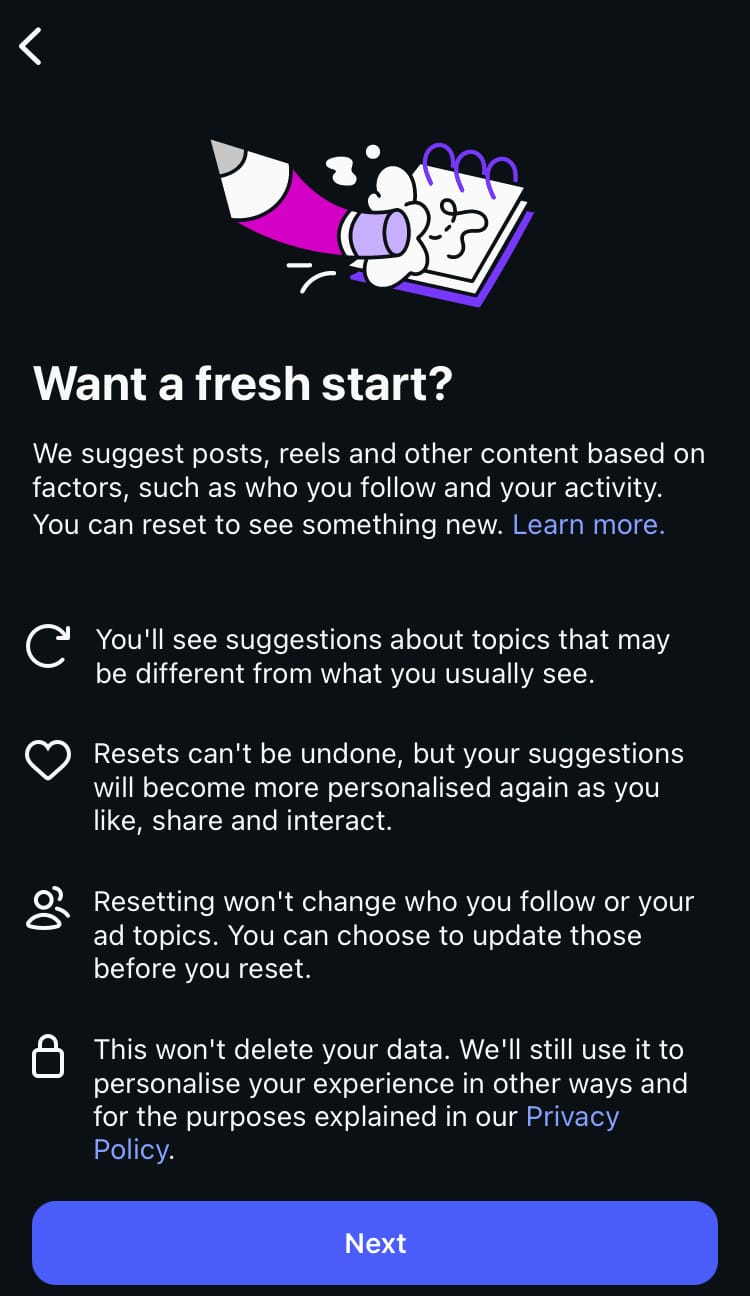
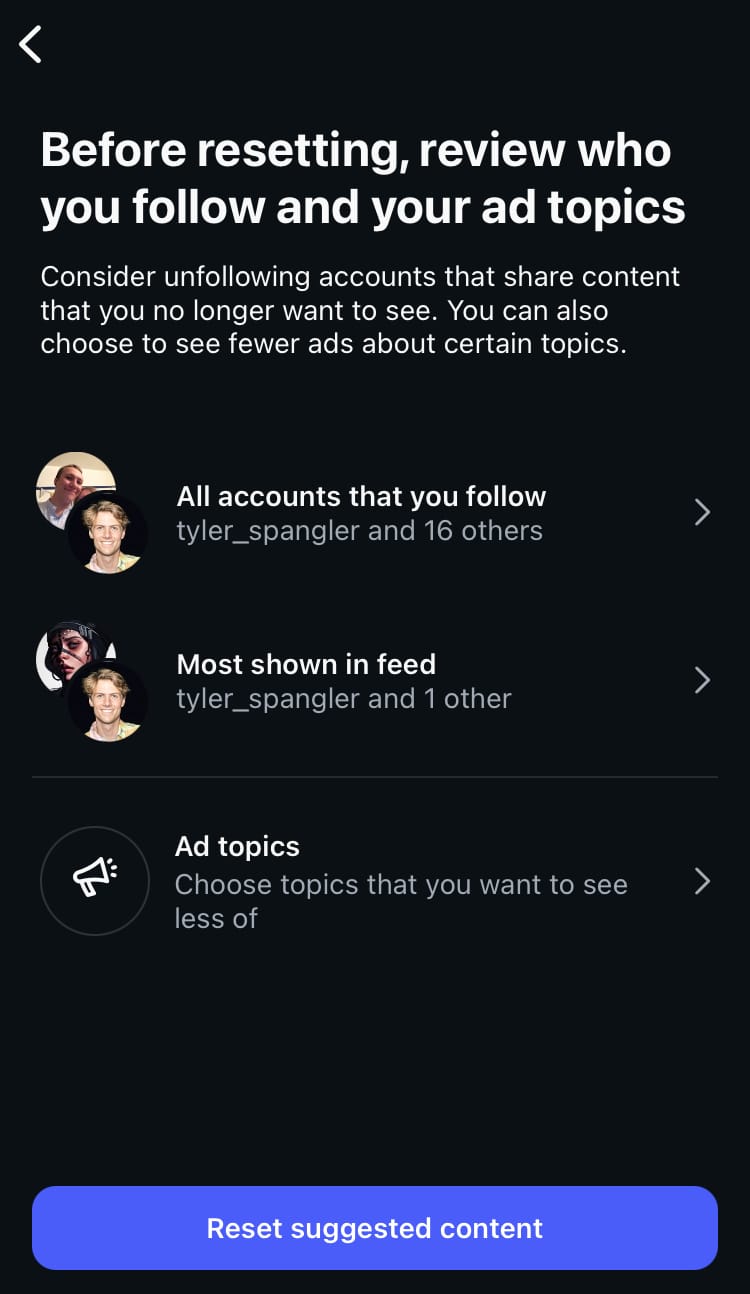
How to reset suggested content
Looking for a fresh approach to your social media analytics? Minter.io is the next addition you need. It’s packed with powerful metrics across multiple platforms, so you can view, analyse and export all the info you need in one place. Give it a whirl here!
All the metrics you need to grow your business on social media.